The area outside of towns and dungeons is called the "Filgaia Map". Areas within towns and dungeons are called the "Active Field".
Filgaia Map Information
•
A. Shows available actions and corresponding buttons. Actions change based on the character's location.
•
B. Mini-map for checking bearings and travel direction.
•
C. Displays exact coordinates if a specific item is equipped.
•
D. Shows if encounter-break is on or off. Toggle with the R2 button.
Using the Mini-Map
The character is always in the center of the mini-map. A white line shows the direction of movement, and a white V-shape indicates the character's heading.
Map edges are marked with "N" for north, "S" for south, "E" for east, and "W" for west. Green marks designate field area entrances or save points. Equipping a special item can increase the mini-map's displayed area.
Using the Map of Filgaia
To display the map of Filgaia, press the START button while on the Filgaia Map. Use L1 or R1 to display the entire map or scroll between southwest, southeast, northwest, and northeast quadrants.
Your current location is a "V" mark. Visited places are squares: green for towns/villages, red for dungeons.
Traveling the Filgaia Map
Use the left stick to move the character and the right stick to change the camera perspective. You will encounter save points, berry trees, and other interactive objects.
Press the button to interact with objects.
Search System
Press the button while navigating the Filgaia Map to use the search system. This helps find undiscovered items like treasure boxes and other surprises.
Berry Trees
When you find a tree with ripe berries, push the button. You will receive heal berries and potentially other items.
Save Points
Standing on a save point allows you to save your progress and cure any status ailments.
Searching Nearby Areas
Press the button to search the area immediately surrounding your character.
Traveling by Vehicle
On the Filgaia Map, you can travel by train or Monowheel. To use the Monowheel, you need the "Call Whistle" to summon it.
To use trains, you must have either a Class A License or an "FX ticket" to board.
Operating the Monowheel
•
Pushing the left analog stick up / button: Accelerate
•
Pushing the left stick left or right: Move left or right along the Y-axis
•
button: Dismount the Monowheel
•
L1, L2, R1, R2 buttons: Sound the horn
Active Field Information
The Active Field displays more information than the Filgaia Map.
•
A. Shows available actions and corresponding buttons. Press R1 to toggle between basic actions and shooting mode.
•
B. Cartridge being used in shooting mode. Change cartridges with L1 or L2.
•
C. Current area the character is in, based on the dungeon's numbering system.
•
D. Shows if encounter break is on or off.
•
E. Mini-map display. The color of the mark at the top changes based on the approaching route tracker's color.
Route Trackers
Route trackers indicate connected sections of the dungeon. A blue mark means a route not yet taken, yellow means visited, and red means just came from.
Press the SELECT button to show or hide route trackers.
How to Read the Dungeon Map
To display a dungeon map, press the START button in the Active Field. Use L1 or R1 to switch between map pages.
Dungeon floors are numbered, with the current floor shown at the top right. Enlarge the map by pressing START and scroll with the left analog stick. Icon explanations are at the bottom of the screen.
Actions and Traps
More action movements are available in the Active Field compared to the Filgaia Map. Mastering these actions is vital for solving puzzles in dungeons.
Basic Actions
•
Walking and Running: Slightly tilt the left analog stick to walk. Hold it all the way to run.
•
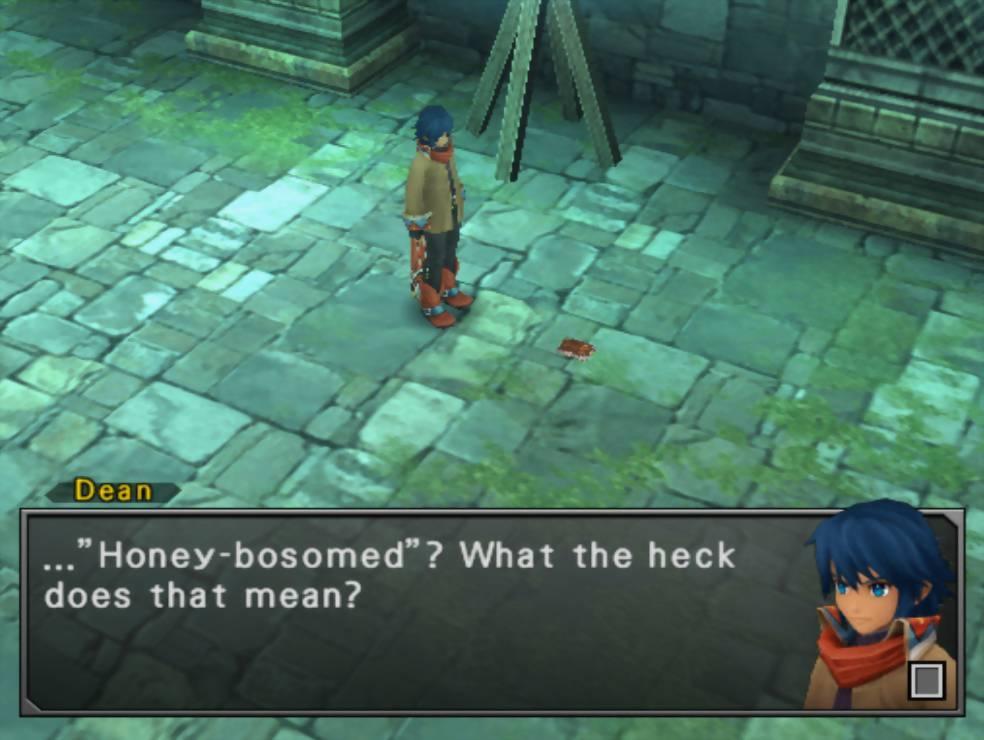
Sliding: Press the button or hold down the button while walking or running, and push the left analog stick in the desired direction. Dean can break boxes or move objects with this.
•
Stomping: When jumping from high places or in place, press the button in mid-air to perform a stomp attack.
•
Crouch: While standing still, hold the button to make Dean crouch.
•
Jump: While standing still, press the button to jump in place. When moving, Dean will jump in the direction the left analog stick is pushed.
•
Grab: Stand next to a block or crate and press the button to grab it.
•
Push or Pull: While grabbing an object, press down/up or left/right on the left analog stick. Dean will push or pull the box. Remember to keep holding the button while pushing or pulling.
•
Examine: Stand beside an object and press the button to examine it.
Shooting Mode
As you progress, your ARMs will be able to shoot certain objects. This is called shooting mode. Using different bullets, Dean can operate switches, destroy objects, and open treasure boxes.
Mode Usage and Cartridge Changing
Press the R1 button to ready Dean's ARMs. Cartridges can be switched by pressing L1 or L2. Press the button to shoot bullets.
Bullets
.png)

.png)

.png)

.png)
.png)
.png)

_1.png)