Starting Up
1. Turn off your Super Nintendo Entertainment System by sliding the POWER bar away from the Game Pak slot. Plug one game controller into your system for one-player action versus the Super Nintendo Entertainment System. Plug in a second controller for two-player competition. 2. Insert the ESPN Baseball Tonight Game Pak, label facing front, in the system slot.
3. Turn on the system by sliding the POWER bar toward the Game Pak slot. The Sony logo appears, followed by the ESPN Baseball Tonight graphics. As prompted on the screen, you may press the Start Button and go to the Main Options screen. Always make sure the power switch is turned OFF before inserting or removing a Game Pak.
Getting Started
Press the Start Button at the ESPN's Baseball Tonight Title Screen to get to the Game Selection Screen.
Game Selection
On the Main Options screen, press the Control Pad UP and DOWN to highlight the play options listed, then press LEFT and RIGHT on the Control Pad to change the option. Then press the Start Button to make your selection.
Main Options
•
1-PLAYER GAME: Lets you play against the Super Nintendo Entertainment System in either Exhibition or Playoffs competition. You can also choose to play a 2-Player game by highlighting the "1-Player" option and pressing the Control Pad LEFT or RIGHT to select the "2-Player" option. •
2-PLAYER GAME: Lets you play against another person in either Exhibition Season or Playoffs competition.
•
EXHIBITION PLAY: Choose a club and go into your exhibition mode. These games are full-out but strictly off the record, giving you a chance to test your team's limits as well as the skills of your competition.
Playoffs Competition
In 1-PLAYER mode, you choose a team to take into the playoffs for either the National League or the American League pennant. If you win the pennant, the Sega Genesis System determines the outcome of the other league's playoffs. You will then go up against that team in the World Series.
ESPN Baseball Tonight gives you the option to choose between playing a 2 Division League or a 3 Division League. You are able to make your choice at the Game Play Options Screen by scrolling down to "3 Division League" and toggling the D Pad left or right to make your selection. Then press the Start Button to confirm your selection.
For 1 or 2 player Exhibition Play, game play is unaffected.
Practice Mode
Before you race for the pennant, you may want to get some batting practice. Press the C Button to toggle between pitching and batting practice. Press the Start button to exit the practice mode.
Home Run Derby
Here's your chance to really rip the cover off the ball! You get fifteen pitches to show your stuff with your favorite team. One or two players can go up against the pitching machine.
The controls are as follows:
•
A Button - Swing the bat
•
C Button - Try the Home Run Derby again
•
Start Button - Exit back to the options screen
Game Play Options
This brings up another menu of choices for setting up play as you want it:
•
Errors ON/OFF: Allows your fielder to make mistakes and mishandle catchable balls.
•
Assisted Fielding ON/OFF: Allows for the option of computer assistance in your fielding by automatically bringing the appropriate player nearer to the path of the hit.
•
Player 1 Home/Away: Allows you to choose a Home Game or Away Game.
•
3 Division League/2 Division League: Allows player to choose between a 2 Division League and 3 Division League.
•
Enter Password: During the playoffs mode, you will be given a password after each game. Record these passwords to save your progress and resume play at a later date.
League Select Screen
To make a League selection (American League: East, Central and West; National League: East, Central and West) press the Control Pad LEFT or RIGHT to toggle through the various selections, and press the Start Button to enter that selection. You'll go straight to the Team Select Screen.
Major League Baseball has implemented a new divisional and playoffs structure. We have incorporated the option of choosing between the traditional two divisional and current three divisional structure in the game.
Selecting Your Team
There are 28 teams in this game, and any one of 'em is yours for the managing. To make a team selection, press the Control Pad LEFT or RIGHT to toggle through the various selections, and press the Start Button to enter that selection.
ESPN Sports Center Update
Press the Start Button following the Team Selection Screen, and we'll take you straight to the ESPN SportsCenter, where Chris Berman will announce your game.
Line Up Screen
The Line Up Screen appears when you choose your team. The Line Up Screen shows a roster of all the members of your team, arranged by position. Along with each player's name, you see his stats and his position in the batting order.
You can scroll to your Bench and Bullpen rosters by pressing the Control Pad LEFT or RIGHT. To bypass the Line Up, Bullpen, and Bench screens, and begin play, press the Start Button.
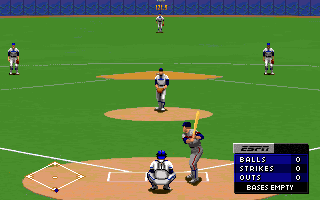
In-Game Status
•
INNINGS: Displays current inning of the game.
•
TEAM STATUS: Displays the team names and shows the current total of runs, hits and errors of each team.
Making a Player Substitution
You can substitute players from either the
.png)

.png)
.png)
.png)


.png)


.png)
.png)
.png)

.png)