Credits
•
Creative Director: Kevin Lydy
•
Art Director: Stan Gorman
•
Packaging & Print Director: Debbie Austin
•
Game Designers: Don Goddard, David Schwartz, Michael Hunley, Michael Platteter, Dana Williams, Bruce Moore, Kevin Lydy, Michael Abbot
•
Game Programmers: Don Goddard, David Schwartz, Michael Hunley
•
Game Artists: Michael Platteter, Dana Williams, Franz Borowitz, Sukru Gilman
•
Package, Manual Design & Illustration: Shawn Murphy, Steve High, Debbie Austin, Beeline Group, Inc.
•
Music & Sound Effects: Chip Burwell
•
Quality Control: Brian Johnson, Randy Estrella, John Stookey, Tim Heydelaar, Dan Lewis, Steven Kramer
•
Sound/Music Player: © 1992, 1993 Chip Level Designs.
Getting Started
•
Turn the power OFF on your Super NES.
•
WARNING: Never try to insert or remove a Game Pak when the power is ON.
•
Make sure a Controller is plugged into the #1 Port on the Super NES. A Controller and the Super NES Mouse can be plugged into either port at anytime during the game.
•
Insert the Game Pak into the slot on the Super NES. Press firmly to lock the Game Pak in place.
•
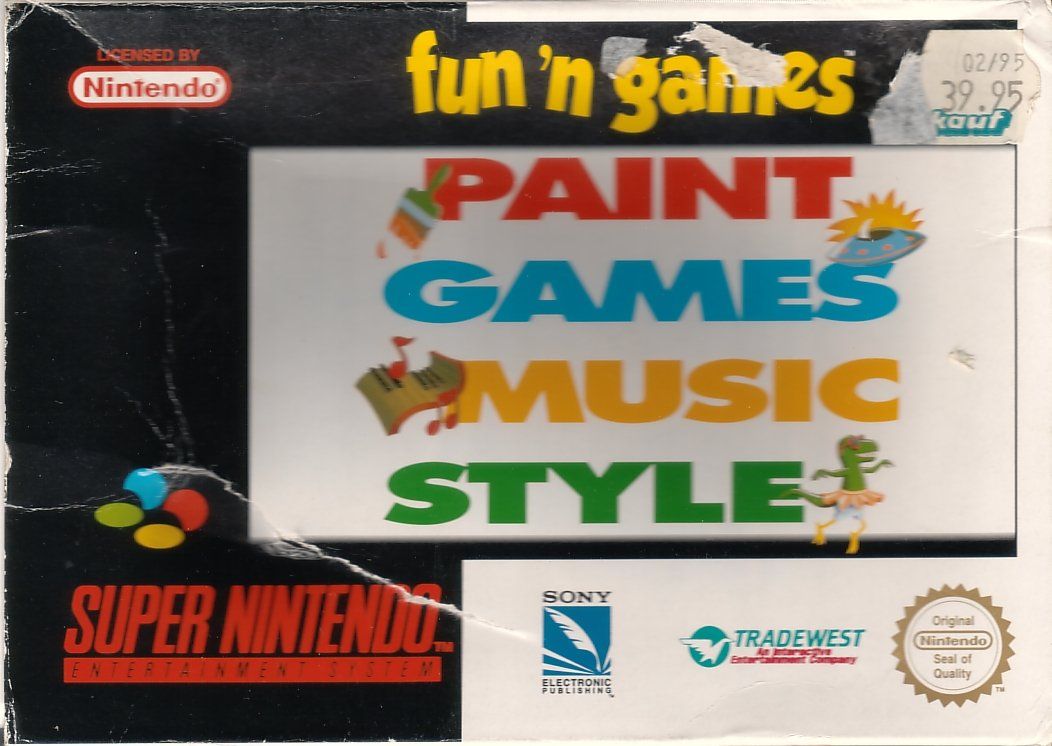
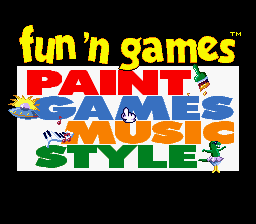
When you see the Fun 'N Games™ title screen, press Start to begin the fun!
Choosing An Activity
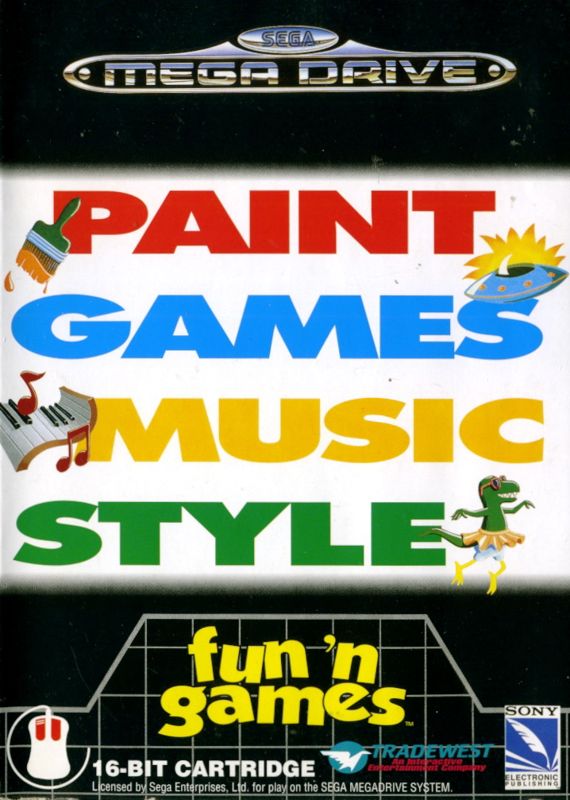
The first screen you will see is the FUN 'N GAMES™ Title Screen. When it comes up, press Any Button. You will then see the 4 activities and the Helping Hand appear on the screen!
Use the Control Pad on the Controller or use the Mouse to move the Helping Hand to the activity of your choice. Press Any Button and you're off!!
•
Paint: Drawing And Painting Fun!
•
Helping Hand: Use It To Choose An Activity!
•
Music: Create Your Own Music!
•
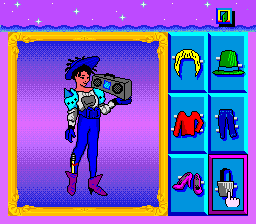
Style: Dress-Up Fun & Goofy Characters!
Paint Help
If you need help at any time, just press the Start button and the Help Screen will appear! This screen will show all of the Paint Symbols and tell you what they do!
Basic Tool Selection
Paint has a Tool Box located at the top of the screen. To choose a tool move the Helping Hand to the tool symbol and press the Main Action Button. A Hi-Lite box will appear around the tool you have selected! Then move the Helping Hand down to the drawing board and press the Main Action Button once again to use the tool! Simple, huh? Inside the Tool Box
There are many different tools in the toolbox and each has its own symbol. Study the symbols carefully!
•
Oh No!: If you make a mistake the Oh No symbol will undo it! It will only undo your very last action. •
Exit: If you want to go back to the Main Selection Screen, just look for this door and go through it!
•
Up/Down Arrow: Use this to look at the different drawing and effects tools. You'll find it on the left side of the tool menu.
Palette
The Palette controls the color of the Drawing Tools and the Filler Paint Can. You have 15 colors and 150 different patterns to choose from - that's a lot! Use the arrow symbol located on the right side of the palette to look at the patterns.
Mystery Effects
These are mystery drawing tools that will create magical effects when the Main Action Button is held down! Check it out! Picture Framer
After finishing your work of art, you might want to record it on the VCR! If you don't want the Tool Box and Palette on your recording, pick this symbol before you record and they will disappear. To make the Tool Box reappear, just press Any Button!
Drawing Tools
Once you have chosen a Drawing Tool, move the Helping Hand down to the Drawing Board. Now, press Any Button to draw a line. Press Any Button again to stop the line.
Hint! Want to change your drawing speed? Just press Select!
Eraser
Comes in three sizes! Select this symbol and hold down Any Button to clean up any mess!
Geometric Shapes
You can make cool geometric shapes with these tools!
•
Unfilled: Box, Circle, Super Shape
Hint! When using the Super Shape you can stop and restart the Super Shape by pressing the Secondary Action Button! Copy and Paste Lasso
You can copy a part of your picture and paste it down anywhere as many times as you like! How? Press Any Button and draw a box around the area you want to copy. Press Any Button again to close the box.
Paste the image where you want by continually pressing the Main Action Button. To start another box, press the Secondary Action Button. Hint! Only the parts of the image with color are copied! Also, you can hold the button down and move the cursor to continually paste the image to create a cluster or group of images!
Music Selection
When you select this symbol you can choose a soundtrack for your picture! The Song Palette will appear instead of the regular Palette.
Note: If you play a
.png)

.png)



.png)
.png)
.png)
.png)


.png)


.png)

.png)