Selecting Teams and Starting Exhibition
•
Highlight the team you want to control in the Controls box. Press Button A until your desired game-control icon (Control Pad 1, Control Pad 2, or computer) appears next to the team name.
•
Highlight the opposing team and press Button A until the desired game-control icon for your opponent appears.
•
Highlight OK and press Button A (or press START) to return to the Exhibition Pre-game screen.
•
Select Play Ball! or press START to begin the Exhibition Game.
The Batting Options Window
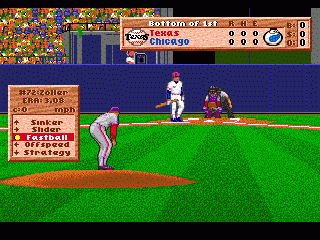
If you chose to control the Visitor's Team, you will start at bat. If you chose the Home Team, you will start on the mound.
The Batting Options window displays the batter's name, uniform number, batting average, and hits-to-at-bats ratio for the current game. It also lists three types of swings and a strategy option.
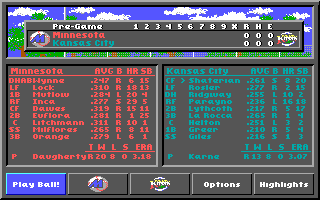
Press START at any time during the game to call a time out and go to the Scoreboard/Lineup screen. Highlight Play Ball! and press Button A (or START) when you are ready to resume.
•
To re-locate the control panel, press and hold the Control Pad ▲ or ▼.
•
To move the panel left or right, press the Control Pad ▲ or ▼, then also press the Control Pad ◄ or ► while the panel is moving.
•
Press Button B to return to the game.
Making Substitutions
•
1. Press START to go to the Scoreboard/Lineup screen.
•
2. Select your team's logo to open the Roster screen.
•
4. Highlight the player you want to remove and press Button A.
•
5. Highlight the player you want to insert from your bench or bullpen and press Button A. The players will exchange places.
Note: A player removed from the game cannot return. An "x" will appear next to his name on the roster.
In the Bullpen
•
1. Press START to go to the Scoreboard/Lineup screen.
•
2. Select your team's logo to display the Roster screen.
•
3. Select Bullpen Status to display the Bullpen Status window.
The On The Mound box at the top of the window lists the following stats for your current pitcher:
•
Right-handed/left-handed (T)
•
Win/loss/save record and ERA
•
Current status: OK (strong), Tiring (start warming up a reliever), Fatigued (time to substitute), or Exhausted (pitcher will be getting shelled)
•
Total number of balls, strikes, and pitches thrown
To warm up a new pitcher:
•
4. Select Warmup in the Bullpen Status window.
•
5. Highlight the pitcher you want and press Button A. The words "Warming Up" will appear next to his name.
Note: A pitcher needs to warm up for one inning. Bringing him in early or letting him warm up too long may affect his control.
Substituting a Pitcher
•
1. Select Substitute in the Bullpen Status window.
•
2. Highlight the pitcher you want to bring in and press Button A. The current pitcher will be relieved.
•
3. Select Return to exit to the Roster screen.
Viewing the Box Score
•
1. Press START to display the Scoreboard/Lineup screen.
•
3. Select Box Scores to view the up-to-the-minute box score.
•
4. Select Highlights to return to the Highlights screen, or select Return to go back to the Scoreboard/Lineup screen.
Setting Up an Exhibition Game
Highlight Exhibition Game on the Main Menu and press Button A to open the Exhibition Pre-Game screen.
The screen shows the currently selected teams. Select START to play with these teams. To choose different teams, refer to the Quick Start instructions.
Edits made to an Exhibition Game team or its individual players will not be saved after the current game. If you want to edit the team's roster, do so before choosing Select.
Editing the Team Roster
You can edit the team roster for an Exhibition Game, though edits will not be saved after the game. In League play, edits are saved until power down. To view your team's roster, select Roster on the Team Summary screen. Select Return when finished to go back to the Exhibition Pre-Game screen.
Viewing Player Statistics
Highlighting a player on your roster displays a baseball card showing his picture and information. The stats displayed on the right side accumulate as the season progresses and cannot be modified.
Making Roster Substitutions
•
2. Highlight the player you want to remove from your starting lineup and press Button A. The player's name will change color.
•
3. Highlight the player on the bench or bullpen you want to insert and press Button A. The players will exchange places.
Setting Your Batting Order
•
1. Select Batting Order.
•
2. Highlight the player in the starting lineup you want to move and press Button A. The player's name will change color.
•
3. Highlight the location in the lineup where you want that player to bat and press Button A.
•
4. Repeat steps 2 and 3 until your batting order is set.
Positioning Your Fielders
You can choose from
.png)

.png)

.png)
.png)


.png)


.png)
.png)
.png)

.png)