Getting Started
•
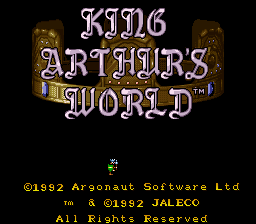
After the title screen appears, you may watch a short animation sequence that describes your crusade. This is followed by a demo of the game. Press any Controller button to continue to the Options Screen. If you are using a mouse, press the Left Mouse Button.
Options Screen
You may select one of four options from this screen. To select an option, position the Hand over the button next to that option and press any Controller or mouse button.
•
Start: Press this button to begin the game at the selected level. If you have not entered a Password to select a specific level, you will begin the game at Training Level 1.
•
Password: The Password Screen shows 16 buttons in a 4 x 4 square grid. Passwords consist of a specific combination of pressed and unpressed buttons. The appearance of the buttons on the screen changes when they are pressed. To press a button, position the Hand over that button and press any Controller or mouse button.
•
Army: This screen allows you to choose the number of men present in each group. You may have as few as one or as many as six individuals in a particular group. When you select a character to perform a task, the designated number of men will appear and will act as a group, moving and working together.
•
Sounds: The Sounds Screen allows you to turn the music ON or OFF, select Dolby Surround™ sound, and sample all of the music and sound effects heard in the game. Select "End" to exit this screen and return to the Options Screen.
Password Details
Each time you successfully complete a level, you will be given the password to the next level. To save this password, copy down the exact location of every pressed button.
To return to a specific level at a later time, go to the Password Screen and enter the password by pressing the correct buttons. After entering a password, press "Done" to go to the selected level. A message on the screen will let you know if the password is "Correct" or "Incorrect." Select the "Start" option to begin. If the password is incorrect you will be placed on Training Level 1.
Army Screen Details
Six different types of characters appear on the Army Screen. The default group size for each character is:
Unlike the six characters listed above, Soldiers cannot appear in groups. Therefore, they are not listed on the Army Screen.
To change a group size, position the Hand over the UP ARROW or DOWN ARROW buttons next to the current value and press any Controller or mouse button. Press "Exit" to leave this screen and return to the Options Screen. Note that the total number of men available in each character type varies from level to level, and may be less than the designated group size.
Sound Options
•
Game Music On: Select this button to turn the music ON or OFF. The change will take effect when the game begins.
•
Dolby Off: Select this button to turn the Dolby Surround™ sound option ON or OFF. Your sound system must be equipped with Dolby Surround™ sound in order to take advantage of this option.
•
Play Tune: Use the UP ARROW and DOWN ARROW keys to select a tune. Select the button next to the arrow keys to play that tune.
•
Play Effect: Use the UP ARROW and DOWN ARROW keys to select a sound effect. Select the button next to the arrow keys to play that sound effect.
Mouse Controls
•
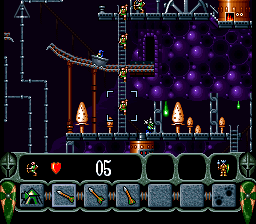
New Character: Position the Mouse Pointer over the Icon Bar and press the Right Mouse Button to display the Character Icons. Move the Mouse to highlight the desired icon, then press the Left Mouse Button to select that character and send him out of the tent. If you already have three characters or groups on the screen, you must send one of the existing characters back to the tent before you can select a new character.
•
Switch Characters: Position the Mouse Pointer over the desired character on the Status Bar and press either mouse button. You may also scroll the game view until the character that you wish to select appears. Position the scroll pointer over that character and press the Left Mouse Button while holding down the Right Mouse Button.
•
Carry Out Action: Position the Mouse Pointer over the Action Icon you wish to select and press the Left Mouse Button to perform that action. Action icons vary from character to character, depending on their skills.
•
Scroll the Screen: Position the Mouse Pointer over the game view portion of the screen, then press and hold the Right Mouse Button. The standard Mouse Pointer changes to a four-directional cursor. To scroll the screen in a particular direction, move the cursor to that edge of the game view and the screen will begin to scroll automatically. Still holding down the Right Mouse Button, move the cursor away from the edge of the screen to stop the scrolling. Release the Right Mouse Button to return the game view to the position of the active character.
•
Pause the Game: Position the Mouse Pointer over the Paws (Pause) icon on the right side of the Icon Bar, then press the Left Mouse Button. Press it again to resume play.
On-Screen Displays
•
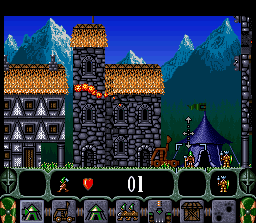
Active Character: A square cursor surrounds the active character. In a group, the cursor surrounds the lead man in that group. Press Left or Right on the Control Pad to move the character (or group) in
.png)

 (Beta).png)
.png)