STARTING THE GAME
It is advised that you do not insert or remove peripherals or Memory cards once the power has been switched on.
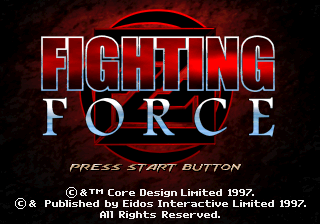
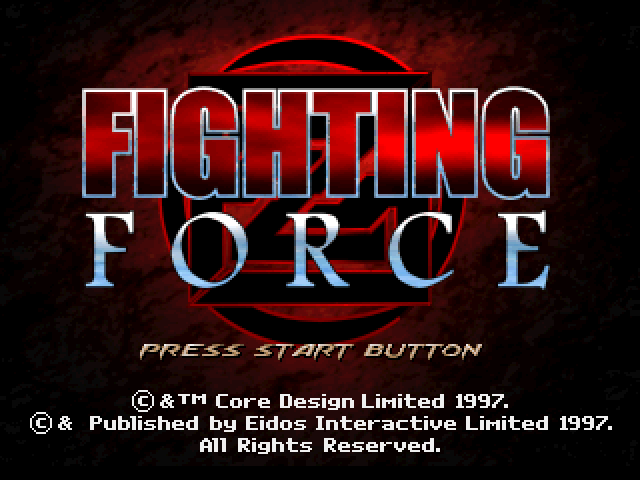
You will first be presented with the Eidos/Core introduction followed by a brief game introduction before being taken to the Title Screen. Press the Start button to access the Main Title Menu. MAIN TITLE MENU
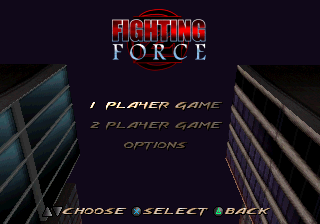
Here you will be able to select the following options:
•
1 Player: Select to take you to the Character Selection Screen.
•
2 Players: Select to take you to the Character Selection Screen. You must have 2 Controllers connected to be able to select this option.
•
Options: Select to take you to the Options Screen.
CHARACTER SELECTION SCREEN
Here you will be able to select the character which you wish to play. Simply highlight the character using the right and left Directional buttons, and press the Button to select. Once selected, your game will start.
Both players will not be able to select the same character in a 2 player game.
OPTIONS SCREEN
Here you will be able to select your in-game options. Use the Directional buttons to highlight, and where necessary, change the options. Pressing the Triangle Button returns you to the Main Menu Screen.
The options available to you are:
•
Difficulty: EASY/NORMAL (Default) / HARD
•
Music Volume: Use right and left Directional buttons to set level.
•
SFX Volume: Use right and left Directional buttons to set level.
•
Stereo / Mono: STEREO (Default) / MONO
•
Controller Settings: Select and you will be presented with 8 pre-set control configurations. Selecting your desired control setting will return you to the Options Screen.
•
Load Memory Card Data: Select to take you to the Load Game Screen.
•
Load Settings: Use this option to load your Option Screen settings.
•
Save Settings: Use this option to save your Option Screen settings.
•
Screen Adjust: Select and you will be taken to the Screen Adjust page. Use the Directional buttons to position the screen as desired, press the Triangle Button to apply and return you to the Main Title Screen.
•
HI-Scores: Select to view the current top 10 high scores.
•
Exit: Select to return to the Title Screen.
SAVING YOUR GAME
Make sure that there are enough free blocks on your Memory card before commencing play. Please note that if you do not have a memory card you will not be able to save your game.
At certain points in the game you will be prompted to decide whether or not to save your game to the Memory card. If you wish to do so, highlight and select YES. If you do not wish to save your game highlight and select NO.
After making your selection, you will be returned to the point of the game from which you were prompted. Your full game configuration will be saved within the save game.
Warning! Do not remove a memory card while the game is saving/loading; the game may not save or load correctly.
LOADING A SAVED GAME
From the Options Screen selecting Load Memory Card Data will take you to the Load Game Screen. Here you will be able to load your saved game.
Displayed on-screen will be the name of your saved game file. Only one file will be held per Memory Card. Pressing the Button will commence your game from the save game point, pressing the button will return you to the Options Screen.
Please note you will only be able to Load a 2 player saved game if you have both Controllers connected.
QUITTING THE GAME
While playing the game, you can return to the Title Screen by pressing the Start button (to pause the game) then by pressing the Select button and following the on-screen prompts.





.png)


.png)


.png)
.png)


.png)
.png)

_1.png)