Getting Started
This CD-ROM can only be used with the Sega Saturn System. Do not attempt to play this CD-ROM on any other CD player, as doing so may damage the headphones and speakers. Set up your Sega Saturn system by following the instructions in your system Instruction Manual. Plug in Control Pad 1, and Control Pad 2 for 2-player games. Place the Sega Saturn CD-ROM, label side up, in the well of the CD tray and close the lid. Press the Power Button to load the game. The game starts after the Sega Saturn logo screen. If nothing appears, turn the system OFF and ensure it is set up correctly. To stop a game or restart after it ends, press the Reset Button on the console to return to the Title Screen. To return to the Control Panel, press Buttons A, B, C, and Start simultaneously at any time.
If you turn on the power without inserting a CD, the Audio CD Control Panel appears. To play a game, insert the disc, press the D-Button to move the cursor to the top left button on the Control Panel, and press Start.
Important: Your Sega Saturn CD-ROM contains a security code that allows the disc to be read. Keep the disc clean and handle it carefully. If the system has trouble reading the disc, remove it and wipe it carefully from the center straight out toward the edge. Controls
The controller features the following buttons and inputs:
•
Right Shift Button / Left Shift Button
•
Directional Button (D-Button)
•
Button X, Y, Z, C, B, and A
Basic Actions
•
D-Button LEFT: Turn Left
•
D-Button RIGHT: Turn Right
Combat & Movement
•
Button A: Fire Missiles (hold for a continuous fire barrage)
•
Button B: Fire Minigun (hold for a continuous fire barrage)
•
Button C: Speed Burst (hold for constant speed burst)
•
Button X: Change play perspective
•
Button Z: Fire Heavy Missiles
•
Right Shift: Slide Right
Main Menu
From the Main Game Menu, you can choose to play with one or two players, view game configuration in the Options Menu, and begin your mission against A.Z.T.K.
To make a selection, press the Directional Button up or down to highlight an option, then press the START key to confirm your choice.
•
PLAYERS: Select the number of players (1 or 2).
•
OPTIONS: Access the Options Menu.
•
START GAME: Begin the game.
Options Menu
The Options Menu allows you to adjust game design and settings according to your preferences.
Press the Directional Button up or down to select an option, then press Left or Right to view the available choices for that setting.
Available settings include:
•
PASSWORD: Enter a password to select a level.
•
MUSIC TEST: Listen to game audio.
•
MUSIC + SFX: Select audio modes.
•
STEREO: Choose between stereo or mono sound.
•
CONTROL: Configure control layout.
•
HARD: Select difficulty level.
•
RETURN TO MAIN: Go back to the Main Menu.
Level Selection
This menu allows you to choose the level at which you want to begin your mission. This option is only available when using a password.
Password
Enter your password using the corresponding command keys on the Control Pad.
Music Test
Listen to various pieces of music in the game. Press the Left or Right Directional Button to browse between different tracks, then press the A key to listen to your selection.
Music and Sound Effects
Choose to play with background music and sound effects, turn them all off, or play with only the music or only the sound effects.
Stereo/Mono
Select whether to play in stereo or mono sound mode.
Command Configuration
Configure the layout of the controls according to your own preferences. Press the Left or Right Directional Button to make a selection.
Difficulty Selection
Choose between Easy or Hard difficulty settings.
The Radar
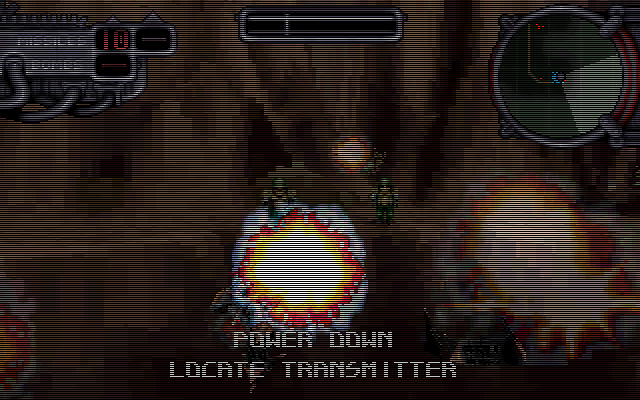
The radar alerts you to enemies or allies about to arrive. It provides critical situational awareness during gameplay.
Field of View
The Field of View Triangle represents your visible zone, displaying enemies as red dots and allies as white dots.
Compass
The compass functions like a normal compass, indicating the direction in which you are traveling. A small red arrow acts as your targeting reticle; follow it to reach your next target.
Weapon Sight
The Gun Sight is fixed in the middle of the screen, so you must move the Walker to aim. The sight is divided into two units: the Gun Sight and the Missile Sight.
The weapon sight is floating and tracks the closest enemy. When an enemy is in view, the Missile Sight turns red, indicating that you should fire.
Most fast enemies are very hard to hit with missiles. Examine the enemy before wasting ammunition. If the Missile Sight is not directed at an enemy, a fired missile will follow the path of the Gun Sight.
Weapon Sights
The weapon sight is fixed in the middle of the screen, requiring you to move your Walker to aim.
The weapon sight is composed of two units:
The Weapon Sight is a mobile sight that finds the nearest enemy. When enemies are in sight, the Missile Sight turns red, signaling it is time to attack.
Many fast enemies
.png)

.png)
.png)


.png)

.png)


_1.png)