Game Disc System
Resident Evil Code: Veronica X is composed of 2 Discs for the NINTENDO GAMECUBE. •
To start a new game, insert Disc 1 into your NINTENDO GAMECUBE. •
When you finish Disc 1, you will have the opportunity to save your game in order to continue play. This save is different from normal saves during gameplay.
•
You don't need an ink ribbon to save. It does not count as a true save. Your progress is only temporarily saved while you change Discs.
•
After saving, you will be instructed to change Discs. Remove Disc 1 and insert Disc 2 to continue play.
Starting a Game
Insert the Disc you want to play into your NINTENDO GAMECUBE. Use the Control Stick or +Control Pad to make selections, and press the A Button to confirm your selection. Disc 1
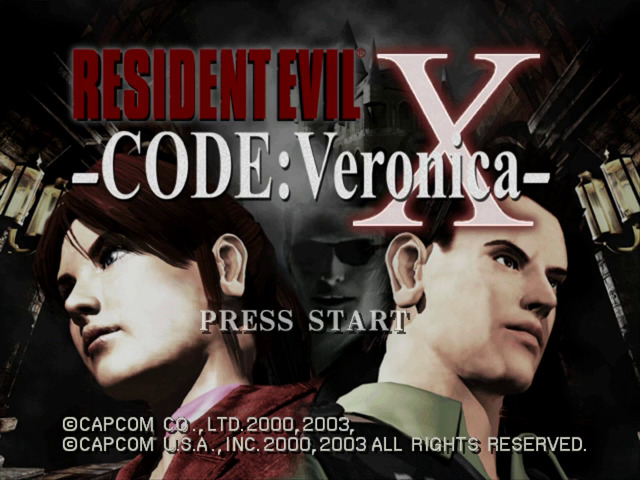
Use this Disc to begin a game. To start a new game, select NEW GAME in the Title Screen. To play a previously saved game, select LOAD GAME and then select the game you want to play.
Disc 2
When you finish Disc 1, change Discs as prompted on screen. To play a game previously saved on Disc 2, insert the Disc into your NINTENDO GAMECUBE, select LOAD GAME and then select the game you want to play. Option Menu
To display the Option Menu, select OPTION from the Title Screen, or press START/PAUSE during gameplay. On the menu, use the Control Stick or +Control Pad to highlight selections, and press the A Button to confirm.
•
AUDIO SET UP - Set the sound output to MONAURAL or STEREO.
•
KEY CONFIG - Change the game controls.
•
SCREEN SET UP - Center the game screen on your TV or monitor.
•
MONITOR TUNING - Adjust screen brightness. Your monitor must have a brightness adjustment function to use this option.
•
RUMBLE - Turn the Rumble Feature ON/OFF. When ON is set, the Controller will Rumble in response to game events.
•
DEFAULT - Reset all options to their initial status.
•
EXIT - Return to the Title Screen.
Status Screen
Press the X button to display the Status Screen, where you can check your character's condition and manage items. Select EXIT and press the X button to return to gameplay.
•
Bullets for the handgun.
Using Items
Open the Status Screen, highlight the item you want to use and press the Action button. When Item commands are displayed, select USE to use the item.
Equipping Items
If the item you select is a weapon, EQUIP will be displayed in the Item commands. Select EQUIP to ready the weapon for use. Weapons must be equipped in order for your character to attack with them.
Checking Items
Open the Status Screen, highlight the item you want to check and press the Action button. When Item commands are displayed, select CHECK and the item will be displayed in the main window.
When an item is displayed in the main window, you can rotate it with the Control Stick or +Control Pad and zoom in/out with the R and L Buttons. To examine a specific part of the item more closely, move the part to face you and press the Action button. You may find some clues to solve puzzles.
Combining Items
Open the Status Screen, highlight the item you want to combine and press the Action button. When the Item commands are displayed, select COMBINE, highlight the other item to be combined with the first item, and press the Action button to combine the items.
Certain items need to be combined to have an effect. For example, combine a Handgun and a modification component to create a custom Handgun.
Item Box
Your character can carry only a limited number of items at one time. You cannot lose an item once you find it, but you can use it up (like ammo, for example).
In order to carry only the items you need at a specific time, you can store other items in an Item Box. Item Boxes are located in various places in the game.
Maps & Files
To view a map or file you've acquired, open the Status Screen and select the MAP or FILE command. To return to gameplay, press the B Button.
Map
The area you have explored is automatically marked. The room you are in is displayed in red. Your location is shown by a ">" mark.
Door colors indicate:
•
YELLOW - The door is not locked.
•
RED - The door is locked and you don't have a key for it.
•
GREEN - The door is locked but you have a key for it.
The map also displays:
•
ITEM - If you have found an item and haven't taken it, the location of the item is marked.
•
SAVE POINT - Shows the location of a typewriter.
•
ITEM BOX - Shows the location of an Item Box.
You can switch the floors of the building by pressing the Control Stick or +Control Pad or and change stages by pressing or. To use Map Zoom Mode, press the Action button while a map is displayed. Use the R and L Buttons to
 (Disc 2).png)

 (Disc 2).png)
_2.png)
_3.png)
 (Disc 1).png)
