STARTING THE GAME
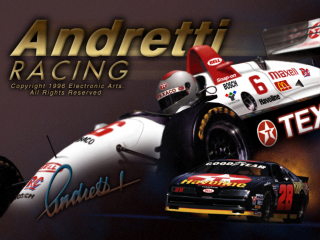
1. Set up your PlayStation™ game console according to the instructions in its Instruction Manual. Make sure the PlayStation™ game console power is OFF before inserting or removing a compact disc. 2. Insert the Andretti Racing disc and close the Disc cover. 3. Insert game controllers and turn on the PlayStation™ game console. The EA SPORTS™ opening sequence appears, followed by the ANDRETTI RACING title screen. 4. Press the START button to advance to the MAIN menu.
Make sure there are enough free blocks on your Memory card before commencing play.
Main Menu
The MAIN menu is where you choose Andretti Racing game modes. Sign up for an Exhibition Race to take a quick spin, embark on a Career, or go to the Racing School and study the basics. To choose a Main menu option:
•
Directional button UP/DOWN to highlight the option you want.
•
Press START or X button to select. The appropriate screen appears.
Exhibition Race
Enter and compete in a single race. See Setting up an Exhibition Race.
Begin Career
Commit to a career on the pro-racing circuit. See Setting up a Career. Resume Career
Return to complete a saved career. You can save your careers-in-progress to memory cards. See Resuming a Saved Career.
Linked Race
Link two PlayStation game consoles with two TV monitors, and run an Exhibition Race with 2-4 players. You must have two copies of Andretti Racing to race in Linked mode. See Setting up a Linked Race. Racing School
Enrol in the Andretti family's Racing School to learn the fundamentals and pick up a few pointers from the masters. See Racing School. Credits
The Andretti family enjoyed a little assistance in the development of Andretti Racing. Roll the credits to find out who the players are "behind the scenes." Setting up an Exhibition Race
An Exhibition Race is a stand-alone race. The competition is just as solid as it is in Career mode, but you're racing for time and position rather than points. To set up an Exhibition Race, select EXHIBITION RACE from the MAIN menu. The EXHIBITION RACE screen appears.
Exhibition Race Screen
In Exhibition mode, you have full control over the organisation of your races. Use the EXHIBITION RACE screen options to set up the type of race you want.
Default settings in this manual appear in bold type.
Select Player
Choose ONE PLAYER to challenge a pack of 15 computer-controlled cars, or TWO PLAYERS to race head-to-head on a split-screen.
Select Circuit
The circuit you choose determines the type of car you drive. Andretti Racing includes INDY CAR and STOCK CAR racing circuits. Select Track
Select a track for your next race. Indy cars and Stock cars can compete on all 16 tracks.
Select Laps
You can set your race to 3, 8, or 12 laps. The number of laps you choose plays a big part in the importance and frequency of pit stops.
Speed Comp
Available only when setting up a multiplayer race, Speed Compensation keeps the competition tight by providing a slight speed advantage to any cars trailing the leader. You can toggle this option ON/OFF.
Done
Accept the current Exhibition Race options. When you choose DONE, the EXHIBITION SETUP screen appears.
Exhibition Setup Screen
When the EXHIBITION SETUP screen appears, you're ready to hit the track. To begin a race with default settings, choose RACE.
Qualify
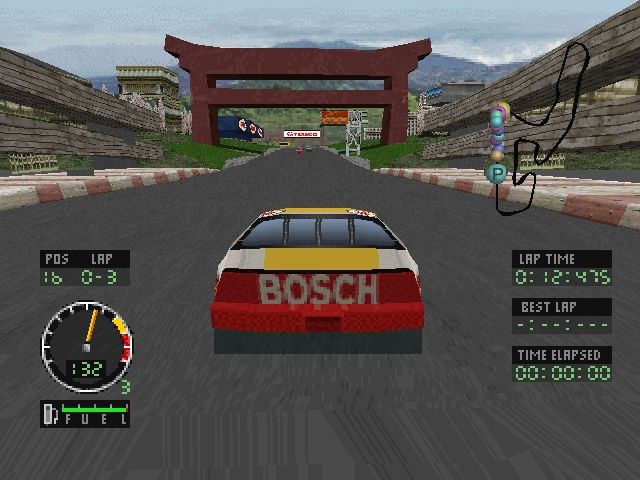
Available only in one-player races. You get three solo laps to qualify for grid position. (If you choose not to qualify, you start in 16th position.) Qualifying is also a great opportunity to familiarise yourself with the track before the race.
Your best lap is compared to the other drivers' times to determine starting positions. To get an update of your current qualification position, check the POSITION/LAP Overlay on the left of your screen after each lap.
Race
Load the race and roll out to the starting grid. (See Racing.) Car Setups
Modify your car for peak performance on the upcoming track. (See Car Setup Screen.)
•
The CAR SETUP screen appears automatically after a qualifying run, allowing you to make adjustments before the race.
View Records
Although Exhibition Races are single races, Andretti Racing tracks personal stats for each race. If you have a memory card, the EXHIBITION STANDINGS screen displays your Win/Loss record and Best Lap time. NOTE: To track stats by a specific name, you must register before you race. Stats for each race run under that name are compiled and saved.
Register
Register your name for the next race. Stats for every race completed with that name are tallied and displayed on the EXHIBITION STANDINGS screen.
•
Follow the on-screen instructions to register your name. When you're finished, select END. The REGISTER overlay disappears.
Options
Set general gameplay options. (See Options Screen.)
Car Setup Screen
Easily the most important feature in Andretti Racing, Car Setup adjustments allow you to customise your car for specific tracks. Make corrections based on the composition of the track, or wait to see how your car handles during qualifying before tuning. Experiment with different combinations of settings. •
Move the sliders LEFT/RIGHT to tune your car.
•
Select DONE to exit the Car Setup screen.
Performance Figures
Watch the performance figures after each alteration to see what kind of variance you
.png)