STARTING THE GAME
1. Turn ON the power switch on your Sega Saturn system. 2. Make sure a control pad is plugged into the port labeled Control 1 on the Sega Saturn system. 3. Open the disc tray and place the disc inside.
4. Press START to advance to the Main menu.
If you have a back up RAM cartridge connected, a message appears asking you to choose your save destination. If you do not have enough free memory, a message appears offering the choice between freeing up memory and playing without saving.
CONTROL SUMMARY
SETTING UP AN EXHIBITION RACE
An Exhibition race is a stand-alone race. The competition is just as solid as it is in Career mode, but you're racing for time and position rather than points. To set up an Exhibition race, select EXHIBITION RACE from the MAIN menu. The Exhibition Race screen appears. In Exhibition mode, you have full control over the organization of your races. Use the EXHIBITION RACE screen options to set up the type of race you want.
Default settings in this manual appear in bold type.
EXHIBITION RACE SCREEN
Choose ONE PLAYER to challenge a pack of 15 computer-controlled cars, or TWO PLAYERS to race head-to-head on a split-screen.
NOTE: The TWO PLAYERS option is available only when you have two controllers connected to your Sega Saturn system. NOTE: Computer-controlled cars are not available in split-screen races.
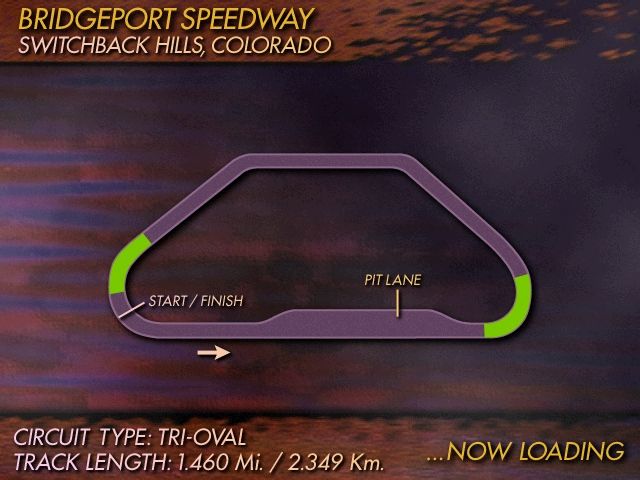
The circuit you choose determines the type of car you drive. Andretti Racing includes INDY CAR and STOCK CAR racing circuits. Select a track for your next race. Indy cars and Stock cars can compete on all 16 tracks.
You can set your race to 3, 8, or 12 laps. The number of laps you choose plays a big part in the importance and frequency of pit stops.
Available only when setting up a multiplayer race, Speed Compensation keeps the competition tight by providing a slight speed advantage to any cars trailing the leader. You can toggle this option ON/OFF.
Accept the current Exhibition race options.
When you choose DONE, the EXHIBITION SETUP screen appears.
RACING
When the EXHIBITION SETUP screen appears, you're ready to hit the track.
Start to begin a race with default settings.
Available only in one-player races. You get three solo laps to qualify for grid position. (If you choose not to qualify, you start in 16th position.) Qualifying is also a great opportunity to familiarize yourself with the track before the race. Your best lap is compared to the other drivers' times to determine starting positions.
•
START to get an update of your current qualification position, check the POSITION/LAP overlay on the left of your screen after each lap.
•
If you're happy with your position after the first or second qualifying lap, press START to access the Pause menu, then choose QUIT QUALIFYING. You retain your position in the starting grid.
Load the race and roll out to the starting grid.
Modify your car for peak performance on the upcoming track. The CAR SETUP screen appears automatically after a qualifying run, allowing you to make adjustments before the race.
Andretti Racing compiles stats for each registered user. The EXHIBITION STANDINGS screen displays your Name, Win/Loss record, and Best Lap time. NOTE: To track stats by a specific name, you must register before you race.
Register your name for the next race. Stats for every race completed with that name are tallied and displayed on the EXHIBITION STANDINGS screen.
START to follow the on-screen instructions to register your name. When you're finished, select END. The REGISTER overlay disappears.
Set general gameplay options.
CAR SETUP OPTIONS
Set the amount of downforce on the rear end. If you feel as though your car is oversteering (the rear tires are sliding out around turns), you may want to try more downforce on the rear. The more downforce you allocate, the lower your car's top speed.
Specify your car's optimum gear ratio. In general, a low gear ratio gives your car quick acceleration at slow speeds; a higher gear ratio is best suited to smooth drivers, but it translates to slow acceleration at low speeds. As a rule of thumb, use lower gear ratios on twisty courses and higher gear ratios on mostly straight tracks.
OPTIONS SCREEN
At the OPTIONS screen you can adjust your racing environment sounds, displays, and controls. You can also set the durability level of all the cars in the race. To exit the OPTIONS screen, select DONE.
Toggle all sound effects during a race ON or OFF.
Toggle the background music played during a race ON or OFF.
Set the units of measurement displayed by your speedometer to MPH (m
.png)


.png)

 (Rev A).png)