How to Begin a Game
Press the START button at the Title Screen to display the following options: NEW GAME and CONTINUE.
•
NEW GAME allows you to start at the beginning of the story.
•
CONTINUE lets you load a previously-saved game from a Memory card.
Use the Directional buttons to highlight an option and the X button to confirm your selection.
Using the Memory Card
This game uses one Memory card block. Each block contains 3 files, and each file can save up to four saved games. Make sure there is at least 1 free block on your Memory card before commencing play.
Starting a New Game
First, select a file to use on the MEMORY CARD SCREEN. If 3 files already exist, pick a file to overwrite.
Next, enter your name on the NAME ENTRY SCREEN. Once you have entered your name, select ENTER, then confirm by selecting OK or rename your file by selecting CANCEL. The game will begin after you set your options on the OPTIONS SCREEN.
Memory Card Screen
Name Entry Screen
Menu Controls
•
Directional buttons: Highlight an option/letter on Name Entry Screen
•
X button: Confirm selection/Enter letter on Name Entry Screen
•
A button: Return to Previous Screen/Erase Previous Letter on Name Entry Screen
•
START button: Confirm (Jump to END on Name Entry screen)
Resuming a Previously Saved Game
First, select a FILE from the bottom of the screen. Information on saved game data will appear at the centre of the screen. Select the saved game you wish to load from here.
Selecting the OPTIONS icon at the right edge of the screen will display the OPTIONS SCREEN.
Options
After you've entered your name on the NAME ENTRY SCREEN or selected OPTIONS on the MEMORY CARD SCREEN, the OPTIONS SCREEN will appear. You can choose the settings you wish to change by using the Directional buttons to highlight the option menus at the bottom of the screen and pressing the X button to open each menu in turn.
Controls
You can choose from 3 different Controller settings. Press the X button to access the 3 settings. View the settings by pressing the LEFT or RIGHT Directional buttons and choose your settings by pressing the X button.
Adjust Screen
This option allows you to align the game screen display on your TV. Use the Directional buttons to bring the square frame into view on your TV. Press the X button to set your adjustments. Press the button to return to the default settings.
Sound
Use this option to switch between STEREO or MONO playback of the game's music and sound effects. Make your selection according to the type of TV you are using. Use the LEFT and RIGHT Directional buttons to alternate between STEREO and MONO and press the X button to confirm your selection.
End
When you are done making your changes, select END. You will leave the Options Screen after confirming your changes and saving your settings.
Rules
•
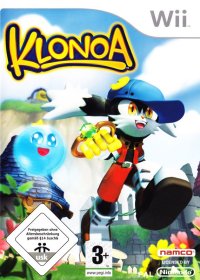
Klonoa's adventure is broken up into 6 Visions, with each Vision consisting of 2 parts. You'll face a boss at the end of part 2.
•
Klonoa's health will decrease by 1 level each time Klonoa touches an enemy or gets attacked. Klonoa passes out when his health level is empty.
•
You will always lose a Klonoa when he falls into a hole, no matter what his health level is.
•
When Klonoa passes out with 0 Klonoas remaining, it's VISION OVER.
•
Klonoa can restore his health by getting a Heart item. Klonoa regains all his health after completing each part.
•
If Klonoa collects 100 Dream Stones or picks up a 1 UP item, the number of Klonoas remaining increases by 1.
Pause Menu
Pressing the START button in the middle of the game will display the PAUSE MENU. You can make selections with the Directional buttons, and confirm it with the X button.
•
CANCEL: Cancels Pause and returns you to the game
•
RETRY: Stops the current game, and restarts the game from the beginning of the Vision
•
QUIT: Stops the current game and returns you to the Title Screen.
Story Window
This is the screen where characters in the game talk to each other. You can find out important and helpful information when they speak, so make sure not to skip them! The success of your adventure may depend on it!!!
Story Window Controls
•
O button: Fast forward through a message.
•
START button: Skip forward a little bit by pressing once. Completely skip through by pressing twice quickly.
World Map
This screen is shown whenever you clear a stage. All the rescued Phantomilians play a tune for you in this screen. If you rescue a lot of Phantomilians in the villages and kingdoms, the music they play will be livelier.
Press the X or START button to go to the Save screen.
Save Screen
After the World Map Screen is shown, you can save the current game on the Memory card. Choose the save location for your saved game with the cursor.
•
Number of Klonoas Remaining
.png)


.png)
.png)
.png)
.png)
.png)



 (Es,It,Pt).png)
.png)









_1.png)