GETTING STARTED
1. Set up your PlayStation game console according to the instructions in its Instruction Manual. 2. Make sure the power is off before inserting or removing a compact disc.
3. Insert the Monopoly disc and close the CD door.
4. Insert game controllers and turn on the PlayStation game console. 5. Follow on-screen instructions to start a game.
SETTING UP MONOPOLY ON THE PLAYSTATION
Set up your PlayStation as described in your PlayStation manual. Insert the Monopoly CD. Understand the Different Buttons
•
Directional Buttons: Use these to navigate your way around the board.
•
X Button: Press to make moves, trades and deals.
•
Select Button: Use to access the in-game options screen.
•
Start Button: Use to pause the game.
Multi-tap Note
If you are using a Multi-tap it must be connected to port 1, and must not be connected to port 2. Also, a controller must be connected to port 1-A of the Multi-tap.
USING A MOUSE
Use the mouse to move the pointer over the icons on-screen. The left mouse button selects. The right mouse button will pause the game and allow you to access the in-game options. The left mouse button functions the same as the X button on the standard Playstation controller. You cannot plug a mouse into a Multi-tap.
SETTING UP THE GAME
At the start-up menu you have the following options:
•
START NEW GAME: See "Starting a New Game".
•
Custom Game Rules: You can customize many of the rules for Monopoly.
•
International Options: You can choose to play with some of the European rules for Monopoly.
•
Sound Effects: Here you can adjust the volume of the sound effects.
•
Music: Select from 4 different music tracks to play during the game. You can also adjust the volume of the music.
•
Movie Options: This menu allows you to turn the background movies on or off.
•
Set Screen Position: Allows you to adjust the screen image in order to better fit your monitor or TV.
•
MEMORY CARD OPTIONS: This menu allows you to load or save a game.
RICH UNCLE PENNYBAGS HAS ARRIVED!
To get started, choose a token to represent your player on the gameboard. Starting out with $1,500 in cash, you travel around the board buying up property, developing those properties and collecting rent from other players who land on your property.
Play with up to 3 human or computer opponents. AI profiles to choose from (see chart below). If things are going well, you may find yourself with massive empires in the making. But watch out for those incidental taxes, chance and community chest cards that sometimes bring with them cruel twists of fate.
Land on your opponents' properties and you could find yourself with high rents to pay. You could even end up in the bankruptcy court, and out of the game. The richest player at the end of the game, who doesn't go bankrupt, is the winner.
AI Player Profiles
| Name of AI Player | Intelligence level | Caution level |
| :---------------- | :----------------- | :------------ |
| Dana | 1 | 1 |
| Fox | 2 | 3 |
| Guybrush | 3 | 2 |
| Kitana | 4 | 4 |
| Malcolm | 5 | 7 |
| Ruprecht | 6 | 5 |
| Standard | 7 | 8 |
| Simpleton | 8 | 7 |
| Tarbosh | 9 | 10 |
| Zanthia | 10 | 9 |
Intelligence is rated on a scale of 1 - 10 with 10 being the most intelligent. Caution is rated on a scale of 1 - 10 with 10 being the most cautious. Caution refers to how careful the AI player is with regard to purchases and trading.
STARTING A NEW GAME
When you start a new game, you will be asked to select a new player. Choose a token for yourself, then add other human and/or computer controlled opponents to the game by selecting tokens for them.
If you want to change a player, select DELETE PLAYER from the menu. If you select QUIT you will go back to the start-up menu. When you have at least two players you can start your game by pressing GO. You will then come to the game play screen. All games must have at least one human player!
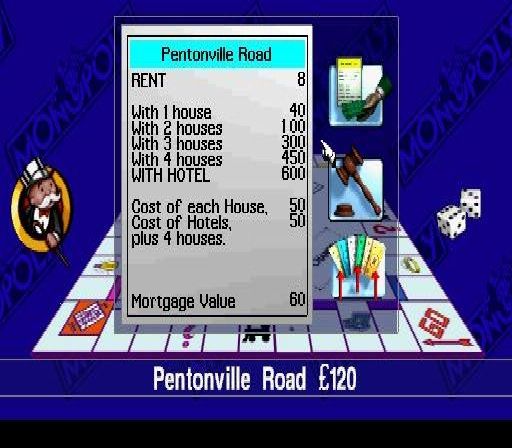
Game Screen Elements
•
Rich Uncle Pennybags Icon
•
Trading Screen and Player Status Icons
Each player starts at GO. Every time you pass GO, you will receive $200, added automatically to your account, with the exception of having been sent to jail.
TOOL TIP BAR
The Tool Tip Bar displays your options as you move the cursor over the various icons. It also prompts your next move.
RICH UNCLE PENNYBAGS ICON
Throw your dice with the Pennybags icon by moving your cursor over the icon, then pressing the X button.
TRADING SCREEN/PLAYER STATUS WINDOW
This contains all of the information relating to your position in the game. It highlights the amount of cash you have, the properties you own and any special cards
.png)

.png)
.png)
.png)



.png)







_1.png)