GETTING STARTED
1. Set up your PlayStation™ game console according to the instructions in its Instruction Manual. 2. Make sure the power is off before inserting or removing a compact disc.
3. Insert the TIGERSHARK™ disc and close the CD door.
4. Insert game controllers and turn on the PlayStation™ game console. Follow on-screen instructions to start a game. Front View
Top View
QUICK START
1. Press Start from the Main Screen to start Mission 1. After viewing the mission briefing, you will be launched into the first mission area.
2. Press R1+R2 to stop and get your bearings. The Message Display will direct you to your first objective: "Destroy Russian Sonar 1."
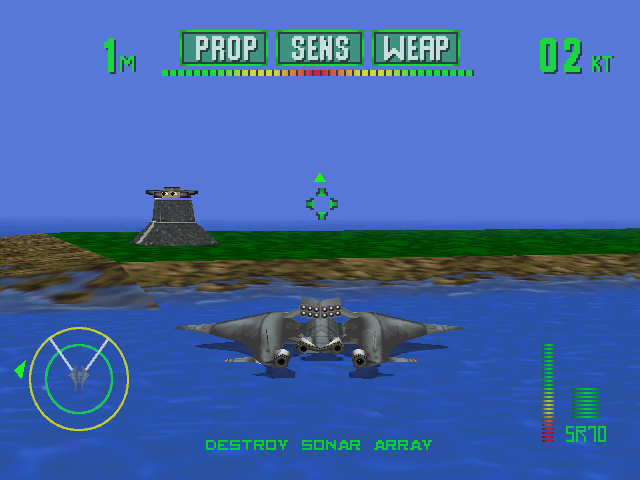
3. Locate the Threat display and steer toward it. The small arrow on the outer edge of the display points to your objective, a subsurface sonar installation. You can accelerate by pressing R1, and dive by pressing UP on the DPad to nose the ship down into the water.
4. Lock on to the target by pressing the Button when the target is visible in the viewscreen. A colored status box appears around a locked target: green for an undamaged target and yellow then red as damage accumulates.
5. Press the X Button to launch a homing torpedo (MK-65) as soon as you see the status box around the target.
6. Once you have destroyed the sonar station, watch the message display for further orders. You will be instructed to destroy two geothermal taps and to reset a third. Pay attention to incoming messages for additional mission objectives.
7. When you have achieved all mission objectives, return to the Subcarrier Olympus for pickup.
Notes
•
You can cycle through the different views at any time by pressing Select.
•
If you are attacked by enemy fighters while under water, use the Button to fire your Phased Plasma Repeater (PPR).
•
If your visibility is low under water, press the L2 button to "Ping" the active sonar. This will temporarily expose enemies on the sonar display and in the viewscreen, but will give away your location to everyone in the area.
GAME SETUP
Start Mission
This will be highlighted when you enter this screen. Press the Start or X Button to start the game.
Resume Mission
Highlight Resume Mission and press the X Button to access the Resume Mission Screen.
If there is no Memory Card inserted in your Playstation, you will see the Password Entry Screen. At the end of each successfully completed level, you will be presented with a five-character password. These passwords will allow you to resume play at the same place you left off. To enter a password, use the DPAD to select characters from the grid. Press the X Button to enter the character. Press the Button to back up one character. Press the Button to exit the screen without entering the password.
When you have entered the password, press the Start Button to enter the completed password. If the password is valid, you will hear a confirmation tone. When the password is invalid, an error tone will be heard and the Resume Mission remains displayed.
•
NOTE: Entering the password "BUGGY" will display information on an upcoming n-Space game. If you have a Memory Card inserted in your Playstation, you will see the Saved Game screen. The names of any existing saved games will be displayed. To load a game, highlight the game you wish to load and press the Start Button. Press the Button to exit this screen without loading a saved game. If you have a Memory Card inserted in your Playstation, you can still enter passwords. To do so, press the Button to switch to the Password Entry Screen. Control Options
Highlight the Controls selection and press the X Button to access the Control Options Screen.
The current button mappings are labeled on the diagram of the controller. To change to a different control set, press Left or Right on the DPad.
In addition to the standard control sets, there are two additional variations available: Game/Flight mode and Auto-level/Manual mode.
Press the Button to switch between Game and Flight modes. In Game mode, Up on the DPad will cause the ship to climb and Down will cause it to dive. In Flight mode, Up will cause the ship to dive and Down will cause it to climb.
Press the Button to switch between Auto-level and Manual modes. In Auto-level mode, Left and Right on the DPad will cause the ship to bank and turn simultaneously. In Manual mode, Left and Right cause the ship to roll without turning.
To turn, use Up and Down on the DPad to pitch the ship while rolled. This mode allows for increased maneuverability, but takes considerable practice to master.
Audio Options
The two sliders control the volume of the sound effects and music heard during the game. Choose a slider by pressing Left or Right on the DPad and adjust the levels with Up and Down. Press Start or X Button to exit the screen.
Difficulty Options
Tigershark has three difficulty modes and a Training Level. Choose the difficulty setting you want with Up and Down on
.png)