GETTING STARTED
Auto Save Setup
Each time you start the game, you will be prompted to select a MEMORY CARD slot for Auto Save. Choose the MEMORY CARD slot that you plan to save your game to.
Later, when you choose to save your game, data will automatically be saved to the MEMORY CARD (8MB) (for PlayStation 2) in this slot. Main Menu
The following choices are available from the Main Menu screen:
Saving
Saving Your Game
Accessed from the Race Weekend screen in World Championship mode.
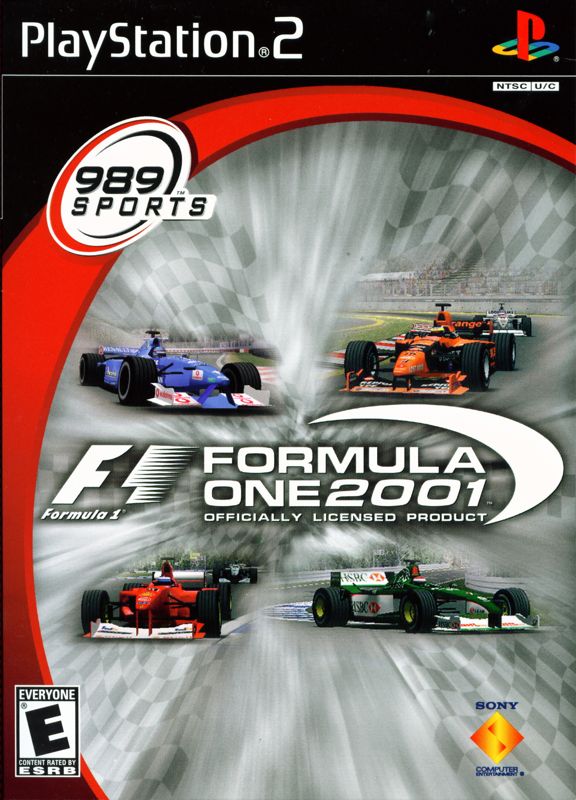
To save game settings and progress, insert a MEMORY CARD into either MEMORY CARD slot 1 or 2 of your PlayStation 2. You can load saved game data from the MEMORY CARD or any MEMORY CARD containing previously saved Formula One 2001™ games. Make sure there is enough free space (80kb) on your MEMORY CARD before commencing play.
Saving Car Settings
Accessed from the Car Setup screen.
FORMULA ONE 2001™ provides an easy way for you to save different car settings for each of the 17 circuits in the game. You can save up to three different car settings for each circuit!
To Save Car Settings for a Circuit:
1. Start by entering a practice or qualifying race in either Test Drive, Single Race, or World Championship mode. Be sure to choose the circuit that you want to save car settings for. You can only save settings for the circuit you're currently racing on. 2. After the game finishes loading, you will see the Garage screen. Access the Car Setup screen by highlighting the wrench icon on the right side of this screen and pressing the button.
3. In the Car Setup you can change all the different settings to your car (see pg 21).
4. To save the changed car settings, highlight the lower of the two MEMORY CARD icons that's on the right side of your screen and press the button.
5. Select the MEMORY CARD (8MB) (for PlayStation 2) in MEMORY CARD slot 1 or 2 and press the button. 6. Select a Car Setup file to save onto. Remember, you can't select different circuits because car settings are only saved for the circuit you're currently racing on. Press or to select a file to save your settings to and then press the button. If there are already settings saved for the current circuit, you will be asked to "Confirm Selected File Overwrite." If you want to replace old car settings with the current ones, select "Accept" and press the button. What's what on the Save Car Settings screen
•
a. Name of current circuit.
•
b. Number of current circuit in Car Setup file.
•
c. Car Setup file that can store separate car settings for all 17 of the game's circuits.
•
d. Empty file for another set of car settings for all 17 circuits!
Each file can fit car settings for the 17 different circuits in the game. If you need more than one group of car settings for a particular circuit, you should save another car setup file in one of the empty slots.
Saving Game Options
Accessed from within Game Options, which is selected from the Main Menu.
When you exit the Game Options screen, Highlight "Exit and Save" to save the changes made to the game options. If you don't want to save changes to game options, select "Exit and Restore" to reset all options to their default settings.
Loading
Quick Load
Accessed from Main Menu.
Automatically accesses the most recently saved game data for FORMULA ONE 2001™ from the MEMORY CARD (8MB) (for PlayStation 2). Make sure that the MEMORY CARD is inserted according to the system instructions before attempting a Quick Load. Load
Accessed from Main Menu.
Choose this option to manually load your saved game data from a MEMORY CARD (8MB) (for PlayStation 2). Unlike the Quick Load option, this method of loading gives you an opportunity to load saved game data from the card in slot 1 or slot 2. Load Car Settings
Accessed from the Car Setup screen.
Use this option to load previously saved car settings before a race, practice session or qualifying race. Unlike Saving Car Settings, you will not be limited to loading the settings from a particular circuit. This means you can load the settings that worked well on one circuit onto your car while racing a totally different circuit. To Load Car Settings:
1. You can load car settings before a race, practice session or qualifying race in either Test Drive, World Championship or Single Race mode. Choose the circuit that you want to save car settings for. You can only save settings for the current circuit.
2. After the game finishes loading, you will see the Garage screen pictured below. Access the Garage by highlighting the wrench icon on the right side of this screen and pressing the button.
3. In the Car Settings screen, highlight the uppermost MEMORY CARD icon that's on the right side of your screen and press the button.
4. Select the Memory Card (8MB) (for PlayStation 2) that you want to load car settings from and press the button. 5. On the following screen you will select a Car Setup file, and then choose
.png)

.png)

_1.png)
.png)


.png)

.png)