GETTING STARTED
*Note: Illustration may not match all PlayStation 2 console types. For owners of SCPH-70000 series PlayStation 2 systems, refer to the setup instructions supplied with your system.* Set up your PlayStation®2 computer entertainment system according to the instructions in its Instruction Manual. Make sure the MAIN POWER switch (located on the back of the console) is turned ON.
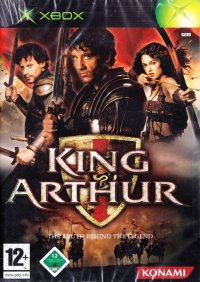
Press the RESET button. When the power indicator lights up, press the OPEN button and the display will open. Place the KING ARTHUR disc on the disc tray with the label side facing up. Press the OPEN button again and the disc tray will close.
Attach game controllers and other peripherals, as appropriate. Follow on-screen instructions and refer to this manual for information on using the software.
MEMORY CARD (8 MB)(FOR PLAYSTATION®2)
To save game settings and progress, insert a memory card (8MB)(for PlayStation®2) into MEMORY CARD slot 1 (MEMORY CARD slot 2 is not used) of the PlayStation®2 computer entertainment system.
You can load saved game data from the same memory card, or from any memory card (8MB) (for PlayStation®2) containing previously saved King Arthur games. PLAYING THE GAME
Main Menu
•
LOAD GAME Load a saved game.
•
NEW GAME Start a new game.
•
OPTIONS Adjust music, sound, viewing, and gameplay settings.
•
EXTRAS Check out making of the game and access Battle Arenas.
•
HELP View the on-screen Help.
To start a new single player game:
1. Select New Game in the Main menu. The Player menu appears.
2. Select Single Player in the Player menu. The Saved Games menu appears.
3. Select a save game file or press the button to continue without saving. The Character Selection screen appears.
4. Select a character in the Character Selection screen. Your mission begins.
Note that different characters are available for different missions.
To continue a saved game:
1. Select Load Game in the Main menu. The Saved Games menu appears.
2. Highlight the save game file you want to load and press the button. The Quest Map screen appears.
3. Press the button. The map zooms in to show individual missions within the selected area.
To return to the overall Quest Map, press the button.
4. Highlight the mission you want to begin and press the button. The Character Selection screen appears.
Note that different characters are available for different missions.
5. Select a character in the Character Selection screen and press the button. Your mission continues.
Options Menu
•
MUSIC Adjust the volume of the game music.
•
SOUND Adjust the volume of gameplay sounds.
•
SURROUND Toggle surround sound effects on/off.
For Dolby® Surround Pro Logic® Decoding: This game is presented in Dolby Surround. Connect your game console to a television or sound system with Dolby Pro Logic, Dolby Pro Logic II, or Dolby Pro Logic IIx technology to experience the excitement of surround sound.
•
SUBTITLES Toggle in-game subtitles on/off.
•
WIDESCREEN Toggle between normal and wide screen display modes.
•
FRIENDLY FIRE Toggle the ability to damage others in your own party on/off.
•
VIBRATION Toggle controller vibration special effects on/off.
•
SCREEN Toggle between screen position and default position.
•
HELP View on-screen Help for the Options screen.
Pause Menu
•
CONTINUE Return to the action. •
OPTIONS Adjust the current music, sound, viewing, and gameplay settings.
•
MISSION OBJECTIVES View the tasks necessary to complete the current mission.
•
VIEW UPGRADES View a list of your character's current hand-to-hand and ranged weapon upgrades.
•
EXIT LEVEL Exit the mission and return to the Quest Map screen.
Mission Results Screen
The Mission Results screen appears when you successfully complete a level and displays a summary of how well you performed.
If you are happy with your performance, select Accept. The Upgrade screen appears.
Once a mission has been successfully completed, you can replay it with a different character by loading the saved game.
If you want to try the mission again to get a better rating, select Retry. The mission begins again.
Upgrade Screen
•
Strength allows the Knight to cause more damage with each blow
•
Use your hard-earned experience points to upgrade your characters.
As you progress through the game and purchase upgrades, deadly combination moves become available for your characters. To view your current combination moves, select View Upgrades from the pause menu during a mission.
TO PURCHASE UPGRADES:
1. Press the directional button ↑/ to cycle through the available upgrades. A