PlayStation®2 Setup
Set up your PlayStation®2 computer entertainment system according to its Instruction Manual. Ensure the MAIN POWER switch (on the back of the console) is turned on.
Press the RESET button. When the power indicator lights up, press the open button to open the disc tray. Place the Music Generator™3: This is the Remix disc label side up. Press the open button again to close the disc tray. Attach game controllers and other peripherals as appropriate. Follow on-screen instructions and refer to this manual for software usage information.
Memory Card Support
MTV Music Generator™3: This is the Remix supports MEMORY CARD slot 1 and MEMORY CARD slot 2. This game only supports the DUALSHOCK®2 analog controller.
When exchanging discs, do not insert a disc not supported by PlayStation®2.
Memory Cards (8MB) (FOR PlayStation®2)
Within this booklet, 'memory card' refers to the memory card (8MB) (for PlayStation®2) - product code SCPH-10020. Other Memory Cards, such as Memory Card (SCPH-1020) designed for the PlayStation® computer entertainment system, are not compatible with this game or hardware.
Ensure sufficient space on your memory card before playing.
Royalty-Free License
You are granted a worldwide, royalty-free, perpetual license to make, use, sell, distribute, and publish any works created with MTV Music Generator™3: This is the Remix. This includes using audio or video components created for this product, including those by Zero-G, but excludes original licensed compositions by credited artists or any components thereof.
Such works must be clearly marked on the media or packaging as being created using MTV Music Generator™3: This is the Remix.
This license does not include the right to use any recordings or components of MTV Music Generator™3: This is the Remix in any commercial music creation product, video creation product, or for any library sounds or samples. No license is granted for the commercial use or publication of original licensed compositions of credited artists or any component or sample within those tracks.
Sound files© 2003-2004 Zero-G ltd. www.zero-g.co.uk
Remixer
Upon entering the Remixer, select a featured artist. Use the on-screen controls to create a new version of their track.
Remixer Controls
1.
Instrument Groups: Drums, Bass, Riffs & Vocals
•
There are several sets of samples in each group.
•
Select an Instrument Group to access its current sample set.
•
Press the left analog stick or directional buttons to change the sample set.
•
Press the button again to use the new sample set in the song.
2.
Instrument Group Volume
•
Select one of the Volume panels.
•
Press the left analog stick or directional buttons to adjust the volume slider for the relevant Instrument Group.
3.
Structure
•
Structure controls the overall length and layout of the song.
•
Select the Structure Panel.
•
Press the left analog stick or directional buttons to change the structure.
•
Press the button to use the new structure in the song.
4.
Effects
•
Use Effects to change the overall channel and master effects applied to the song.
•
Select the Effect Panel.
•
Press the left analog stick or directional buttons to change the effects.
•
Press the X button to use the new effects in the song.
Remixer Actions
•
When changes are complete, select "Studio" to transfer your remixed song to the Studio for further tweaks.
•
Select "Files" in the Studio to save your song through the File Menu.
•
If you quit the Remixer before returning to the Studio and saving, your work will be lost.
•
Alternatively, select "Reset" to discard changes and return the song to its original state.
Studio
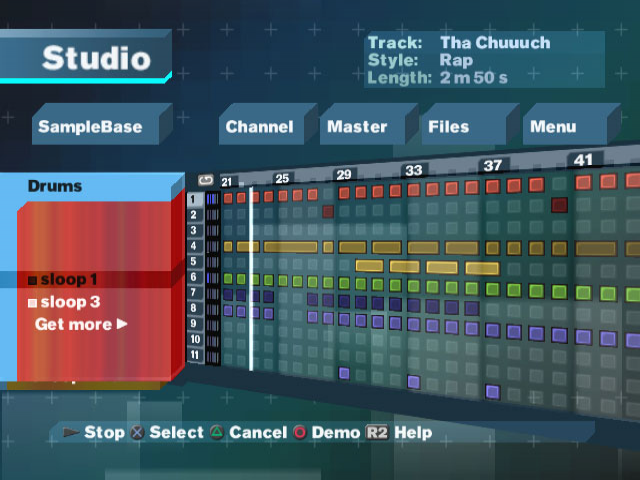
Constructing a new song in the Studio is easy. Upon entering the Studio, select an Artist to base your new track on. Songs are constructed by selecting samples from Instrument Groups and placing them in the Grid.
The Instrument Groups
Your samples come in four categories:
•
Drums: Combined with Bass samples, these percussion samples form the song's structure.
•
Bass: These deep rhythmic tones work with the Drums to underpin your composition.
•
Riffs: Riff samples combine to form the melody at the higher end of your song.
•
Vocals: Add vocals to give your song a human touch. These can be omitted for purely instrumental tracks.
Selecting Samples from the Instrument Groups
•
Highlight an Instrument Group (Drums, Bass, Riffs, or Vocals) and press the X button.
•
The panel will open, showing a list of all loaded samples in that Group.
•
Press the left analog stick or directional buttons to highlight a sample.
•
Press the X button to select it.
•
To hear a sample, highlight it and press the button to demo it.
•
Once selected, move to the Grid to place it in your song.
The Grid
The Grid is where you construct your song.