Setting Up Your System
Set up your PlayStation®2 computer entertainment system according to its Instruction Manual. Ensure the MAIN POWER switch (on the back of the console) is turned on.
•
When the power indicator lights up, press the open button to open the disc tray.
•
Place the Pro Race Driver™ disc on the disc tray with the label side facing up.
•
Press the open button again to close the disc tray.
•
Attach game controllers and other peripherals as appropriate.
•
Follow on-screen instructions and refer to this manual for software information.
Loading the Game
Throughout game loading and the menu system, the controller in port 1 is primarily in control.
You will see the LANGUAGE SELECTION screen followed by credits screens. Select your language with the left and right directional buttons, then press the X button to confirm and continue to the MAIN MENU.
Memory Cards
The term 'memory card' in this booklet refers to the Memory Card (8Mb) (for PlayStation®2) - (product code SCPH-10020 E). Other Memory Cards, such as Memory Card (SCPH-1020 E) for PlayStation® system, are not compatible with this game or hardware.
Ensure sufficient space on your memory card before playing.
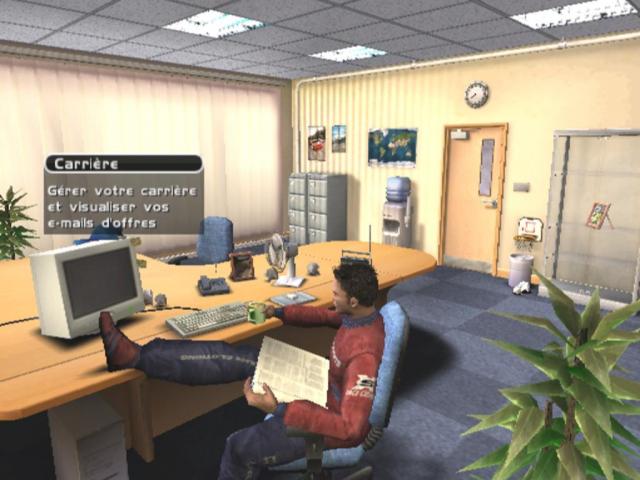
Drivers' HQ
This is where you manage your career and receive job offers.
Driver Profile
To set up a user name and access your mail:
•
In the Drivers' HQ, highlight the Computer Terminal and press the X button.
•
Highlight a 'New User' slot to create a new profile, or choose an existing profile and press the X button.
New User
To enter your name:
•
Highlight each letter with the directional buttons.
•
Press the X button to enter each highlighted letter into the title bar.
•
Select 'âáä' to add accents to the previous letter.
•
Select 'Aa' to change the case of the next letter.
•
Select '←' to delete entered characters.
•
When finished, select 'Done' to continue to the Desktop.
Email Offers
All incoming messages, including Single Day Events, Job Offers, and Personal mail, land in your Inbox.
Use the up and down directional buttons to browse mails. As you highlight a mail title on the left, its contents will display on the right.
If you want to act on a job or test drive offer immediately, highlight the message to read it, then press the X button to accept.
Championship Progression
The Progress screen shows the entire Championship structure, from the Super Sports Tier to the World Championship.
To check details of unlocked race series or review performance in completed series:
•
Highlight the series logo using the directional buttons.
Log-off
Select 'Log-off' to close the computer and return to the Drivers' HQ. Alternatively, press the button to leave the computer without logging off.
Managing Your Career
Test Drive
To join a team, you need to complete a Test Drive to prove your skills. If you meet the team's criteria, they will likely offer you a position for the rest of the series.
Your performance in Test Drives will influence the offers you receive in your Email Inbox. Good performance leads to better offers, while poor performance may limit offers to lesser teams.
Once you find an interesting offer, open and accept it. You will then proceed to race day.
Progressing Your Career
The Test Drive is the easy part. To progress your career, you must score points by finishing in the top six places.
Points are awarded as follows:
Check the Championship structure under 'Progress' on the HQ computer to see how many points are needed for the next tier. Accept contracts for individual series via email and keep racing to accumulate points. Consistently high finishing positions in the top six will allow you to advance. All your successes, failures, and scores are saved to your profile on the HQ computer and loaded each time you log on.
Career successes unlock more elements for other game modes, such as cars and tracks. Keep racing and winning to unlock everything. Pro Race Driver Map
Take on the best drivers in the world. If you are good enough, they will contact you.
Options
Vibration
Switch the controller vibration function on or off.
Force Level
If a force-feedback steering wheel is selected under 'Controller Type', use 'Force Level' to define the strength of the force-feedback function.
Advanced (Advanced Users Only)
Enter 'Advanced' to change how your car reacts to controller input.
Deadzone
'Deadzone' defines the points at which input from your left analog stick or steering wheel begins to cause steering, or the points at which braking or acceleration occurs (right analog stick or pedals). The 'space' between these points is the 'deadzone' where no steering, acceleration, or braking will occur.
•
Minimum brake / accelerate.
Saturation
'Saturation' refers to the points at which input from your left analog stick or steering wheel causes your car to hit its steering lock (maximum steer), or the points at which maximum braking or acceleration occurs on your right analog stick or pedals.
•
Maximum steer (saturation).