GETTING STARTED
Set up your PlayStation®2 computer entertainment system according to its instruction manual. Attach game controllers and other accessories as appropriate.
It is advised that you do not insert or remove accessories once the power is on. Make sure the MAIN POWER switch (located at the back of the console) is turned ON.
Press the /RESET button. When the indicator is green, press the button. The disc tray opens.
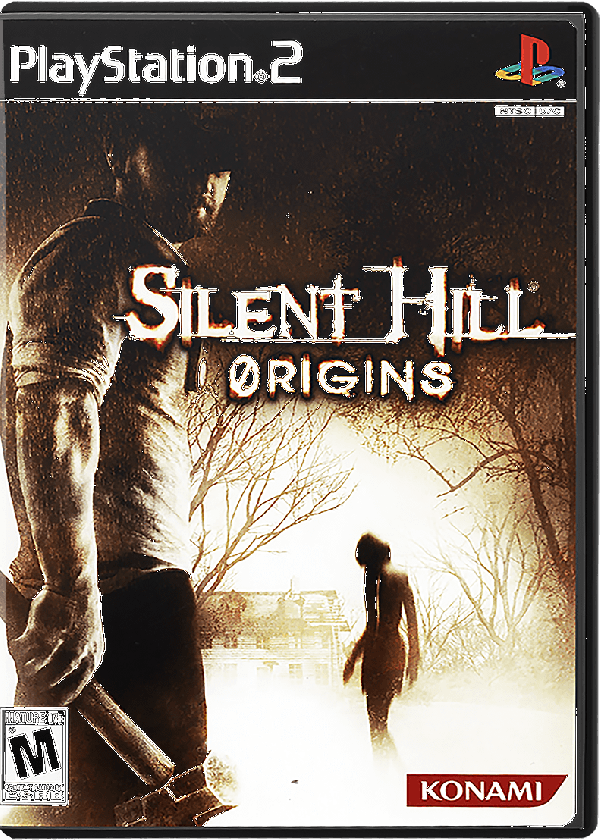
Place the Silent Hill: Origins disc on the disc tray with the label side facing up. Press the button again and the disc tray closes. Select your preferred language from the language select screen displayed on boot-up. Follow on-screen instructions and refer to this manual for information on using the software.
Make sure there is enough free space on your memory card (8MB) (for PlayStation®2) before commencing play.
MAIN MENU
When the game boots up, you will be taken to the Main Menu. While at the Main Menu, use the left analog stick or directional buttons ↑ and ↓ to highlight an option.
•
Press to go back to a higher set of options or the previous menu.
Main Menu Options
•
Continue: Return to Silent Hill by loading the most recent saved game. •
Load Game: Load a previously saved game and continue your progress.
•
Tips: View 13 hints and tips on how to survive in Silent Hill Origins. NEW GAME
At the Main Menu, select NEW GAME to send Travis into Silent Hill. After selecting NEW GAME, you'll be taken to an options screen. Use the directional buttons to select Yes or No for Subtitles, and press to confirm. You may then select your Brightness settings and press to confirm your choice.
If you need to go back to a previous option, use the directional buttons to go up and down.
CONTINUE & LOAD GAME
At the Main Menu, select CONTINUE or LOAD GAME to access saved games. Press the left analog stick or directional buttons ↑ and ↓ to cycle through the saved games.
Then press to confirm your choice to continue from a saved game. CONTINUE will automatically select the most recently saved game.
TIPS
Silent Hill Origins is a new entry in the Silent Hill saga and features a number of new gameplay innovations. The Tips menu will explain how the game is played for new players, or serve as a refresher to longtime fans. OPTIONS
You can access the Options screen by bringing up the Inventory during the course of a normal game and selecting Options by pressing . Highlight the option of your choice and then press the directional buttons and to set the desired level.
Press to exit. Default settings are bold.
•
Brightness: You can toggle different settings depending on your current lighting conditions.
•
Subtitles: Toggle on-screen subtitles on or off.
•
Map Zoom: Set map to automatically be zoomed in or out when activated.
•
Music Volume: Adjust the volume of the music.
•
SFX Volume: Adjust the volume of the sound effects.
•
Controls: View the control scheme.
•
Accolades: View the accolades that you have earned so far. (Only accessible after completing the game at least once.)
•
Extra Options: Activate certain extra options after you beat the game. (Only accessible after completing the game at least once.)
USING YOUR MAP
The map (accessed by pressing ) is an essential tool for getting around the town of Silent Hill. As you find new areas, clues, items, or objectives, Travis will mark them on his map so that he doesn't forget where they are. You can press to zoom in and out. Use the map to plan your route around town.
Be mindful of the fact that sometimes, things in Silent Hill are not what they seem. Obvious paths may be blocked or destroyed, forcing you to take a detour. INVENTORY SCREEN
1. Status: Travis' health status is displayed here. When it is green, Travis is in perfect health. As it fades to red, Travis goes from good health to poor, and eventually to death.
The flashing of the status screen and the sound of Travis' beating heart help clue you into his health. It beats and flashes faster the lower his health gets.
2. Notes: View the notes and clues you've collected during the game.
3. Options: Open the Options menu to adjust certain in-game settings.
4. Inventory Menu: Press L1 or R1 to cycle between Items, Supplies, Melee, and Firearms. If you have unlocked new costumes, they will be displayed on the inventory menu as well.
5. Item: You can cycle through your equipment and check its status here.
6. Explanation: A brief sentence describing the currently shown item will be displayed.
SAVING
You can interact with red symbols during the game in order to save your progress. Press to interact with them, and then select a slot and press again to save your game.
MOVEMENT
Control Travis using the left analog stick. Travis usually walks at a normal pace