Getting Started
1. Set up your Sega Saturn system as described in its instruction manual. Plug in Control Pad 1. Note: Enemy Zero is for one player only.
2. Place the Enemy Zero disc, label side up, in the well of the CD tray and close the lid.
Note: Enemy Zero is a multi-disc game. See the section Starting the Game for details on loading the various discs.
3. Turn on the TV or monitor and the Sega Saturn. The Sega Saturn logo appears onscreen. If nothing appears, turn the system off and make sure it is set up correctly before turning it on again. 4. If you wish to stop a game in progress and return to the onscreen control panel, simultaneously press A, B, C and Start on the Sega Saturn Control Pad. When the game Title screen appears, press the buttons again to go to the onscreen control panel. Important: Your Sega Saturn CD contains a security code that allows the disc to be read. Be sure to keep the disc clean and handle it carefully. If your Sega Saturn system has trouble reading the disc, remove the disc and wipe it carefully, starting from the center of the disc and wiping straight out toward the edge. Starting the Game
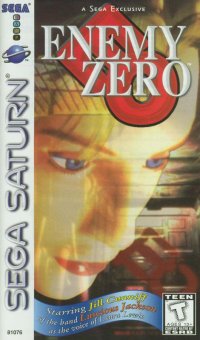
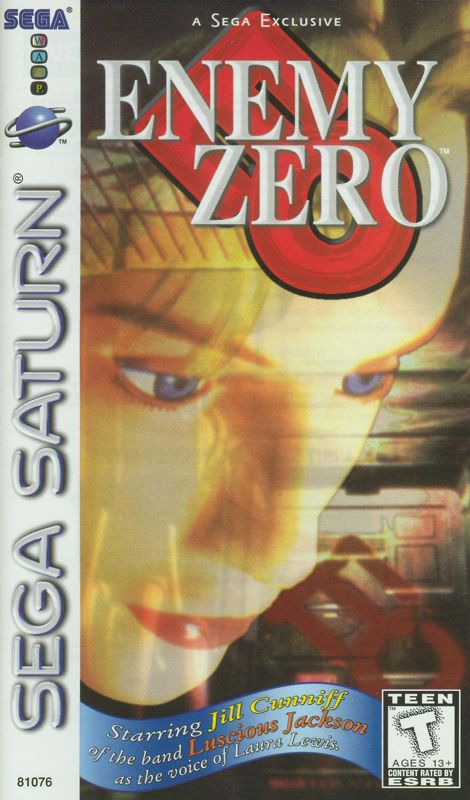
Enemy Zero is an adventure set in a three-dimensional environment - the space station Aki. The game consists of four discs in all, an intro disc [Disc Zero] and three game discs (Discs One - Three). It is recommended that you read this instruction manual and practice using the Training Mode on Disc Zero before starting to play Disc One. Disc Zero features the introductory movie sequence, a Training Mode that lets you practice using some essential equipment before starting play, and credits for the game development staff at WARP.
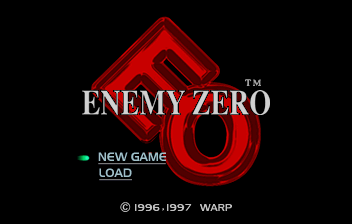
When you load Disc Zero into your Sega Saturn, the WARP and True Motion logos appear, followed by a CG movie sequence. After the movie, the Enemy Zero title screen appears. Press Start to bring up the Mode Select screen. The following modes are available in Disc Zero:
•
Opening: To watch the intro movie
•
Training: To practice using the VPS tracking system and energy gun
•
WARP Staff: To see game credits and a WARP company intro
•
Start: To exit Disc Zero
Press the D-Pad left or right to scroll through the mode names, and press the Start button to enter the highlighted mode.
Discs One through Three
To begin play, insert Disc One and press the Start button on your Control Pad. A message appears asking you to select New (to start a new game), or Load (to begin play from saved data, if you have any). Highlight New or Load by pressing the D-Pad up or down, and press Start to select.
When you select New, a second screen appears, prompting you to choose the difficulty level of the new game. Select Normal or Easy, and press Start. After you have selected a difficulty level, the game begins.
When you select Load, the voice recorder load data screen appears, displaying a list of all the available saved data files. Highlight the data file you want to load by pressing the D-Pad up or down, and press A to select. The game starts from the place where the data file was recorded.
Note: When you reach certain points in the progress of the story, a message appears onscreen prompting you to change discs. Follow the instructions and continue play from the new disc.
Search Mode
Moving around in rooms
When Laura is in one of the space station rooms, the game is in Search Mode. Search Mode allows Laura to search various areas of the room she is in and features movie sequences when Laura fulfills certain conditions in the story. Each room has a number of places to investigate. Press the D-Pad in the direction (left or right) you want to face to change your orientation. Press the D-Pad up to move forward, and up again to take a closer look at a place in front of you.
When you come across a container, object or location in a room that you want to investigate, press A. If there is an item that can be acquired in that location, Laura will pick it up and add it to her inventory. If another action can be performed, an animation rolls as Laura acts out the plot sequence. Using Items
Press L or R to bring up a display of the item(s) in Laura's possession. Press L or R again to scroll through the items one by one (when Laura has more than one item). Press A to use the current displayed item. Most items can only be used in certain rooms, or under certain conditions.
If an item is currently unusable, there will be no effect when you press A, and the item remains in Laura's possession, unused.
Safe Haven
The enemy will not enter rooms, so Laura can use rooms around the Aki as places of refuge when being pursued.
The VEXX Network System
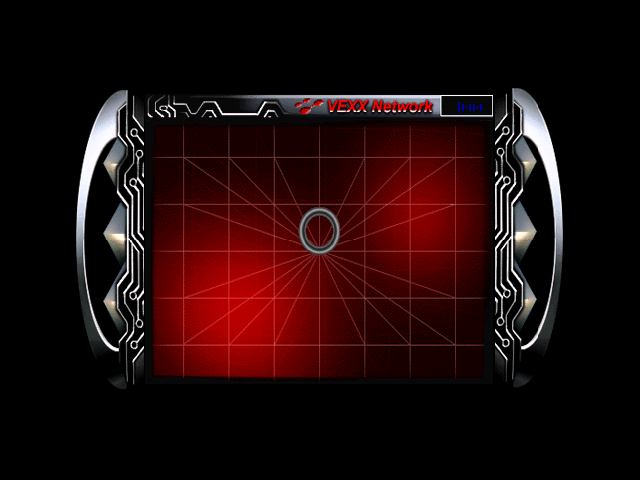
There are network consoles linked to the Aki's main computer in many rooms throughout the space station. The VEXX Network System gives Laura access to important data and video phone communications with other members of the Aki crew. To use the Network System, press A when standing in front of any system console. After a brief movie sequence, the main VEXX Network screen appears. Press the D-Pad in any direction to highlight a network area, and A to access that area.
The following areas are available:
•
Video Phone: To communicate with other crew members over the Network System
•
Information: To access maps and information regarding the status of the space station •
Data Base: To access data regarding crew members, and descriptions of equipment and items found aboard the Aki
 (Disc 3).png)

 (USA).png)
 (USA).png)
 (Disc 4).png)
 (Disc 1).png)


.png)