Starting Up: Using Your Sega Saturn System
This CD-ROM is designed exclusively for use with the Sega Saturn System. Attempting to play it on any other CD player may damage headphones and speakers. 1. Set up your Sega Saturn system according to the instructions in the Instruction Manual. Plug in Control Pad 1. 2. Place the Sega Saturn CD-ROM label side up in the CD tray well and close the lid. 3. Press the Power Button to load the game. The game starts after the Sega Saturn logo screen appears. 4. If the screen remains blank, turn the system OFF and verify the setup is correct.
Stopping and Restarting Games
To stop a game in progress or restart after the game ends, press the Reset Button on the console to return to the Title screen.
To return to the Control Panel at any time, press Buttons A, B, C, and Start simultaneously.
Powering On Without a Disc
If you turn on the console without inserting a CD, the Audio CD Control Panel appears. To play a game:
1. Insert the Sega Saturn CD into the unit. 2. Press the D-Pad to move the cursor to the top left button on the Control Panel.
3. Press Start to display the game's opening screens.
Disc Care and Security
Your Sega Saturn CD-ROM contains a security code that allows the disc to be read. Keep the disc clean and handle it carefully. If the system has trouble reading the disc, remove it and wipe it carefully starting from the center and moving straight out towards the edge.
Player Information
This game is for one player only. The system uses Control Pad 1.
Starting the Game
Insert Disc One to start the game. An introductory video begins playing automatically. Press Start to skip the video.
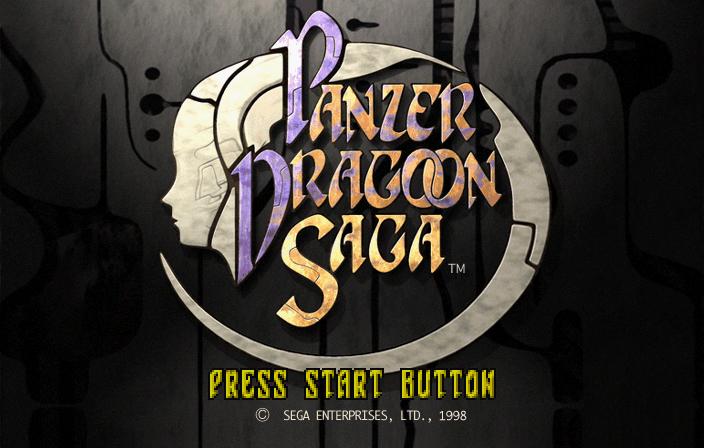
After the video, the Title Screen appears. Press Start to bring up the menu with the following options:
Move through the selections by pressing ◄►, and press A or C to confirm your choice.
Continuing a Saved Game
To continue a previously saved game, select CONTINUE from the Title Screen menu. A screen will display the currently available memory media.
Choose to load data from:
•
Backup Memory Cartridge (if inserted)
*Note: The Backup Memory Cartridge is sold separately.*
After selecting a memory type, the available data files are displayed. Press ↑↓ to highlight a file name, and press A or C to select it. See page 40 for details on saving game data.
Game Structure and Story
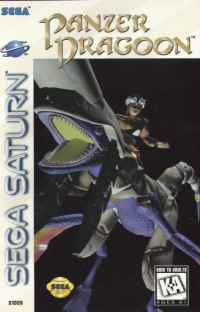
Edge and his dragon mount have vowed to pursue the Craymen forces to avenge his mentor's death and discover the secrets of Azel. The story unfolds across different modes described below. At certain points in the story, a tutorial or guide appears. These sections contain information and examples of the Battle and Dragon Type Select systems. Highlight items in the guide menu by pressing ↑↓, and press A or C to select and view.
World Map
To access the World Map from a field in Walk or Flight mode:
1. Press Start to display the Player Menu.
2. Select the map icon.
3. Select YES when prompted to change to World Map mode.
*Note: It is impossible to access the World Map from certain areas.*
You can also access World Map mode by crossing the border of a field. When prompted, select to switch to World Map mode, return to the current field, or wait until the next morning/afternoon. Important changes occur during the day, so visit areas during both day and night.
Saving Game Data
Game data can be saved by interacting with specific objects:
•
Walk Mode: Enter a camp and select the tent with the automatic tracking sight.
•
Flight Mode: Access a storage monolith.
After locating and selecting one of these objects, press A or C to bring up the game data media selection screen, or B to cancel.
1. Media Select: A screen appears showing icons for currently available backup media. Highlight a memory type with Up/Down and press A or C to select.
2. Data Location: Select a file to overwrite or an empty location for a new file. Press A or C to confirm overwriting an old file, or B to cancel.
Game Over
If you lose a fight in Battle Mode, the Game Over screen appears. Select CONTINUE to access game data files and resume from the last saved location.
Flight Mode
When Edge explores a field while mounted on his dragon, the game is in Flight mode. •
Press Left/Right to steer the dragon.
•
Press Up/Down to soar or dive.
•
Hold B to increase speed.
See page 20 for a full list of button functions in Flight mode.
Dragon Radar Display
The Dragon Radar appears in the upper right corner of the screen. Use the following key to interpret the display:
•
① Heading: Shows the direction the dragon is heading relative to north.
•
② Altitude: The height of the dragon's flight. The higher the red bar, the higher the altitude. A full indicator means maximum altitude for the field.
•
③ Speed: Shows current speed. A full indicator indicates maximum speed.
•
④ Target: Displays the location and type of any automatic lock-on target. Target types are color-coded:
Navigator
The Navigator shows the direction of the currently selected destination in the


.png)

.png)
 (Disc 3) (1M).png)
.png)