Console Instructions
Top View
Front View
Setup
Set up your PlayStation® game console according to the instructions in its Instruction Manual. Make sure the power is off before inserting or removing a compact disc. Insert the Aces of the Air™ disc and close the Disc Cover. Insert game controllers and turn on the PlayStation game console. Follow on-screen instructions to start a game. Menu Screen
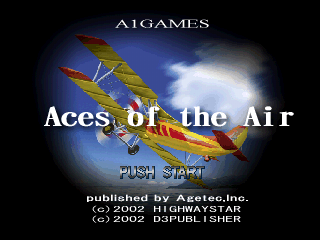
Press the START button at the Title screen to go to the Menu screen. The following are items listed in the Menu screen.
MISSION
There are a total of 10 stages in the Mission Mode. As you clear games in the Mission Mode, you will add Aircraft to your list.
FREE MISSION
You can go to Free Mission after clearing the 10 Mission stages. Select a stage of your choice and compete for the points/score.
OPTION
You can change the Key Configuration set up, turn ON/OFF the Vibration Function, and save/load the game data in the Option mode. At the "Save", you can save your progress, ranking data, and current key configuration.
The Vibration Function can be turned ON/OFF at the Option in the Main Menu.
RANKING
You can check the points that you have recorded in the Free Mission Mode. If you are able to play in the Free Mission Mode, you can select the Ranking in the Menu Screen.
KEY TYPE
Player can change the Key Configuration in the Option Mode. There are two types of operations: EASY Mode and EXPERT Mode.
If you select the EXPERT Mode, you can rotate your airplane with LEFT ANALOG STICK. If you are a beginner, it's better to start from EASY Mode.
Select "EASY" with the cursor and confirm your selection pressing the button. If you would like to change the operation of a key button, bring the cursor to the item that you wish to change and press the button to confirm your selection. Then bring the cursor to the item that you would like to change it to and press the button to confirm your selection.
Note that you are not able to change the key buttons that you cannot bring your cursor onto. Go back to default setting if you select "Default."
•
After setting is completed, select "ok" with the cursor and press the button.
Start Game
Select Mission from Menu.
MISSION
When you start for the 1st time, you only can begin from Mission (Stage) 1. As you clear missions any further, you can begin a game from anywhere such as Mission (Stage) 2 and Mission (Stage) 3.
•
Save/Load game data at the Option Mode.
SELECT AIRPLANE
Select an Airplane. Select the Airplane preferable to the Mission by checking on the performance chart on the right screen. By clearing each mission you will add to your collection of Airplanes.
BRIEFING
Explains the details of the stage. Check out the requirements to win/clear the game/missions.
COLORING
Change the color of Airplane. Select one color each from A Color and B Color and press the Ⓧ button to confirm your selection.
INPUT A NAME
In Free Mission Mode, you can leave your name within the game record if your score is the highest. The name entered must be up to 5 characters.
Game Play
The requirements for clearing missions are varied. Check the winning requirements that are displayed in Briefing or Pause.
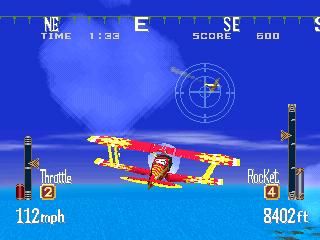
The △ mark appears close to the opponent's airplane on screen. The △ mark has 3 colors; Red, Yellow, Green, to indicate the distance of the airplane. When the airplane gets closer to you, the color of the △ marks will change from Red to Yellow, and Yellow to Green.
When the opponent's airplane is visible and the △ mark turns to Red, you can lock-on the sight by aiming the target at the center of alignment. Press and hold the ◉ button. The lock will be off when the airplane disappears from your sight or when you release your finger from the ◉ button.
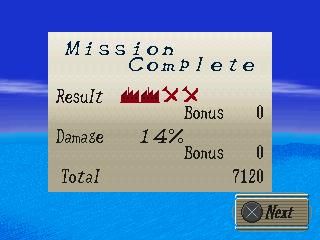
Bonus Points are added to your score when you clear stages. Get higher points by defeating as many opposing airplanes as you can with less damage to your airplane.
After clearing the mission, Select Screen appears and you have the choice of continuing to the next stage or quitting the game.
Dropping Bombs
You can drop bombs onto ground targets. In order to drop a bomb, you must be flying under 8200 ft. altitude, and press and hold the △ button to change the current mode to Drop Mode.
After changing it, maneuver the plane so the ground target you wish to hit is at the center of TARGET SIGHT (with your directional button or controller), and press the ◉ button to drop the bomb.
The Drop Mode won't work if you release your finger from the △ button, or if your airplane is banking too far to the left or right so that the bomb is not faced down.
Game Over Conditions
There are two ways to fail to get to GAME OVER.
•
When your airplane is crushed or shot down.
•
When you fail to earn the clearing requirements.
Each mission has to be cleared in 30 min. The game will be over if you go over 30 min. A Warning message
.png)

.png)
