Starting Play
Press the OPEN button on the PlayStation® console and insert the Alundra 2 disc. Close the disc cover, then turn the power on. The PlayStation logo will appear. It is advised that you do not insert or remove peripherals or Memory cards once the power is turned on.
The opening movie will play automatically. You can skip it and all other cut-scenes by pressing the START button.
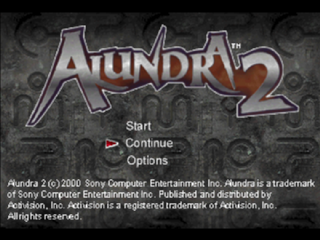
After the Title Screen comes up, select START and press the ✖ button.
Now enjoy the game!
Loading a Game
Insert the Alundra 2 disc into the PlayStation console. Also insert a MEMORY CARD with an Alundra 2 saved game into the MEMORY CARD slot, then turn on the power. At the Title Screen, select Continue and press the ✖ button. Once the Load Screen appears, select the MEMORY CARD slot. Then select the game data you wish to use.
Highlight the game with the directional buttons and press the ✖ button to begin loading. Your game will continue from that saved spot.
Using a MEMORY CARD
By using a MEMORY CARD you can save your game along the way. To use a MEMORY CARD (sold separately), insert it into either MEMORY CARD slot 1 or MEMORY CARD slot 2.
This game requires 1 free MEMORY CARD block for each saved game. Make sure there are enough free blocks on your Memory card before commencing play.
Saving your Game
When you investigate an Adventurer's Journal in a town or dungeon, you will be able to save your game onto a MEMORY CARD. Stand next to and facing the Adventurer's Journal and press the ■ or ● button.
After the Save screen appears, select the MEMORY CARD slot that the MEMORY CARD is in and press the ✖ button.
Investigate the Adventurer's Journal and then select a free block on your MEMORY CARD to create a new saved game.
You can also overwrite a previous Alundra 2 saved game by selecting it. A message will appear asking if it is okay to overwrite. If it's okay, select Yes, if not select No.
Options Screen
When you select Options from the Item screen, a set of sub-commands will appear.
Status
Select the Status command to see your character's current status. As the game advances, additional status items will be displayed.
•
Character's Hit Points and Element Points
•
Currently equipped weapon/armour. The gauges on the right indicate the level of the weapon/armour.
•
Current Elemental Levels
•
Highest Combo Attack (see pg. 21) achieved.
Settings
You can change the various game settings here. The setting items are listed on the left and their descriptions are listed on the right.
Press up/down to highlight the item and then press left/right on the directional buttons to select. When you're finished changing the settings, press the * button to exit after accepting the changes, or the button to exit without accepting the changes. Press the START button to revert to the default settings.
•
Messages: Controls message speed. Select Slow, Normal or Fast.
•
Vibration: Toggles vibration function on or off when using an Analog Controller (DUALSHOCK).
•
Run: Changes run method. Select Tap Once to run with just one push of the button. Select Hold Down and you only run while the button is held down.
•
Window: Changes the background of the message window. In Normal mode, the message window is semi-transparent. In Black mode, the window is entirely black.
•
Sound: Select either Stereo or Mono.
•
BGM Volume: Move to the right to increase the background music volume. Cut-scene volume is not affected.
•
SFX Volume: Move to the right to increase the sound effects volume.
Controller Config
You can change the functions of each button on the controller. Select one of the three easy-to-use patterns and press the button. (The default setting is type A.)
If you select Custom, you can set each button as you like. Select Custom Config and a list of functions will be displayed at the bottom of the screen. Highlight a function you want to assign and then press the button you want to assign it to. When you're finished, select Exit.
You can also adjust the screen alignment. Use the directional buttons to adjust the screen to fit your monitor and press the button to confirm.
This screen is to help you correctly adjust your monitor's brightness to fully enjoy the game graphics. Adjust your monitor's brightness so that the gradations above the yellow line can be clearly seen.
Actions
In addition to the basic controls, there are other actions you can perform. Refer to the Controls section (see pg. 4) regarding basic controls such as jumping, running, and attacking.
Running Attack
Press the button while running to make a running attack.
Summoning an Elemental Lord
With an Elemental Ring selected in your pocket, press the ▲ and buttons simultaneously to summon an Elemental Lord. Each Elemental Lord releases a burst of pure Elemental Force which causes massive damage to all enemies on the screen.
However, summoning an Elemental Lord consumes a great deal of Element Points and requires you to have Elemental Rings of level two and above. Climb Up/Down Ladders
When you are next to and facing a ladder, you will automatically grab it. After that, just use the directional buttons to move up or down.
Using Items
When an item is in your pocket and selected, you can use it
.png)

.png)
_1.png)
.png)