STARTING UP
•
Set up your PlayStation™ game console according to the instruction manual. •
Make sure the power is off before inserting or removing a compact disc.
•
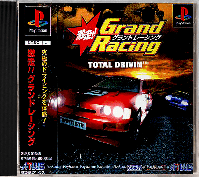
Insert the Car and Driver® presents Grand Tour Racing '98™ disc and close the disc cover.
•
Insert game controllers and turn on the PlayStation game console. •
Follow the on-screen instructions to start a game.
PlayStation Console Features
GAME CONTROLS
The default controller configuration is shown here. All references to button selection in this manual will refer to the default controller configuration.
You can change the controller configuration in the Options screen accessed from the Main menu screen.
INSTRUCTIONS
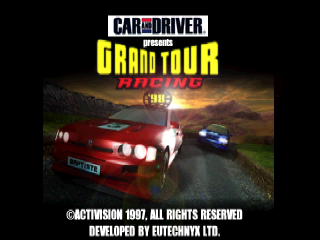
When you turn on the PlayStation game console, you will see an introductory movie, which can be interrupted by pressing the Start button. Following this movie is the Grand Tour Racing '98 title screen. Note: A memory card with at least one free block of memory space available is required to enjoy the game in Season Mode.
TITLE SCREEN
Press the Start button to go to the main menu.
MAIN MENU
The Main menu screen displays the options which you can highlight and select. Use the Directional Buttons to highlight the desired option and then press X to select.
Course
Select this option to specify the race course and difficulty level. Press X to access the Course Selection screen.
Use the Directional Buttons left and right to select from the available courses. Use the Directional Buttons up and down to select the difficulty level of the course.
At first you can only race at difficulty level one for each course; however, winning a race will open up the next difficulty level on that course, but only for the team you represent. The course and difficulty level selected will determine the class of racing, track layout, environmental conditions, and the time of day.
After selecting your course, press the X button to save the selected settings and return to the Main menu.
Trans
Select this option to specify manual or automatic transmission. Press X to toggle between manual and automatic.
If you choose manual you will have to shift up and down using the L2 and R2 buttons. If you choose automatic, the game will shift for you.
Note: Reverse in both transmission options is still accessed by pressing.
Team
Select this option to specify the team you wish to represent. Press X to bring up the team selection screen.
Use the Directional Buttons left and right to select one of the eight international teams: Morgen (USA), Roberts (UK), Rossi (Italy), Ivanov (Russia), Ahmed (Egypt), Baptiste (Jamaica), Lumiere (France), and Xu (China). Each team has its own unique vehicles which are displayed over the team flag. If the game is in Split Screen or Link Up mode, use the Directional Buttons left and right arrows on the second controller to select the second player's team.
Mode
Select this option to specify in which type of race you wish to compete. Press X to cycle through the following choices: Single Player, Split Screen, Head to Head, Link Up, Time Attack, and Season.
•
Select Single Player to race against seven CPU-controlled vehicles.
•
Select Split Screen to race two human-controlled vehicles.
•
Select Head to Head to race two human-controlled vehicles in opposite directions simultaneously.
•
Select Link Up to race two, three, or four human-controlled vehicles in Normal or Head to Head mode (Single/Single mode only) using two linked PlayStations, two copies of Grand Tour Racing '98, and two televisions.
•
Select Time Attack to race solo against the clock in an attempt to beat your fastest lap time.
•
Select Season to compete in a season of races on each of the highest unlocked courses.
Note: The Split Screen option will only be available if two controllers are detected when the game loads. The Link Up option will only be available if a second linked PlayStation is detected during loading. Options Menu Access
Select the ? icon to access the Options menu which will allow you to view course records, load and save to memory cards, adjust music and sound effects volumes, and configure the controllers.
Go!
Select this choice to start the race using the currently selected options.
OPTIONS MENU
The Options menu screen displays game options which you can highlight and select. Use the Directional buttons to highlight the desired option and then press X to select.
Fastest Times
Select this option to access the Fastest Times screens. For each location, there is a screen that shows the fastest race times and lap times for every difficulty level of each course.
Use the Directional Buttons left and right to select the lap records for a particular course. Use the Directional Buttons up and down to toggle between the fastest lap or race times. Press X to return to the Options screen.
Volume Control
Select this option to access the Volume Control screen. Use the Directional Buttons up and down to select either Music level or Sound effects level, and the Directional Buttons left and right to set the volume.
Select Exit using the Directional Button down and press X to save the selected settings and return to the Options menu.
Config Controls
Select this option to access the Controller Configuration screen. Use the Directional Buttons left and right to select a controller configuration. Press X to select the displayed configuration and return to the Options screen.
Analog Controller Configuration
Sony Analog Controllers, NeGcons, and Steering Wheels need to be calibrated prior to use with GTR '9