STARTING THE GAME
LOADING AND INSTALLATION
1. Set up your PlayStation game console according to the instructions in its Instruction Manual. Make sure the power is off before inserting or removing a compact disc. 2. Insert the Defcon 5 disc and close the CD door.
3. Insert the game controllers and turn on the PlayStation game console. 4. Follow the on-screen instructions to start the game.
Save Game Feature
A memory card is not required to complete Defcon 5. However, if you wish to save your position in Defcon 5 so that you can continue it at a later date, you will need to buy a memory card (Order code SPCH-1020).
Console
Top View
Controller
Front View
Top View
WRITTEN FORM-PHONETICS
•
A BUTTON TRIANGLE BUTTON
GETTING STARTED
The following is a step-by-step guide to getting from the Shuttle Bay, your starting point, to the Control Room, and installing the defense software. It is necessary to install the defense software as soon as possible to succeed (and survive) in Defcon 5. Don't worry, you'll have ample time to explore the rest of the complex.
•
Starting Point Limo Station
•
Elevator To Admin. Level 6
1. Upon arrival at Hanger A, take a step forward and turn to the Right.
2. Move to the LIMO door.
3. Press to call the LIMO.
4. Press Right on the D-Pad three times to select Admin Level 2 as your destination. Press X to activate the LIMO.
5. Upon exiting the LIMO, turn left, go forward a few steps, then go right to the elevator. Press to call the elevator.
6. Select Admin Level 6 and press X to activate the elevator.
7. Exit the elevator, follow around to the right until you see the red Tyron emblem on the wall. Head towards this emblem and go through the automatic doors.
8. Continue heading towards each red Tyron emblem, they will lead you around to the left to another elevator (you can pick up extra ammunition by grabbing the item in the corner on the way to this elevator).
9. Press O to call the elevator, select Control Room and press X to activate the elevator.
10. In the Control Room, head towards either of the two blue and white Tyron emblems - one on each side of the room. These are VOS terminals. Walk up to one and press O.
11. You will receive a briefing from the Tyron Corporation. After the briefing install the defense software by going to the Tactical Node (this should be your starting point), Press X, Go to the Defense Systems Node, Press X, Go to the Software Control Node, Press X.
12. In Software Control, "Install from Pad" should be highlighted. Press X to install the defense software. Congratulations, your turrets are up and ready to defend the mining installation.
USING THE VOS
The VOS (Virtual Operating System) is the computer system that runs MRP-6F. With proper security clearance, you can literally control almost every operational aspect of the defense station. The VOS can be broken down to four main areas, each area housing several more sub-areas.
1. VOS Main Screen
2. Base System
3. Archives
4. Comm.
1. Tactical
•
A. Base Status - Quickly determine your current defense condition ("Defcon") and current station operational status (things are in pretty good shape or is it time to get out of Dodge?).
•
Defense Status - Important information about your current Operational Status (life support, power systems, defense condition, and base status), the amount of damage the MRP-6F has taken (broken down by area), and the amount of damage your defense systems have taken. Any area or turret that has incurred 100% damage is impassable or inoperable.
•
MRP-6F does have an automated repair function. Damaged sections of the complex, as well as the six gun turrets all will be repaired automatically assuming the automated repair function is still operating. When your automated repair function has been


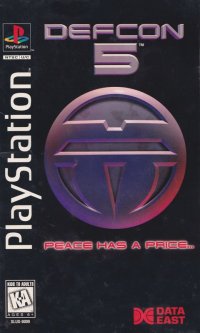
![Defcon 5 [Long Box] box art for Playstation](https://media.retro.gold/moby_img/Sony_-_PlayStation/Named_Boxarts/Defcon 5 [Long Box]_Front_Cover.jpg)
![Defcon 5 [Long Box] screenshot 3 for Playstation](https://media.retro.gold/moby_img/Sony_-_PlayStation/Named_Snaps/Defcon 5 [Long Box]_screenshot_0.jpg)
![Defcon 5 [Long Box] screenshot 4 for Playstation](https://media.retro.gold/moby_img/Sony_-_PlayStation/Named_Snaps/Defcon 5_0.jpg)
![Defcon 5 [Long Box] title screen for Playstation](https://media.retro.gold/Sony_-_PlayStation/Named_Titles/Defcon 5 - Peace has a Price [NTSC-U] [SLUS-00009].png)

.png)
.png)



.png)




.png)



.png)