SETTING UP
•
MEMORY CARD SLOTS (ABOVE CONTROLLER PORTS)
Set up your PlayStation game console according to the instructions in its Instruction Manual. Make sure the power is off before inserting or removing a compact disc. Insert the DINO CRISIS 2 disc and close the Disc Cover. Insert a game controller and turn on the PlayStation game console. Follow on-screen instructions to start a game. Tip
Watch the game demos before starting play for game hints.
MEMORY CARDS
To save game settings and results and to continue play on previously saved games, insert a Memory Card into Memory Card Slot 1 of the PlayStation game console BEFORE starting play. If you do not have a Memory Card, the game will allow you to play without saving game settings and results.
STARTING THE GAME
YOUR MISSION
Sneak into Edward City, which has been mysteriously sent back to the Cretaceous period, complete the two missions below, and return to the present day alive!
•
Rescue all survivors in Edward City.
•
Secure Third Energy research data.
MAIN MENU
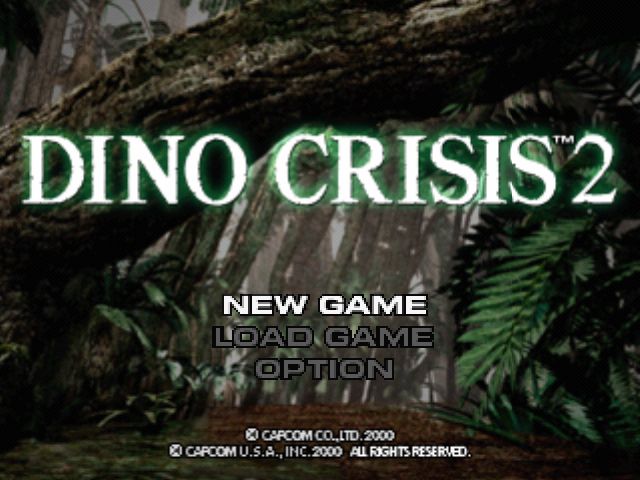
1. When the DINO CRISIS 2 Title screen appears, press START to display the Main Menu.
2. Use the Directional Buttons/Left Stick to choose a mode, then confirm with the X, or START Button.
3. Choose one of the following Main Menu options:
NEW GAME
Choose NEW GAME when you play DINO CRISIS 2 for the first time, or to start a completely new game even if you've played before. The game will start from the beginning after you choose a difficulty level (NORMAL/HARD).
LOAD GAME
Insert a Memory Card containing DINO CRISIS 2 saved data before turning on your PlayStation. Then choose LOAD GAME to restart your game from the point where you saved. A Load screen will appear. Choose a Memory Card to load from, and then choose a saved data file. Do not remove a Memory Card while saving or loading. Doing so may destroy save data in the Memory Card.
OPTION
Choose OPTION to adjust various game settings.
OPTION MODE
To access the Option menu, select OPTION from the Main Menu or the Pause menu. On the Option menu, use the Directional Buttons/Left Stick to choose an option, then confirm and access its submenu with the X or Button.
On submenus, use the Directional Buttons/Left Stick to select the setting you want, then confirm with the X or Button.
OPTION MENU SETTINGS
•
KEY CONFIG: Change the button assignments by choosing TYPE A, B or C.
•
SOUND: Choose MONAURAL or STEREO according to the speaker setup on your TV.
•
MONITOR TUNING: Adjust the screen brightness. (Available only with TVs that have a brightness adjustment.)
•
RESET: Return to the Title screen. Use this to end the game during gameplay.
•
EXIT: Quit back to the Main Menu or Pause menu.
INVENTORY
Press SELECT during gameplay to open the Inventory screen, where you can check your character's condition, equip weapons and use items, etc.
Highlight one of the four Inventory options: WEAPON, ITEM, FILE or MAP, with the Directional Buttons/Left Stick and press the X button. To return to gameplay, press the button or SELECT.
WEAPON
When you choose WEAPON in the Inventory screen, the following options are displayed:
•
MAIN WEAPON: Main weapon currently equipped, held with right hand or both hands.
•
SUB WEAPON: Sub weapon currently equipped, held with left hand.
Highlight either weapon type with the Directional Buttons/Left Stick and select with the X button. When a list of weapons appears, select a weapon to equip. Then select one of the following options:
•
EQUIP: Equip the weapon.
•
CHECK: Check the weapon.
Some of main weapons require both hands to equip. When you are using a two-handed main weapon, you cannot have a sub weapon. You must have a main weapon equipped to return to the gameplay.
ITEM
Rotating items are located in various areas of the game. To get one of these items, stand in front of it and press the X button. When you choose ITEM in the Inventory screen, you can select one of the following options:
•
RECOVERY: Display recovery items in your Inventory. When "Will you use it? YES / NO" appears, select "YES" to use the item.
•
KEY ITEM: Display key items required to advance in the game. Select one of the key items to display the following two options for using it:
•
USE: Use the highlighted item.
•
CHECK: Check the highlighted item.
FILE
You'll find different confidential files during the game. Some of these contain hidden hints to solving puzzles. When you collect a file, it goes into your Inventory. To read a file, select FILE on the Inventory screen, then select the file you want to check out.
MAP
Areas you explore are mapped automatically. Select MAP on the Inventory screen to view them. On the map, your character's
.png)

.png)


.png)
.png)
_1.png)

.png)


_1.png)