Introducing Monsterseed
"Monsterseed" is a new style of monster collection RPG. You hatch monster seeds, summon monsters, and command them in battle. You play as Daniel, "The Ruler," who commands monsters. You must raise different types of monsters and venture through dungeons, fighting enemies and completing tasks.
Monsters are key to victory, as you summon them to fight instead of using weapons or magic. Your skill as a player is measured by how effectively you raise and send monsters into combat.
If you have separate memory cards, you can have a contest between original monsters. Enjoy the adventures and the fun of raising and battling monsters!
Console Setup
Set up your PlayStation® game console according to its Instruction Manual. Ensure the power is off before inserting or removing a compact disc. Insert the MONSTERSEED disc and close the disc cover. Insert game controllers and turn on the PlayStation game console. Follow on-screen instructions to start a game. Starting the Game
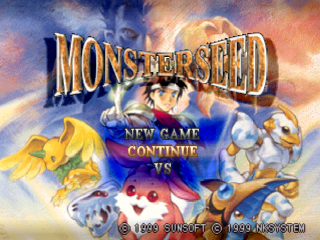
At the title screen, a menu is displayed. Use the directional buttons to select an option and press the X button.
Select this option to start a new game.
If you have saved data on a memory card, this option allows you to continue that game.
If each player has a memory card, you can play a monster vs. monster contest. Insert memory cards with saved data into the Player 1 and Player 2 memory card slots.
In-Game Navigation
The character is moved using a general map and a movement map.
General Map
This map shows the general layout of the town. Choosing a destination on this map leads to a movement map.
The number of destinations increases as the story unfolds. Select a destination using the directional buttons and confirm by pressing the X button.
Movement Map
This map is for moving your character and performing actions. You can visit many locations, such as shops and Inns in town, and fortresses and mines outside town.
Stopping at the "White Armor" Inn
Here, you can rest to regain strength or save the game.
How to Save the Game
•
Select "SAVE" from the Inn menu and press the X button. A file screen will appear.
•
Insert a memory card into the machine.
•
Select the file location where you want to save the game and then press the X button or the L3 button.
•
If you choose a file with existing saved data, you will be asked "Do you want to overwrite data?" Press the X button or L3 button to confirm.
•
You can cancel your selection by pressing the △ button.
Morigan Department Store
In this store, you can buy and sell items. •
Choose an item to buy using the directional buttons, then press the X button.
•
Press the directional buttons to specify the quantity and press X again.
•
To see a description of an item, press the O button.
•
You can sell items using the same controls. Soulin Fighting Monster, Item Store
Here, you can use an incubator to hatch monsters and sell seeds and solutions. Monsters are bought and sold in the same way as items. Select a monster you want to buy from those displayed and then press the X button. If you want to see a description of a monster or an item, press the O button. Naming a Monster
To give a name to a monster you have bought:
•
Select letters using the directional buttons and input the name by pressing the X button.
•
The cursor moves one step back if you press △ and one step forward if you press 〇.
•
See page 20 "Hatching Monsters" for instructions on how to use the incubator.
Monster Fighting Ring
This is where self-proclaimed rulers gather and compete for top ranking. If you win, you receive prize money and items. Town Plaza
This is an important place to gather information. The Town Chief may ask you to perform certain tasks.
From the square, you can reach the house of Kal, a girl about Daniel's age. Kal lives with her grandfather, Wolf, and her two pets.
Menu Window
When your character can move around and is not in a fight, you can call up a menu window by pressing the Start button. Select the option you want and press the X button.
Status
This shows the status of the monsters owned by the Ruler. Select a character you want to know about from the list and press the X button. A status window will appear.
•
Feature window (Merit window displayed by pressing right directional button)
•
Monster items displayed by pressing X button (switch to Item window) •
Graphic image of character.
•
Change name by pressing O button
•
Exit screen by pressing △ button
An "Item" command is not displayed on the Master status screen.
Character Window
The name and type of character are displayed. You can change the name by pressing the O button.
Feature Window
•
Call: Shows the speed of the monster when summoned.
•
Character: Tells you how the monster will behave during a fight and how loyal it will be to the Ruler.
•
Features: Shows the monster's method of attack.
•
Comments: Describes other special
.png)


.png)
.png)
.png)
.png)








_1.jpg)

.png)
.png)





.png)
.png)