Console Overview
Getting Started
Set up your PlayStation game console according to its Instruction Manual. Make sure the power is off before inserting or removing a compact disc. Insert the Rescue Heroes™: Molten Menace™ disc and close the Disc Cover. Insert game controllers and turn on the PlayStation game console. Follow on-screen instructions to start a game. To skip the introductory video sequence, press the START button, and the Command Center Screen appears.
Game Modes
Every time you start Rescue Heroes™: Molten Menace™ you will be able to choose to play in either Training Mode or Rescue Specialist Mode.
"Training" (Assisted) Mode
The default setting is "Training" or Assisted Mode. In this mode you can only move forward through the level in search of those needing rescue.
Once you have found them, press the button to perform the rescue. Assisted Mode is a good place to start.
"Rescue Specialist" (Unassisted) Mode
When you're ready for an extra challenge, choose "Rescue Specialist" or Unassisted Mode. This mode requires that you find your own way through the mission using only an on-screen arrow as your guide.
Mission Structure
Each mission contains two assignments for each Rescue Heroes character. To complete the mission successfully, you must accomplish both parts.
Rescue Missions
Head into the disaster zone with a Rescue Heroes squad member to find your rescue targets and complete the rescues.
Special Missions
Use the special ability available to each Rescue Heroes squad member to complete the Special Mission.
When you've finished all the missions and saved the town, you will receive your Certificate of Honor for helping out the Rescue Heroes Team. Teamwork will help save Misty Peaks™.
Starting Your Mission
The Rescue Heroes™ team members run to their stations to report for duty. A volcano has erupted and the town of Misty Peaks™ needs your help!
Title Screen
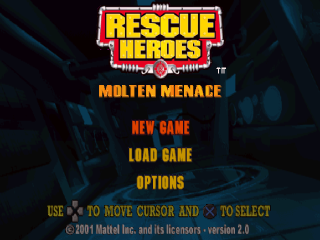
When you load up Rescue Heroes™: Molten Menace™ the Title Screen appears first, where you will see the following choices:
•
Select NEW GAME to start a new mission and go to the Sign-in Screen.
•
Select LOAD SAVED GAME to continue a mission you have saved to the MEMORY CARD.
•
Select OPTIONS to go to the Options Screen.
Sign-In Screen
As a new recruit to the Rescue Heroes™ team, sign in to report for duty.
1. At the Sign-in Screen, use the directional buttons to choose the letters and enter your name. Your name will be used on your Certificate of Honor to congratulate you once you have completed all of the missions.
2. After you sign in, select END and press the button and the introductory video sequence begins.
If you would like to skip the introductory video sequence and go directly to the Sign-in Screen, press the START button.
Options Screen
At the Options Screen, you will see these choices:
•
Graphic Options - Use the directional buttons to adjust the screen position.
•
Sound Options - Use the directional buttons to adjust the sound levels.
The Command Center
Sirens wail and lights flash as the Rescue Heroes™ team runs down the hallway to the Command Center for their assignments. Go... go... go!
Command Center Screen
Use the directional buttons to highlight a character on the screen and then press the ✖ button to choose a Rescue Heroes character and start your mission.
If you are in Training Mode, you can choose any Rescue Heroes character and his or her mission by selecting their image.
If you are in Rescue Specialist Mode, you'll play the missions in a specific order starting with Ariel Flyer™. When your five main missions are complete, you can play the final rescue mission with Billy Blazes.™ Equipment Check
Roger Houston™ will talk you through a "systems check" to try out the special equipment you'll be using on your mission. Learn the special controls for your chosen Rescue Heroes team member before you head out into the disaster zone. Now you're ready to start your mission. Good luck! Mission Strategy
There are a number of on-screen features that can help you accomplish your missions.
Guidance Arrow
In the Rescue Specialist Mode there is an on-screen arrow that moves with your Rescue Heroes character to point the way to your next target. Note that you may need to find your way around an obstacle to reach the target.
Highlighted Rescue Targets
People or animals that need rescuing will be highlighted on-screen so you can spot them more easily.
The Radio Link Panel
The Radio Link Panel flips open to show the face of the Rescue Heroes™ team member who is broadcasting information to help you perform your current mission. The panel also shows "thank you" messages from people you have rescued.
Once you have rescued someone, a representation of all the mission's rescue targets will appear briefly at the bottom of the screen. Faces still needing rescue will appear in shadow while those already rescued will be in color.
Rewards & Penalties
Rewards
During your rescue missions, you earn the following rewards:
•
Praise for completing tasks from Billy Blazes™ and your Rescue Heroes™ teammates via the radio link. The people and animals you rescue will thank you as well. •
Badges for completing rescues of