Getting Started
Set up your PlayStation®2 computer entertainment system according to its Instruction Manual. Ensure the MAIN POWER switch (located on the back of the console) is turned on.
Press the RESET button. When the power indicator lights up, press the OPEN button to open the disc tray. Place the Disney's Extreme Skate Adventure disc on the disc tray with the label pointing up. Press the OPEN button again to close the disc tray.
Attach game controllers and other peripherals as appropriate. Follow on-screen instructions and refer to this manual for information on using the software.
PlayStation®2 Connectors
Grab Tricks
To perform a grab trick, the skater must first be in the air. Once in the air, press the O button in combination with one of the directional buttons. Each direction will perform a different grab trick.
The longer you hold the O button down, the longer the skater will perform the grab trick, and the score will increase.
Flip Tricks
To perform a flip trick, the skater must first be in the air. Once in the air, press the button in combination with one of the directional buttons. Each direction will perform a different flip trick.
Grind Tricks
To perform a grind trick, the skater must be near a rail or grindable surface. First, ollie (X button), then press the A button when near the rail/grindable surface.
Each directional button, when pressed with the A button on a grindable surface, will perform a different grind trick. Once grinding, press and on the directional buttons to balance.
Lip Tricks
To perform a lip trick, skate straight up a ramp or quarterpipe and press the A button with a directional button at the lip (or top edge) of the ramp. Press and on the directional buttons to balance.
Manuals
To perform a "Manual," quickly press then ↓ or then on the directional buttons or the O button. Press the O button and a directional button to perform different manuals. Press ↑ and on the directional buttons during a manual to balance.
Reverts
To "Revert" when landing back down onto a ramp, press the R2 button or L2 button right as you hit the ramp surface from an aerial maneuver.
The Special Meter and Special Tricks
As you score points, your Special Meter (top left of the screen) will fill up. When the meter is glowing yellow, you can perform special tricks that are normally unavailable.
The Special Meter increases as you perform tricks, allowing you to bust special tricks in the middle of your first combo. Special tricks are performed using multiple directional presses with the corresponding face button. Play through Adventure Mode to earn your special tricks.
Camera Control
Use the right analog stick to move the camera and check your surroundings. To lock the camera, push down on the right analog stick (R3 button).
Pressing the right analog stick down again will release the camera back to the default position. Continue pressing the SELECT button to return to the default camera position.
The Skate Stage
To make a menu selection, use the directional buttons to move the cursor. Press the X button to confirm your highlighted selection.
For a single-player game, select either Play Game or Free Skate. For a two-player game, select 2 Player. You must have two controllers connected before selecting 2 Player. You may also choose Load Game, Save Game, or enter the Options menu.
Two-player games can be played one player at a time or both players simultaneously in split-screen.
Select a Character
You can select movie characters or kid characters from the Skate Stage.
Movie Characters
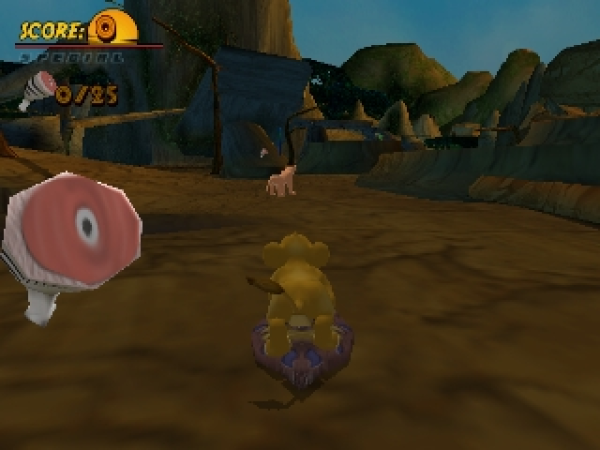
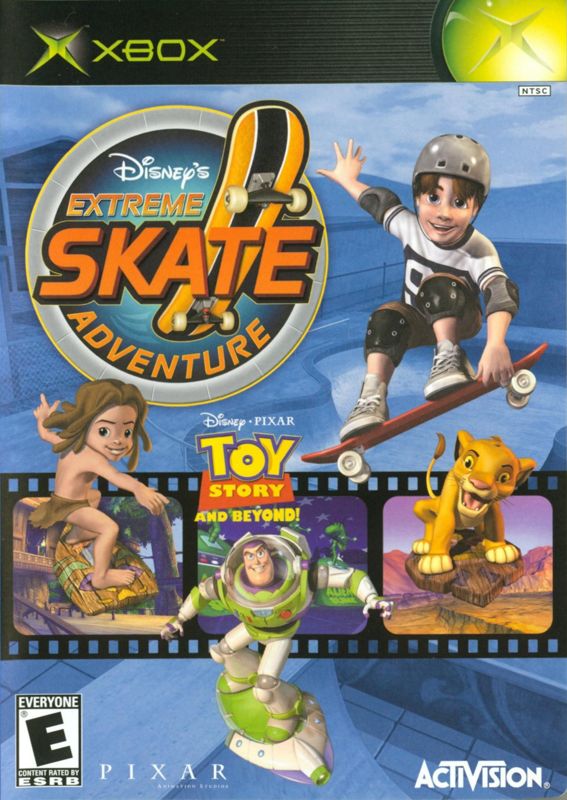
There are 12 movie characters from Disney/Pixar's Toy Story 2, Disney's The Lion King, and Disney's Tarzan™. Not all are available at the beginning. As you score points and complete goals, more movie characters become available.
Each movie character can only skate in their own movie levels. For example, Woody and Buzz Lightyear can only skate in the Toy Story 2 levels.
•
Use the directional buttons / to scroll through available characters.
•
When the desired character is on stage, press the X button to confirm.
Kid Characters
You have three options for playing as a kid character. If you choose a kid character, you'll begin in Olliewood, the real-world level. From Olliewood, find magic portals to enter movie levels.
•
Choosing a boy or girl kid character: Select Ryan or Mallie Ann from the Skate Stage. The Kid Skater menu will appear. Press the X button to play a game and go directly into Olliewood.
•
Creating a skater from scratch: Select Ryan or Mallie Ann from the Skate Stage. When the Kid Skater menu appears, use the ↑/ directional buttons to select Create-A-Skaters. Press the X button to confirm. A list of Create-A-Skater characters will appear. Select an empty slot to create a skater and use the ↑/ directional buttons to select a boy or girl. Next, go to the Edit Kid menu. Use the ↑/ directional buttons to scroll through customization items (name, appearance, outfit, equipment). Use the X button to select an item. Continue using the ↑/ directional buttons to scroll and the X button to confirm. When finished, select Done to go to the Kid Skater menu. Select