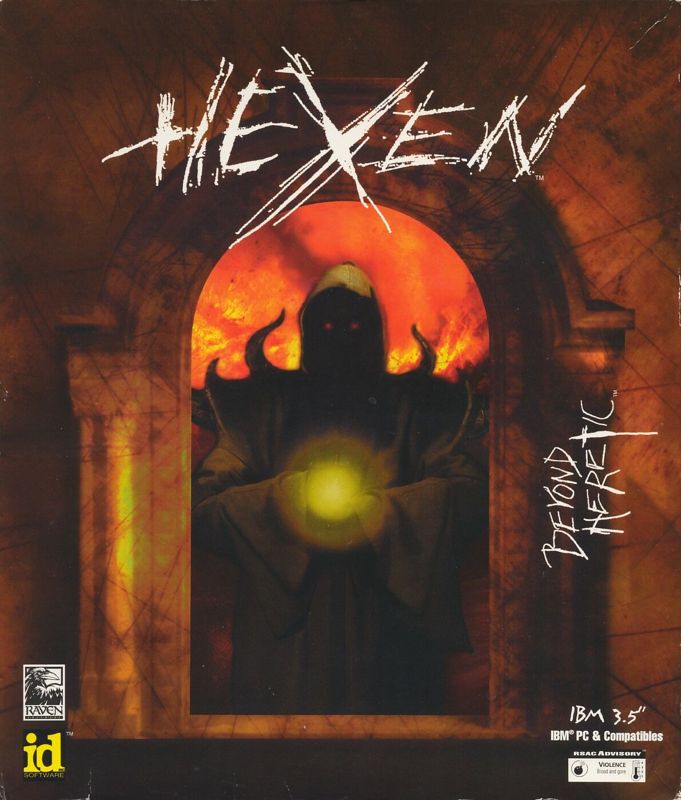
The Object of Hexen
Whether you choose to play as Baratus the Warrior, Daedolon the Mage, or Parias the Cleric, the ultimate goal of Hexen is the same. You must defeat Korax, the second of the three deadly Serpent Riders.
The task is not an easy one, however. Along the way you must destroy hundreds of Korax's vile minions and learn the secrets of his stronghold if you wish to progress to the final confrontation.
Hub Play
Korax's fortress is built upon a series of central cores known as Hubs. Each Hub provides access to several sub-levels. In order to progress through the game, you will need to revisit each Hub several times and explore the numerous sub-levels that branch off from it.
Often, you will recover important items and bring them back to the Hub. Only then will you be able to progress to the next Hub and the next challenge.
Character Classes
When you start a new game of Hexen, you will have the opportunity to choose your character class: Warrior, Mage, or Cleric. Once you have chosen, you may not change your class.
You may start as many new games as you wish and use different characters in all of them. You can save these different characters in different save-game slots.
Strategies For Each Class
Several things are affected by the character class you choose. Each class uses different weapons, and certain artifacts work differently in the hands of different characters.
Most importantly, each class has its own fighting style and its own unique abilities and limitations. You'll have to bear those abilities in mind when you fight or try to solve a problem.
Main Menu & Game Options
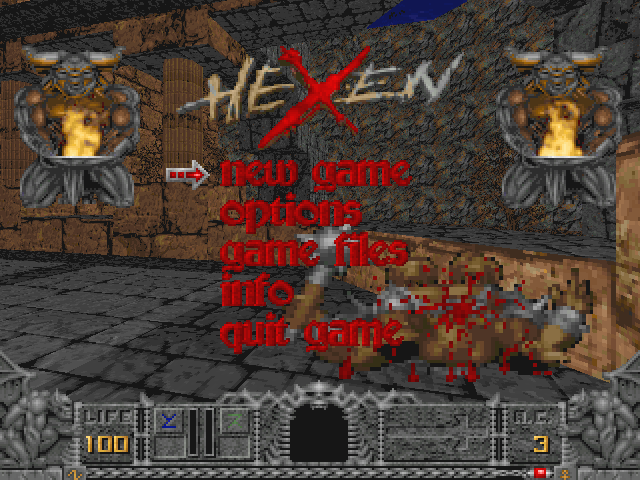
Starting Out: When you start Hexen, you have a choice of starting a new game or going to the Options screen for more choices. Use the D-pad to highlight your choice, and press Button A, B, or C to activate it.
New Game: To begin a game of Hexen, select New Game. You'll be asked to choose a skill level and a character class. If you're new to the game, it's recommended that you use the default skill level, or perhaps an easier one.
Options: The Options screen gives you these additional choices:
•
Sound: Select this option to adjust the sound volume.
•
*SFX Volume*: Adjusts the volume of the sound effects.
•
*Music Volume*: Adjusts the volume of the music.
•
*Stereo On/Off*: Play in stereo or mono.
•
Screen: Use this setting to adjust the screen parameters.
•
*Brightness*: Adjusts the screen brightness.
•
*Screen Size*: Choose between Normal and Full screen size. In Full Screen mode, the Status Bar is not displayed; only your health and the current inventory item are displayed at the lower corners of the screen.
•
Miscellaneous: Displays a submenu of additional options:
•
*Messages On/Off*: With this option turned on, messages are displayed on the screen as you play. Messages keep you informed of events as they happen, letting you know, for example, that you have picked up a flèche or gained extra health points. You can turn this option off for a "cleaner" look on the screen.
•
*Map Rotation On/Off*: You can continue playing even when the map is displayed. You can view the map at any time by pressing Z+C. In that case, you can choose to have the map rotate as you proceed through the area (so you are always facing the top of the screen), or have the map remain static. This is purely a matter of personal preference.
•
End Game: Ends current game and returns you to the Main Menu.
•
Controls: Choose from 3 different control configurations.
Game Files
This section is displayed only if a BACKUP™ cartridge is present. It displays the following game file options:
•
Load Game: Loads a previously saved game. To load a game, highlight the slot of the game you wish to load, and press A, B, or C.
•
Save Game: Allows you to save a game in progress. To save a game, press Start at any time during the game to display the Main Menu, select Options, select Game Files, and select Save Game. Choose an empty slot (or one you don't mind overwriting) and press A, B, or C. Your game will be saved in that slot.
If a memory card is not installed in your system, the following menu items are displayed in place of Load Game and Save Game:
•
Password For This Hub: [Password displayed]
To stop playing a game and resume it later, pause the game, then go to the Game Files menu and note the password displayed. To resume play, select Enter Password from the Game Files Menu. Use the D-Pad to highlight the characters and the A button to enter them. Select Done when you have finished entering the password. Your game will resume with all your weapons and items as they were when you left off.
•
Save Settings: Use this option to save these settings for all your games, until you change and save them again.
•
Previous Menu: Returns you to the previous menu.
You can press Start at any time during a game to access the Options menu.
Your Status
The Status Bar at the bottom of the screen displays vital information about your condition. Here's a look at what the status bar tells you.
100
50
3
1