Starting Up
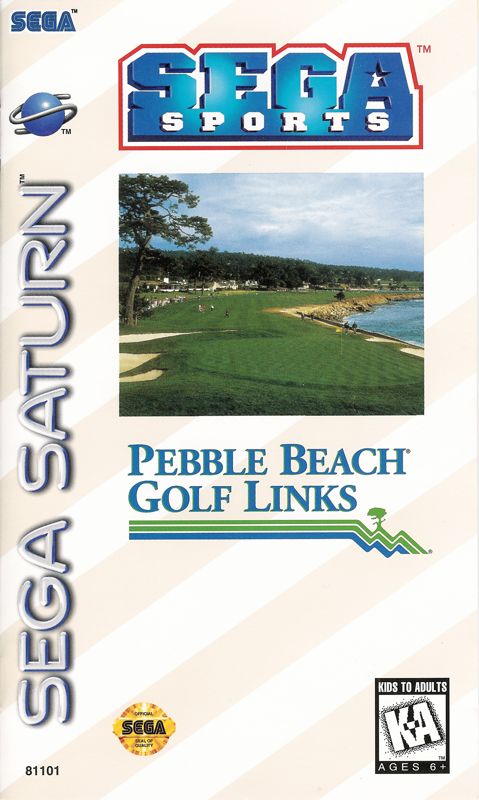
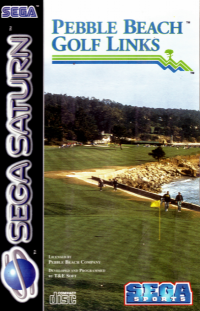
Set up your Sega Saturn™ system as described in its instruction manual. Plug in Control Pad 1. Place the Pebble Beach Golf Links disc, label side up, in the well of the CD tray and close the lid.
Turn on the TV or monitor and the Saturn. The Saturn logo will appear on screen. If nothing appears, turn the system off and make sure it is set up correctly before turning it on again. The on-screen Control Panel appears next. Use the D-Button to select * and press Button C to start the game. The opening screens of the game appear.
If you wish to stop a game in progress or the game ends, press the Reset Button on the Saturn console to display the on-screen Control Panel. Important: Your Sega Saturn CD disk contains a security code that allows the disk to be read. Be sure to keep the disk clean and handle it carefully. If your Sega Saturn system has trouble reading the disk, remove the disk, wipe it carefully, starting from the center of the disk and wiping straight out toward the edge. Getting Started
Once you turn on your Sega Saturn, the Sega logos appear. If you have a Sega Saturn Backup cartridge inserted, and data has been saved on both the internal memory and Cartridge memory, you must select which RAM memory the game will read from. Move the D-Pad to one RAM memory slot and press Button A or C to load the data. The T&E Soft logo appears next. If you don't have a backup RAM inserted, the T&E Soft logos appear after the Sega logo, followed by the Pebble Beach Golf Links introduction and Title screen. After a few moments a game demonstration begins. Press any button to return to the Title screen. Press Start to see the Main Menu.
Main Menu
This is where it all starts. Highlight your choice using the D-Pad, and press Button A or C to select. Button B is used to return to the previous menu or screen.
The menu options include:
Quick Start
The best way to get used to the button functions and gameplay when you're just beginning is to jump right in and play a round. This is a fast way to skip all the niceties and head right out to the first tee. Select this mode from the Main Menu and the default game (Stroke Play) appears.
Continue Game
You can pick up an earlier game right where you stopped playing. If there is no data saved, this function cannot be selected.
To save a game in progress, press Start to pause the game and open the Quit window. Use the D-Pad to highlight YES (you want to end gameplay) and press Button C. Next you have the option to save the game or not. Highlight YES to save the game as it stands, or NO to exit to the Main Menu without saving the game data.
Important: The Continue Game function records a game as it is played. Even if you don't choose to save the most recent game you've played, you'll lose any data from previously saved games, so be careful.
Course Guide
Before getting out on the links, you might want to see the lay of the land. The Course Guide displays the Pebble Beach Golf Links map. Information on the current hole (outlined in pink) is displayed at the bottom of the screen.
Move the outliner anywhere on the links map with the D-Pad and press Button C to hear the "hole" story as described by Craig Stadler. To return to the map at any time during the explanation, press Button B. To return to the Main Menu, press Button B again.
Options
Change various game options here. Highlight an option by pressing the D-Pad up or down, and turn the option on or off by pressing the D-Pad left or right. Pressing Button B returns you to the Main Menu.
The available options are:
•
Shot Path: Gives you a visual representation of the ball from takeoff to landing. (However, if the Ball Point View option is turned on, the Shot Path option is bypassed.)
•
Course Guide: Craig Stadler talks you through each hole before you tee off.
•
Ball Point View: Follows directly behind the ball from start to finish.
•
Reverse View: After the ball lands, the view changes to a reverse angle.
•
Caddie: Select ON to bring a caddie with you on the links, or OFF to display a map of the hole you're currently playing. (If the Caddie option isn't selected, the caddie will not appear on screen, even if you've selected a caddie photo.)
•
Easy Shot: This eliminates the second half of the swing, thus avoiding hooks or slices.
•
Stereo: Set the music and sounds of the game to play in mono or stereo sound.
•
Execute Button: Change the button used to make selections (the default button is Button C).
•
Cancel Button: Change the button used to cancel selections (the default button is Button B).
Select Game
Note: Have you created players yet? If you haven't, and want to, see page 17.
Pebble Beach Open
•
Game Outline: You participate in the Pebble Beach Open, a four day tournament.
•
Number of Players: Three players.
•
Rules: The first two days consist of qualifying rounds, with only the top half of the field making it to the final two days.
.png)

.PNG)
.png)
.png)





.png)


.jpg)


.png)