Adventure Overview
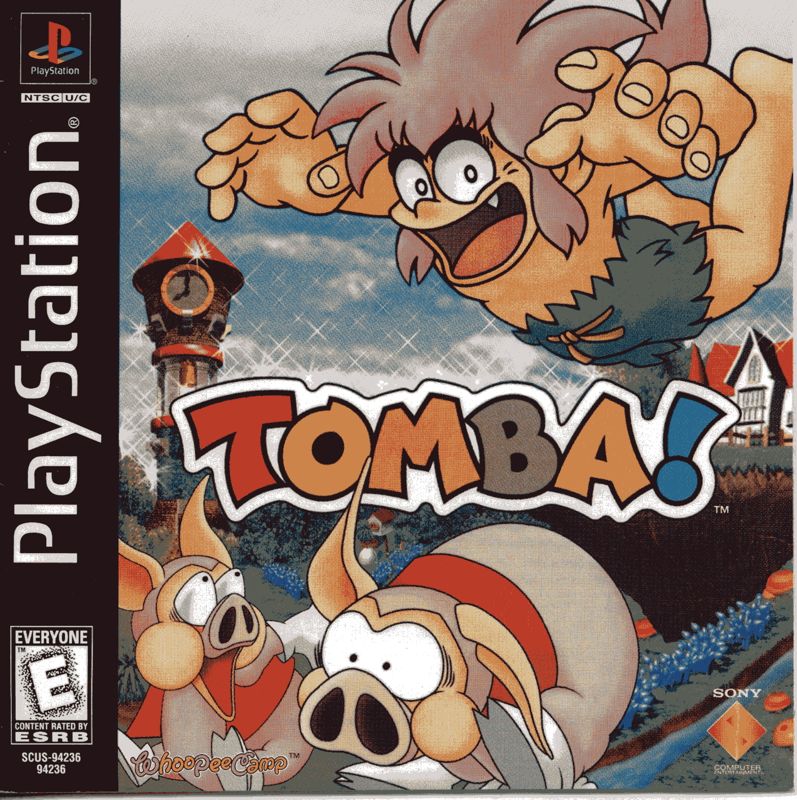
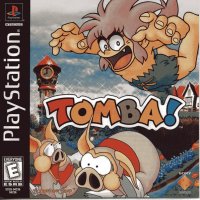
Guide Tomba through mysterious islands, completing events and defeating the Evil Pigs. Events vary in difficulty and type, and clearing them allows Tomba to progress and uncover the Evil Pigs' plans.
Tomba's main goal is to find and seal away the seven Evil Pigs, each possessing unique magic. Legend states that Evil Pig Bags, hidden throughout the islands, can capture them.
The Evil Pigs have cast powerful spells to disguise areas where Evil Pig Bags might be hidden, altering the environment.
It is up to Tomba to recover his Grandfather's bracelet, seal the Evil Pigs, and restore the islands' natural beauty.
How to Begin the Game
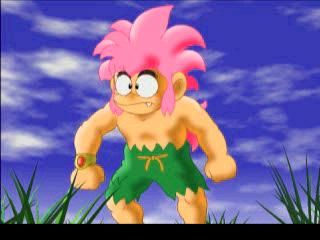
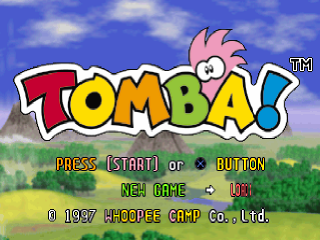
Insert the "Tomba!" disc into the PlayStation® game console and turn the power on. After the logos, a movie will play depicting Tomba's adventure. You can watch the entire movie or press the Start Button to go to the Title Screen.
Title Screen
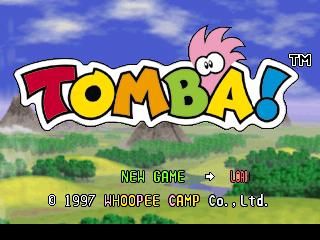
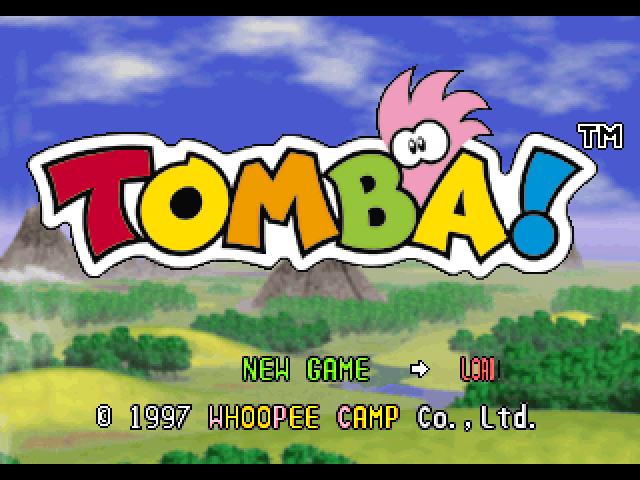
From the Title Screen, you can start a new game, continue a saved game, or adjust game options.
•
Use the Directional Buttons to select an item.
•
Press the Button to confirm.
New Game
Select "New Game" when playing for the first time or to start a new game.
Load Game
To continue a previously saved game, select "Load Game" if you have a Memory Card with Tomba! game data.
Options
Select "Options" from the Title Screen to set various game options. Press the Button to return to the Title Screen.
Sections and Areas
The islands are made up of interconnected sections, accessible via various routes. These sections are further divided into areas.
Types of Sections and Their Characteristics
Different section types affect gameplay.
This is the most standard section type. Tomba is controlled from a side view, focusing on jumping, biting, using items, and attacking.
Played from an isometric (diagonal top-down) view. No enemies appear, and the focus is on conversing with characters.
These are special sections, such as racing. Controls for these sections are explained during gameplay.
Foreground and Background of the Screen
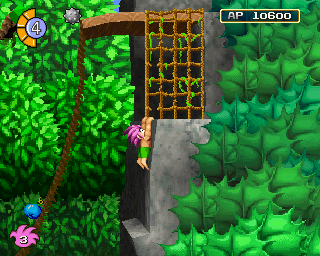
In action sections, Tomba can reach areas in the background of the screen. Tomba can move into the background or foreground at certain points.
•
Jump into the background (background jump)
If there is a wall or something to cling to in the background, hold the Directional Button and press the Button. Tomba will jump into the background and cling to the wall, allowing exploration of that area.
•
Jump into the foreground (foreground jump)
To return to the foreground from the background, hold the Directional Button and press the Button. This is usually possible only from a wall where a background jump was initiated.
•
Walking into the background
In the Haunted Mansion section, some paths lead into the background. Press the Directional Button in front of such an area to rotate the screen and walk down the path.
In-game Menu
Press the Select Button during the game to display the in-game Menu.
•
You can select Item Screen, Event Screen, Status Screen, and Map Screen.
•
Use the Directional Buttons to select a menu item.
•
Press the Button to choose the menu item.
•
The Select and Buttons will resume the game.
Item Screen
Displays all items Tomba has collected. There are five types of items:
•
Normal items (black letters)
Items usable in any situation.
•
Event items (blue letters)
Items usable only in specific locations and situations.
•
Permanent items (red letters)
Items like keys. Once acquired, they are automatically equipped.
•
Equipment items (green letters)
Special equipment that increases Tomba's abilities.
•
Weapon items (green letters)
Weapons used to attack enemies.
From the menu on the left of the Item Screen, you can choose to use, view, or sort items.
Select "Use Item" to use or equip an item.
•
Move the cursor with the Directional Buttons.
•
Press the Button to use or equip the desired item.
•
Press the or Directional Buttons to view more items.
•
Equipped items will have an "E" displayed in front of their icon.
Select "View" to get more information about an item.
•
Move the cursor with the Directional Buttons.
•
Press the Button to view the desired item.
Select "Sort" to organize items on the screen. Select "Sort" repeatedly to change the order.
Event Screen
Displays all discovered or completed events.
•
Discovered events are in red.
•
Completed events are in black with an icon on the left.
Select "View" to receive more information about an event.
•
Move the cursor with the Directional Buttons.
•
Press the Button to view the desired event.
•
Press the or Directional Buttons to show the next page of events.
In the bottom left corner, the total number of discovered and completed events is displayed. Discovered events are on the right, completed events on the left.
Clearing Events
Events are crucial for game progression. The game does not progress simply by moving forward. When Tomba discovers an event, Event Cubes are displayed.
.png)


.png)













_1.png)