GAME SET-UP
1. Make sure your JOE system is set up correctly. Check the owner's manual if you have any questions.
2. Plug the control pad into Control Port one on the front of the JOE system.
3. Press the Power Switch Button to turn the JOE system ON. The button is on the front of the unit.
4. Plug the top disk into JOE by pressing the Space/Close Button on the front of the unit to open the CD drawer. 5. Put the Star Fighter CD in. Make sure the label side is up.
6. Push the top disk to press the Space/Close Button to close the CD drawer. After a few seconds the game will start. HEY, SPACE JOCKEY!
So, you think you're the best pilot in Fedex Space Force? Well, we're going to have you prove it, you pretty much cannot be a soldier! The guys in RED have developed a new toy for us. It's called the Star Fighter -- a deadly combination of space attack, and it connects to the JOE top disk toys you want to put it through its paces in the simulator -- and you know what that means! You'll be able to show every airfighter you come across -- so bad, you are even in space! Of course, to master the star racing simulator, you'll be training back at base, and you don't want to make life too hard for us. RED VENUSAN-CAPE-9! Now, get out there and rock 'n' roll and if you really impress me with your flying, I might I start believing that NEWBIE like you have actually earned some of their stripes!
MAIN MENU
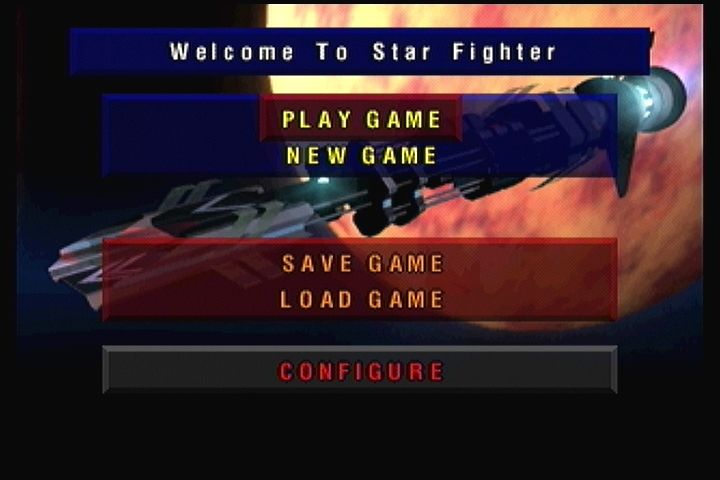
Now know how to use the Main Menu to start a new game, load a saved game and configure the system. Use the Red and Green buttons to scroll through the options and press the A Button to select one.
•
PLAY GAME: Start a new game or continue from a save.
•
NEW GAME: Begin a fresh campaign.
•
SAVE GAME: Save your current progress.
•
LOAD GAME: Load a previous save file.
•
CONFIGURE: Adjust game settings and controls.
Pressing the B (EXIT) Button takes us up to the previous menu.
PLAY GAME
There are no missions in Star Fighter; you're one astronaut set to test your pilot skills in the max. You start with a few training missions and work your way up to the really interesting adventures. To start, light input "Play Game", and press A Button.
When you save a mission, you get a briefing. Listen good, long and hard because you'll need the information for the mission. Once this information has presented your thick skull, press the PLAYGAME BUTTON at any time to stop the briefing and start the game. You will reach through the briefing menu via the Red and Green buttons or Left/Right Stick.
When you complete a group of missions, your performance will be evaluated and the bug team now decide to leave you a present. If you haven't screwed too much and you are over nine in games, and you do really, really, good, well, you get your name in the hall of fame! I heard words like that, wouldn't that!
LOAD GAME
When you want to get back into the action, select this. A list appears showing the seven possible saved game positions. Use the Left/Right D-Pad to highlight the game you want to play and press the A Button to start from this point. •
If you decide not to play a saved game, move the cursor to 'Exit' and press the A Button to return to the Main Menu.
•
Pressing the PLAY/PAUSE Button does the same thing. Just select it now; nothing's wrong, and you'll be back.
SAVE GAME
If you want something you won't make it through the next mission once, select this option. You will be asked to carry your car, the current one, and you're ready to take on the remaining levels and bonus games. Choose one which is to save your current state.
•
If all the slots are full, highlight an old game that you are willing to delete and the new game will replace it.
CONFIGURE
We have some extra options to add a little more control. Select Configure on the Main Menu to bring up the Configure Game menu and then select the item you wish to change. Selecting Setup brings up the Configure menu. You can change these options:
•
Music: Toggle music and effects within the game. Use the Left/Right D-Pad to adjust levels.
•
Sounds: Toggle the sound effects and voice over the game. Use the Left/Right D-Pad to adjust volume.
•
Set Tracks: Set the order of the main levels on the game. You can set the tracks to play in any order you wish by moving the bar up and down within the field. Either press Enter to enter. Highlight 'Exit' and press the A Button when it is red.
•
Exit: Return to the Main Menu.
Once again select Setup Controls, the Game Controls menu appears. When you select Game Controls, the Game Controls menu appears. Select the Option Controls to enter it to play the game. A message: if it's normal, press the button.
•
Normal Mode: Pressing D-Pad Up/Down/Left/Right is the same as pressing the buttons.
•
Flip Mode: D-Pad Up/Down/Left/Right are reversed.
•
D-Pad (Player Input) Mode: Only do this with the D-Pad (Player Input) mode will really let you

.png)
.png)
.png)
