SETTING UP
Top View
Front View
PlayStation Game Console
Set up your PlayStation® game console according to the instructions in its Instruction Manual. Make sure the power is off before inserting or removing a compact disc. Insert the MEGA MAN™ X6 disc and close the Disc Cover. Insert a game controller into Controller Port 1 and turn on the PlayStation game console. Follow on-screen instructions to start a game. Memory Cards
To save game settings and results and to continue play on previously saved games, insert a memory card into MEMORY CARD slot 1 of the PlayStation game console BEFORE starting play. If you do not have a memory card, the game will allow you to play without saving game settings and results. See page 18 for more information on saving game data.
STARTING A GAME
Mode Select
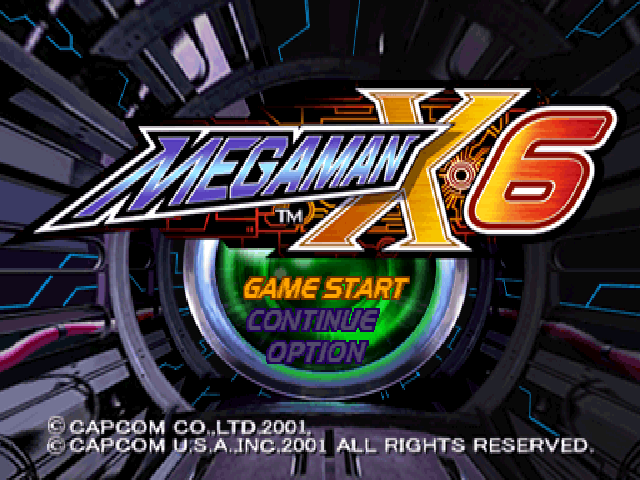
Press the START button in the Title screen to display the Mode Select screen. Press the directional button ▲/▼ to highlight a game mode and press the START or X button to confirm.
•
GAME START - Start a new game.
•
CONTINUE - Play on a previously saved game, starting from the point where you saved (page 18). Insert a memory card containing saved game data into MEMORY CARD slot 1 before continuing.
•
OPTION - Adjust various settings (page 18).
Stage Select
The Stage Select screen offers three modes: STAGE SELECT, PARTS EDIT and RESCUE FILE. Use the L1 and R1 buttons to toggle between the modes.
•
STAGE SELECT - Choose a stage and then choose your character. After clearing the opening stage, you can choose from additional game stages.
•
PARTS EDIT - Power-up your character by equipping Power-Up Parts you receive from the Reploids you rescue (page 15).
•
Select the character you want to equip.
•
Select a Power-Up Part to equip from the Parts Panel. The part you choose is displayed in the Part Area. (The Number and types of Power-Up Parts that can be equipped depend on the character's Hunter Rank.)
•
To unequip a part, choose it again.
•
RESCUE FILE - Inspect the Reploid data you've rescued. You must rescue at least one Reploid in order to view the Rescue File.
WEAPON SELECT SCREEN
Press the START button during gameplay to access the Weapon Select screen. The Special Weapons and Special Moves you have acquired are shown on this screen.
Player Info
You'll see the number of characters remaining, your life, current Hunter rank, Power-up Parts equipped and number of sub-tanks you have. Select a sub-tank and press the X button to use it.
Command Icons
•
RETURN - Return to the game.
•
EXIT - Exit a stage you have completed.
•
ADJUST - Display Adjust screen.
•
BUTTON CONFIG - Change button assignments.
MISSION REPORT SCREEN
When you complete a stage, Alia shows your performance results, your current Hunter ranking, items acquired and so on.
Mission Report
•
CLEAR TIME - How long it took to complete the stage.
•
MAVERICKS DEFEATED - Number of Reploids defeated.
•
DAMAGE RECEIVED - Total damage your character took.
•
SOULS OBTAINED - Total Nightmare Souls acquired (page 14).
•
HUNTER RANK - Total grade for your performance.
Get Report
•
ACQUIRED WEAPON - Weapon you gained in the stage.
•
SPECIAL WEAPON DESCRIPTION - How to use the weapon.
•
ACQUIRED SPECIAL MOVE - Special Move you gained in the stage.
•
SPECIAL MOVE DESCRIPTION - How to use the Special Move.
Rescue Report
•
RESCUED REPLOIDS - Reploids you rescued in the stage.
•
ACQUIRED ITEMS - Items given by Reploids and Armor Files found in the stage.
•
COMPLETED ARMOR - This message appears when you complete a set of armor.
Boss Report
You'll see information about the boss character you defeated, followed by a command list:
•
SAVE - Access the Save screen (page 18).
•
STAGE SELECT - Access the Stage Select screen.
•
QUIT GAME - Return to the Title screen.
OPTION MODE
To enter Option mode, choose OPTION in the Title screen. Press the directional button / to choose an option and to change the setting. Press the X button to confirm.
•
GAME LEVEL - Adjust the difficulty level.
•
GAME SPEED - Adjust the game speed.
•
BUTTON CONFIG - Change the button assignments. When AUTO CHARGE is ON, your shot is automatically charged when the Attack button ( button default) is NOT pressed (Mega Man X only). When RAPID FIRE is ON, you can shoot rapidly by holding down the Attack button. When DEMO VOICE is ON, you will hear the Japanese voice during the demo sequences. You can also turn the DUALSHOCK® analog controller vibration function ON/OFF. •
SOUND MODE - Choose STEREO or MONAURAL depending on your speaker.
•
SOUND TEST - Sample game music.
SAVING & LOADING GAME DATA
Saving Game Data
Saving game data requires one free block in your memory card. Make sure to insert the memory card into MEMORY CARD slot 1 before starting the game.


_1.png)





 (Es,It,Pt).png)

.png)




.png)


_1.png)