Setting Up Your Game
Set up your PlayStation™ game console according to the directions in its Instruction Manual. Make sure the power is off before inserting or removing a compact disc. Insert the Tokyo Highway Battle™ disc and close the CD door. Insert game controllers and turn on the PlayStation™ game console. Follow the on-screen instructions to start a game. Console Top View
Console Front View
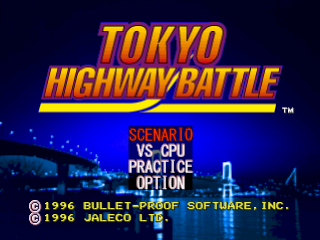
Main Menu
Scenario Mode
Scenario mode has two levels. Each level offers a battle with three drivers.
Upon defeating six drivers, you will be given the honor of battling Japanese racing professional, Keiichi Tsuchiya, better known as the legendary “Drift King.” Win points that can be used toward the purchase of upgrade parts. Vs. CPU
A one-on-one battle on an open, traffic-free circuit. Modify and race twelve different cars.
•
To select an opposing driver, use the left and right direction buttons.
•
Press ★ to confirm your decision.
Practice Mode
Improve your lap times at each venue by learning the course. In this mode, you'll be able to use fully modified race cars.
Option Menu
Selecting Option from the Main Menu screen allows you to customize your gameplay. At this screen you can change car names, reconfigure controller functions, change audio settings, select BGM, and select stereo or monaural output.
•
Use the up and down direction buttons to scroll through the options.
•
To change a setting, use the left or right direction buttons.
Option Menu Settings
Changing a Car Name
1. Use L1 or R1 to select a car.
2. Use the direction buttons to select symbols, letters or numbers.
3. Press the * button to confirm each of your selections.
4. Select “END” or press the ▲ button to return to the Option screen.
Reconfiguring Your Controller
1. In Option Mode, go to Key Assign.
2. Highlight functions using the up and down direction buttons.
3. Press a button on your controller to assign the highlighted function.
4. Press Start to return to the venue screen.
The Venue Screen
At the beginning of the game, you'll have to choose one of three cars. As you progress, more selections will become available.
Selecting a Showroom Stock Car
1. Go to Car Select.
2. Press Select to change the car class (vs. CPU and Practice Mode).
3. Choose a car by pressing the left and right direction buttons.
4. Choose manual (MT) or automatic (AT) transmission.
General Car Data
•
Engine displacement—The size of the car's engine in cubic centimeters.
•
Total weight—The total weight of the vehicle in kilograms.
•
Horsepower—Cars will generally reach their maximum horsepower at higher rpms.
•
Torque—Maximum torque is reached at lower rpms.
Performance Graph
The graph reflects the performance capabilities of your vehicle. The graph will change as you modify your racer. •
Hi, Mi & Lo—Efficiency for high, middle, and low rpm.
Choosing a Circuit
1. Go to Course Select.
2. Choose a course by pressing the left and right direction buttons.
Choosing Laps in Practice Mode
3. Press the left and right direction buttons to determine the laps.
4. Confirm your race location by pressing *.
Drift Driving
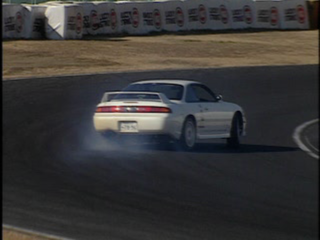
Drifting can be done in two ways. For more experienced drivers, the traditional method of steering and accelerating is suggested. If you're just starting out, try using the “Drift" button.
Tokyo Highway Battle allows for enhanced control with the Drift button. When coming up on a turn, steer lightly into the curve and hold down the accelerator. To drift through, keep your accelerator down and press L2. You'll slide through the turn. It's a little tricky at first. Try this move in Practice mode until you learn how to maintain control of your vehicle throughout the entire drift.
Speed Shop
After purchasing parts, you'll need to have those parts installed. Not all parts will be compatible with your car.
Purchasing Parts
1. Go to the Speed Shop.
2. Scroll through Speed Shop departments using the direction buttons.
3. Press the left and right direction buttons to toggle between menus.
4. Press the up and down direction buttons to select a part.
5. To purchase a part, press the ★ button.
6. Confirm your selection.
7. Press to return to the Speed Shop screen.
Available Modifications
.png)