Game Screens
Depending on your TV, the whole screen may not appear as shown.
•
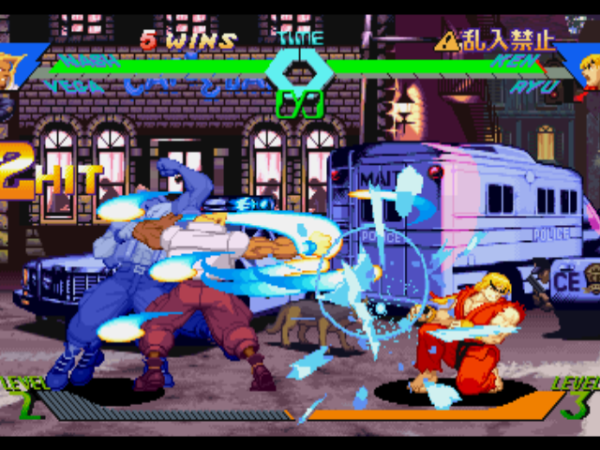
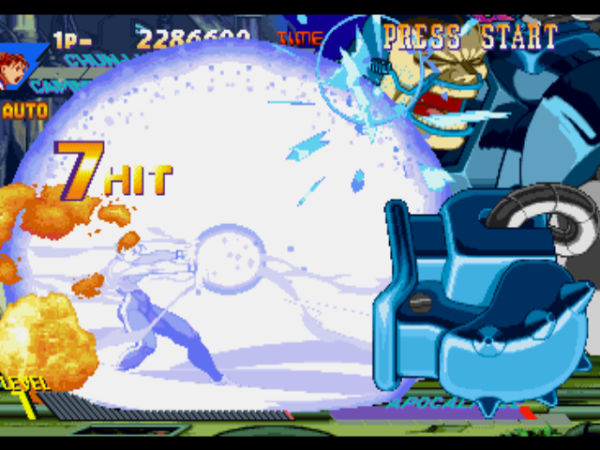
Your score and number of wins. When you play against the computer this area will show your score, but if you are playing against another person, it will display your total number of wins.
Physical Strength Gauge
Your physical strength gauge will decrease respectively depending on the amount of damage your player receives during a match. When your physical strength gauge is all used up, then the match is over.
The red portion of the gauge can recover after time.
Time Counter
This is the amount of time allotted to the match. When your time runs out, your match will end and the computer will judge the result.
You can turn off the time counter in the option mode.
Press Stat
The name of your main character and your support gauge.
Hyper Combo Gauge
See page 9.
Auto Mark
This will appear when you select auto guard. See page 8.
Bonus Message
This can appear when you perform special techniques like Aerial Raves or High number Combos. See page 10 for more information.
Game Rules
Game Setup
The first to win 2 out of 3 rounds wins the game.
Draw Game
When each player's physical strength is either the same when the time runs out, or if each player runs out of physical strength at the same time, a draw game will occur.
A fourth sudden death round will be given if a draw game occurs.
Win Mark
When you win one or more rounds, a win mark will appear just below the physical strength gauge.
There are several different types of win marks depending on how you win the round.
Conditions for Winning and Losing
Each round of battle is allowed a time limit of 99 seconds. During the 99 seconds, whoever's physical strength drops to zero will lose the match.
If the time runs out and neither you nor your opponent's physical strength has reached zero, the round will be judged by the computer. When there is no time limit, a win can only be achieved by making the opponent's physical strength drop to zero.
Game Modes
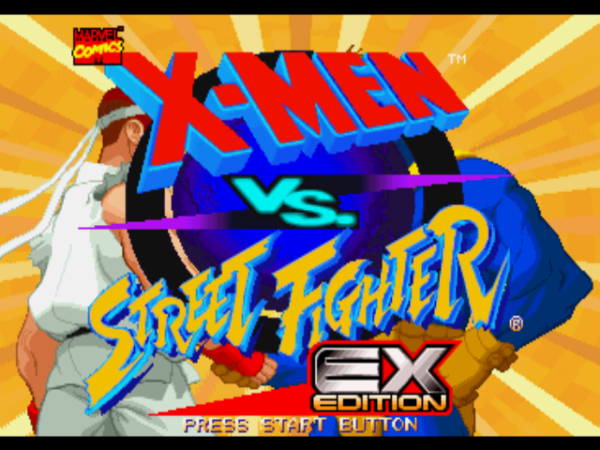
When you press the Start button during the title screen, the game select mode menu will appear. Highlight the mode you would like to play and press the Start or the X button.
Battle Mode
This is the mode where you can play against the CPU. While playing, another player can join in at anytime by pressing the Start button on the challenger's controller.
Once the new challenger joins in, a 2 player versus game begins. If you lose in this mode, you can continue as many times as you wish.
Versus Mode
This mode can only be selected when 2 Controllers are plugged into the PlayStation system. After you select the character you wish to play, you can then select handicap levels by moving the or Directional buttons on the Controllers. You can also choose your battle stage by pressing the ▲ or ▼ Directional buttons on the Controllers.
Training Mode
This mode will allow you to practice your special moves and combos against a non-aggressive CPU character of your choice. Once you select training mode, you can choose your main character and your supplementary character as well as the practice opponent.
Your practice opponent will switch to auto mode and will try to block your attack. You must attack with continuous attacks in order to create a combo.
During the training mode you can enter the training mode option screen by pressing the Start button. Choose from the following:
•
Continue: Return to training mode
•
Player Change: Player select screen
•
CPU Action: Set opponent's action •
Key Config.: Set up the button arrangement
•
Quit: End training mode.
Survival Mode
Each battle consists of 1 round with no time limits. You will fight against the CPU to see how many teams of opponents you can defeat.
You will not be able to adjust the following: difficulty, time limit, or number of rounds in the option mode. 2 players cannot play this mode at the same time.
When you choose shortcut mode in the options menu, you can simplify the player select screen and enjoy smoother game play.
Option Mode
When you select option from the mode select screen, you can change the game setup options. You can select these items with the ▲ or Directional buttons on the Controller and the content with the R Directional buttons on the Controller.
You will be able to change the following options:
Difficulty
You can set up the Battle Mode computer difficulty from levels 1-8. The higher the level, the more challenging the game.
Time Limit
You can turn the time counter on or off. If the counter is on, the time count is set at 99 seconds. If it is off, you will have unlimited time during the round.
Rounds
You can set up the number of rounds in the game to 1, 3, or 5.
Turbo Speed
The more stars highlighted, the faster the game play will be. You must select Turbo mode when choosing your game mode.
Shortcut
You can turn this on or off. When the shortcut mode is on, your load time is greatly decreased and can be used for all modes.
Sound Mode
You can change