Selection Screens
Various Selection Screens appear in each mode before the race starts. This section explains the Selection Screens and related items for each mode.
Course Selection
Select the course to race. See P.24 for a detailed description of each course.
•
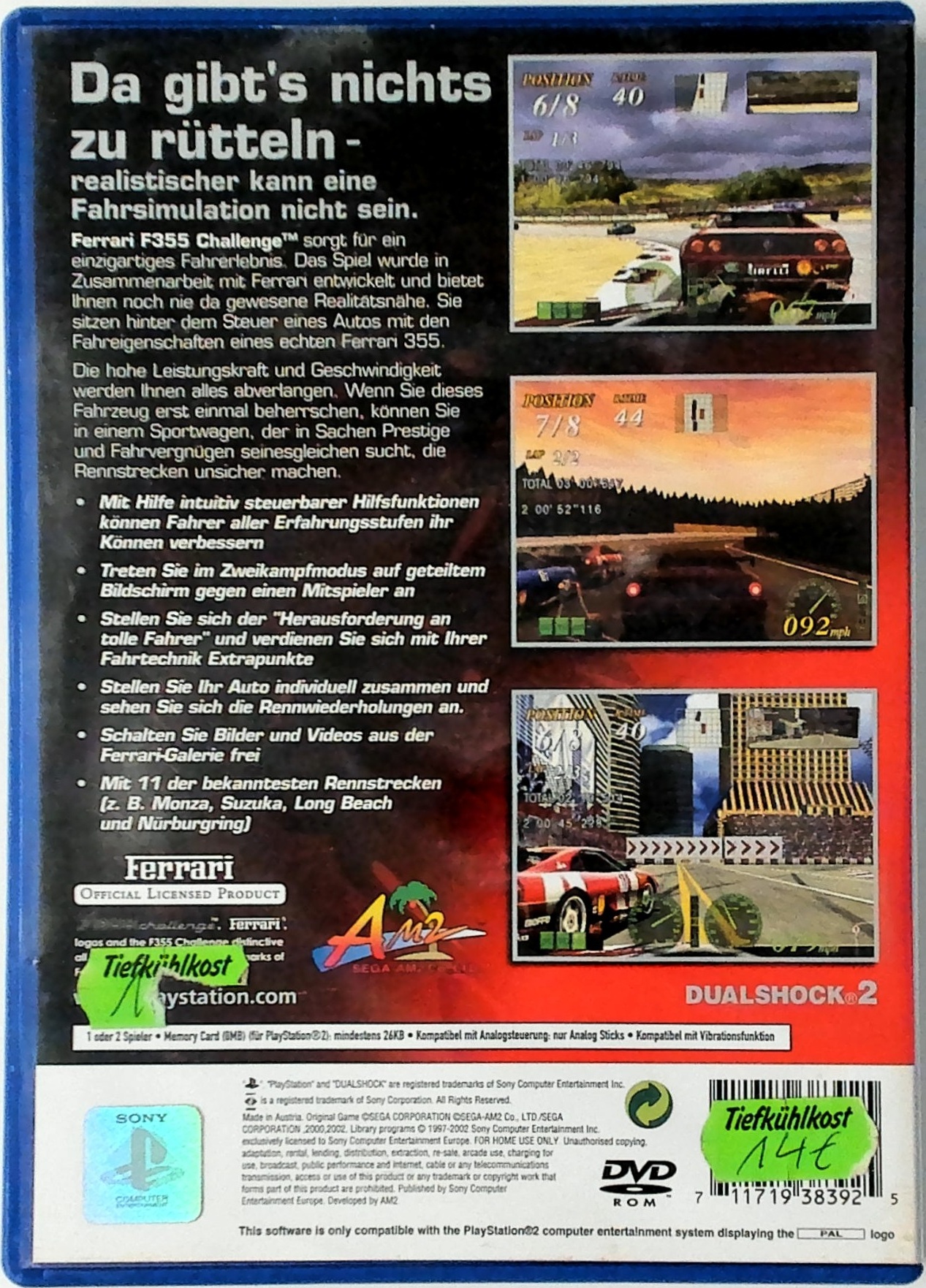
Select a course from eleven courses modeled on actual racing circuits.
•
Use left or right on the directional buttons to select a course and press the button or button to enter the selection.
Difficulty Level
Select the difficulty level. The car transmission type and availability of Driver Assist Functions vary according to the level chosen.
•
Driver Assist Functions can be switched ON/OFF during the race. Details on Driver Assist Functions can be found on the next page.
•
Select the transmission type and Driver Assist Functions. Select using left and right on the directional buttons and press the button or button to enter the selection.
Race Difficulty Levels
•
Novice: Shifting is automatic. All Driver Assist Functions (SC, TC, ABS, and IBS) can be used.
•
Intermediate: Shifting is semi-automatic (six-speed) and gears are shifted manually. The Driver Assist Functions SC, TC and ABS can be used but the IBS function cannot.
•
Pro: The handicap of the selected player is removed (can only be chosen when the Handicap option is set to Heat in the Options Screen, while in Versus Play mode). Shifting and available Driver Assist Functions are the same as for Intermediate level.
Driver Assist Functions
Various Driver Assist Functions have been provided to help beginners hone their driving and racing abilities while enjoying the game.
•
The Driver Assist Functions can be individually enabled/disabled during a race (the available Driver Assist Functions vary depending on the difficulty level selected).
•
Gradually disabling Driver Assist Functions as driving technique improves is the best way to raise racing ability to the next level.
•
Driver Assist Functions can be set to ON/OFF at the beginning of the race from the Options Screen (P.21).
Driver Assist Functions List
•
SC (Stability Control): Limits body roll during cornering to improve driving stability.
•
TC (Traction Control): Improves traction and stability.
•
ABS (Antilock Brake System): Keeps tires from locking during sudden braking.
•
IBS (Intelligent Braking System): Applies the brakes automatically to slow the car before curves. This function allows beginners to concentrate on steering and helps them get a feel for where on the course to brake.
Switching Driver Assist Functions ON/OFF
•
Use the button to move the cursor on the Driver Assist Functions indicator and press the button to switch the selected Function ON/OFF.
•
Move Driver Assist Functions selection cursor with the button.
•
Toggle selected Function ON/OFF with the button.
Sub-Mode Selection
Select a Sub-Mode.
•
Select a Sub-Mode. Use left and right on the directional buttons to select and press the button or button to enter the selection.
Sub-Modes
•
Training Mode: Follow verbal commands and course markings and try to become familiar with the course lines, braking points and the gearshift timing.
•
Driving Mode: Try the course solo to hone driving technique. In this Sub-Mode, a ghost car is created based on the player's drive data.
•
Race Mode: The player can test their technique behind the wheel in the real race and vie for the top ranking.
Features of Each Sub-Mode
•
Training: The red line indicates the optimum route. The player should pay attention to markers indicating upcoming corners and try to stick to the line. It is important to pay attention to the braking display and speed advice in order to handle the corners well. Advice on speed is displayed only when the IBS Driver Assist Function is turned OFF.
•
Driving: The player drives the course alone, utilizing the lessons learned in training and polishing their racing technique.
•
Race Mode: Players can try a real race once they have developed some confidence behind the wheel. Put techniques learned to the test and shoot for the top spot!
*The ghost car is not displayed unless Ghost Car is set to ON on the Options Screen.
Game Modes
Following is an explanation of the procedures and rules for each of the Game Modes available in FERRARI F355 Challenge™.
Arcade
This mode retains the features of the arcade version of FERRARI F355 Challenge™.
•
Select "ARCADE" to display the Course Selection Screen. Then select the course, difficulty level, mode and time limit and proceed to the Menu screen.
•
The conditions for Game Over and the rules for clearing a race are the same as those in the arcade version.
•
There is a time limit for each of the Game Modes. Passing through a checkpoint before time expires extends the remaining time and allows continued play.
•
When the Sub-Mode is set to Training Mode or Race Mode, the player arrives at the finish line after running a specific number of laps, and the game is over when the remaining time expires. There are no continues.
•
When the Sub-Mode is set to Driving Mode, the player can continue racing as long as there is time left. If the time runs out, the player can press the START button when CONTINUE is displayed to add 100 seconds to the remaining time and continue game play.
•
When No Time Limit has been selected there is no time limit. To end game play when the Sub-Mode is set to Driving Mode, press the START button to call up the Pause Menu and select "QUIT".
Arcade Sub-Mode Selection
•
Select the course, difficulty level and Sub-Mode
.png)


_2.png)
.png)
.png)


_1.png)


.png)


 (En,Fr,Es).png)


.png)


_1.png)

.png)





.png)