Getting Started
Set up your PlayStation®2 computer entertainment system according to the instructions in its Instruction Manual. Make sure the MAIN POWER switch (located on the back of the console) is turned on.
•
When the power indicator lights up, press the OPEN button.
•
The disc tray will open. Place the World Tour Soccer 2005 disc on the disc tray with the label side facing up. •
Press the OPEN button again and the disc tray will close.
•
Attach game controllers and other peripherals, as appropriate.
•
Follow on-screen instructions and refer to this manual for information on using the software.
PlayStation 2 System Components
Saving Data
You must insert your MEMORY CARD (8MB) (PlayStation 2) before you save or load a file. World Tour Soccer 2005 saves user-defined options and all data for Competitions, Settings, and Records. 685KB of memory must be available on your MEMORY CARD to save Competition data, 390KB are needed for Settings data, and 108KB of memory is needed to save Records. If you do not use a MEMORY CARD, all World Tour Soccer 2005 data will be lost when you turn OFF your PlayStation 2 console. When you turn on your PlayStation®2 console, if a MEMORY CARD is inserted, you will be asked if you want to create a save file. A save file is used to save all game and competition data while you play or set up World Tour Soccer 2005. Once a save file is created, you will be brought to the Main Menu. You can also create and load a saved file from the MEMORY CARD Menu located in the Options Menu.
Strategies
In-game strategies allow you to change your team's offensive and defensive playing style, such as player locations and assignments, on the fly.
•
Hold the Right Analog Stick/ to cycle through game strategies.
•
Use ↑/ to cycle through different team formations.
•
As you set your calls, strategy symbols will appear in the bottom corner of the screen.
Strategy Symbols
Taking Shots On Goal
The shooting system allows you to set the exact height and direction of your shot.
•
Hold to start the shot meter. The longer you hold, the higher the bar on the meter will rise, which will determine the height of your shot.
•
Tapping will result in a shot along the ground.
•
The direction that your player is facing and whether you use the Left Analog Stick/➡ to curve your shot will determine the direction of the kick.
Auto Crossing
When in the crossing zone of your opponent's half of the field, an aerial pass will cross the ball into the center. You will know when your player is in the crossing zone, as the control icon under his feet will change.
Crosses feature automated curving of the pass to help direct it to an open player. Depending on the location of the goal, using the Left Analog Stick when an aerial pass is released will determine the curve on the ball.
•
Left Analog Stick away from the goal - the ball will curve away from the goal, depending on the foot the player kicks with.
•
Left Analog Stick towards the opposite goal - a low driven cross, good for volleys or diving headers.
•
Left Analog Stick DOWN - a high, looping cross, good for headers or overhead kicks.
•
Left Analog Stick DOWN towards the goal - the ball will be curled towards the goal, depending on the foot the player kicks with.
•
No directional control - a normal cross.
Set Pieces
Before goal kicks, corner kicks, or free kicks, you can press L2 to choose a set of controls for putting the ball in play. You can use the Directional Passing system or the Icon Passing system.
Directional Passing
During set pieces, to kick the ball to a part of the field or a particular player in a set piece:
•
Press the Left Analog Stick / to point to a location of the field.
•
Press to start the shot meter.
•
Hold for a long pass or kick or tap it for a short pass or kick along the ground.
Icon Passing
The Icon Passing system allows you to target certain locations of the field with your kick. Button icons that correspond with the buttons on your controller will appear in zones on the field.
•
Press , , , or to aim a kick towards that area of the field.
•
To change zone locations, press R2.
•
You can also force the targeted player to run in a certain direction for the pass by using the Left Analog Stick while holding the corresponding icon button of your controller.
Penalty Shots
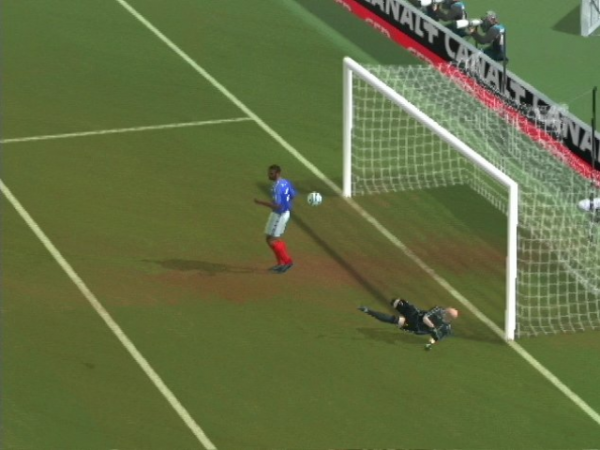
You can aim a penalty shot towards five different areas of the goal as shown below.
•
Press and hold + or to aim at zone 1.
•
1 + ➡ or or 1 for zone 3.
•
or no direction for zone 5.
Press to stop the accuracy meter bar within the accuracy zone to strike an accurate shot. If you shoot when the bar is outside of the accuracy zone, you will miss the penalty. The speed of the bar within the