GETTING STARTED
Set up your PlayStation®2 computer entertainment system according to the instructions in its Instruction Manual. Make sure the MAIN POWER switch (located on the back of the console) is turned on.
Press the RESET button. When the power indicator lights up, press the open button and the disc tray will open. Place the (Tokyo Xtreme Racer Zero) disc on the disc tray with the label side facing up. Press the open button again and the disc tray will close. Attach game controllers and other peripherals, as appropriate. Follow on-screen instructions and refer to this manual for information on using the software.
MODE SELECT
•
MODE 1: QUEST - Quest Mode - Try to rise to the top by seeking out and racing rival drivers on Tokyo's highways. •
MODE 2: QR - Quick Race - Attempt to defeat 100 rivals without regaining your SP!
•
MODE 3: TA - Time Attack - Race through a particular course as fast as possible.
•
MODE 4: FR - Free Run - Freely drive around Tokyo's highways.
•
MODE 5: VS - Versus (VS) - Race against a friend (2 Player split screen).
•
System - Change key assignments, load and save games, and change game settings.
•
DVD Extras - Watch the trailer for "The Fast and the Furious" and the "Night Warrior" documentary.
QUEST
STARTING A GAME
New Game
After buying a car you are taken to the "Garage". This is the main menu in Quest mode.
Load Game
After selecting Quest at the main menu, select "Continue" to load your previously saved game.
GAME CONTROLS
This game mode is for one player. Make sure to connect the Dualshock™2 analog controller and other peripherals before turning on your PlayStation®2 computer entertainment system.
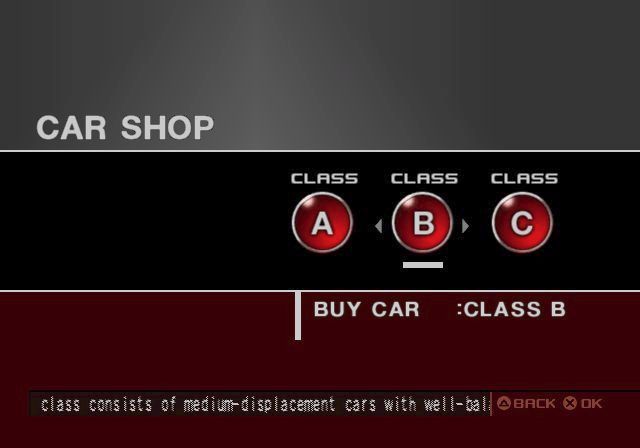
NEW GAME: Buying a Car
You can choose between Class A, Class B, and Class C. When a New game is started, you begin with enough money to buy a Class A, Class B, or Class C car.
While browsing the different cars, you can press the L1 or R1 buttons to bring up the car statistics. By pressing Up or Down on the directional buttons, you can change the color of the car. Additionally, pressing the square button will bring up the sort menu.
In this menu you can sort the cars by Car Name, Price, Power/Weight Ratio, or Torque/Weight Ratio. When buying a car, the drive-train, weight, horsepower and engine size appears in the upper right corner of the car display.
NOTE
Not all cars have the same choice of colors. However you can adjust the color to your liking using the Color Change feature described on page 12.
Name Entry
Use the directional buttons to move the cursor over the letter/number you want and press X to select it. Press the square button to delete letters.
License Plate
Press the Start button to complete your selection.
GARAGE
There are 8 selections in your Garage:
•
Car Change - Change to another car (NOTE: You must have purchased more than 1 car).
•
Setting - Allows you to make adjustments to your car.
•
Parts Shop - Lets you buy, install and replace parts for your car.
•
Car Shop - Buy and Sell cars.
•
Rivals - Displays information on the rivals you have encountered so far.
•
System - Allows you to save, load, and access options.
•
End Quest - Ends Quest mode.
In addition to these selections, there is other information you should know about in your Garage: You can press the L2 Button to activate a detailed specifications display about your current car, and you can press the R2 Button to display a User Information display.
The User Information display shows how many races you've won, lost, drawn, your win average, max speed, speed rate (average speed), total mileage on your current car and how many cars you have stored in your Garage.
Also in the Garage is "Real Time" located in the upper right corner above the number of days you've raced. This time is based on the time setting of the internal clock on your PlayStation®2 computer entertainment system. This time is crucial in racing some of the later rivals. Car Spec
On the right of the screen you'll see a small information panel that shows your current cars' drive-train, weight, horsepower, and engine size. Underneath this display you'll see the power graph. This graph shows the torque and horsepower rate of your current car.
Battle Name
Your battle name is located in the upper left corner of your car display and changes as you progress through the game. It's what the other drivers call you based on your driving style. Money
You gain money as you defeat rivals. You can use money to buy parts for your car, or buy a new car. The amount of money you have appears in the upper right corner of the Garage screen under the


.png)

.png)


.png)


_1.png)
.png)


.png)

.png)
.png)





.png)
