Starting Up
1. Set up your Sega Saturn system as described in its instruction manual. Plug in Control Pad 1. 2. Place the Shellshock disc, label side up, in the well of the CD tray and close the lid.
3. Turn on the TV or monitor and the Sega Saturn™. The Sega Saturn™ logo appears on screen. 4. If nothing happens, turn the system off and make sure it is set up correctly before turning it on again.
If you wish to stop the game in progress or the game ends, press the Reset Button on the Sega Saturn console to display the on-screen Control Panel. Important: Your Sega Saturn™ CD contains a security code that allows the disc to be read. Be sure to keep the disc clean and handle it carefully. If your Sega Saturn™ system has trouble reading the disc, remove the disc and wipe it carefully, starting from the center of the disc and wiping straight out toward the edge. Shellshock
Startin' Out
Shellshock starts with an animated Introduction. The Introduction is followed by the Title Screen. From the Introduction, press Start to take you to the virtual environment of Da Wardenz HQ, known as THE PEN.
The Pen
The Pen is located in the abandoned state correctional facility on Jackson Island, New York City. It is in here that you can explore the game's various options, including accessing status screens, equipping your tank, and entering Mission Briefings.
Gettin' Round The Pen
Gettin' round in the Pen couldn't be easier. All you gotta do is move a target-shaped cursor with the D-Pad between the several locations you can visit in the HQ. Text is overlaid at the bottom of the screen to describe each location. By pressing the "C" button on a location, you can access it.
HQ Locations
From your 'home' location in the Main Hangar, you can access 4 main locations: Tank, Basketball Court, Workshop Area, and Briefing Area.
Tank
From here, you can climb aboard your M-13 Predator tank and customize its controls. Your options here are:
•
Climb Aboard Tank: Inside the Predator's cockpit, you'll find various options to enable you to customize the tank's controls.
•
Exit: Takes you back to your 'home' location in the Main Hangar.
Basketball Court
Even though you can't shoot some hoops with 9-1-1, there's plenty to do in here: •
Go To Stereo System: This is where you can listen to those funky beats.
•
Enter Simulation Room: Here you can talk to Earshot, your communications man. •
Exit: Takes you back to your 'home' location in the Main Hangar.
Workshop Area
Now you're in touch with Props in the Stores. If you got the cash, you can upgrade your tank. The upgrades appear on the counter next to Props, so you can shop 'til you drop. These are the options in the Workshop Area: •
Next Item: Clicking on the D-Pad Left or Right lets you cycle through what's on offer.
•
Buy Item: Clicking on the “C” Button lets you buy it (so long as you got the cash).
•
Leave Stores: Hit Start Button.
Briefing Area
Everything from your preferred control and sound configurations to your tank status will be saved. When you return to hangin' out with Da Wardenz crew, you'll be able to get straight down to business.
Other options in the Briefing Area are:
•
Enter Briefing Room: Starts the Mission Briefing sequence for your current mission.
•
Talk To Dogg-Tag: Chew the fat with the main Wardenz man. •
Exit: Takes you back to your 'home' location in the Main Hangar.
•
Open Lockers: Save and load your progress.
Mission Briefings
This is where you get the main rundown regarding each and every mission in the game. Dogg-Tag's the man with the plan in here and you better listen up if you want to stay alive. Sometimes The Man's talking to you and setting the scene with background details to the mission location. Everything said in the briefings is vital to the successful completion of your missions, so you don't want to miss out on anything that's said. You can always leave the briefings at any time if needed.
In The Tank
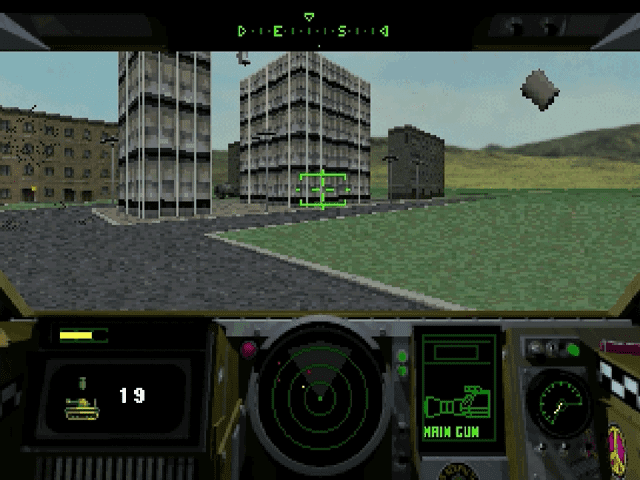
The cockpit of your M-13 Predator battletank is truly state-of-the-art. In here you got everything you need to help you take out those bad guys to maximum effect.
1. 360-4D 'Flack' Mk.I Threat Display: This is your radar. It plots the positions of all targets, bullets, shells, and missiles, relative to your position. It also shows the position of your Main Gun Turret.
2. Kripps 'All Points' Roll-round Compass: A roll-round compass, with the central point showing your tank's current heading.
3. Farelight 470 Mission Objective Indicator: The location of your next mission objective is shown by the two arrows situated to either side of the Compass. If they are both pointing right, then you go right. If they both point left, then you should go left. If the arrows are pointing inward and a third arrow appears in the center of the screen, then your objective is dead ahead.
4. A1 'Protector' Armor Integrity Indicator: This indicator shows the level