STARTING THE GAME
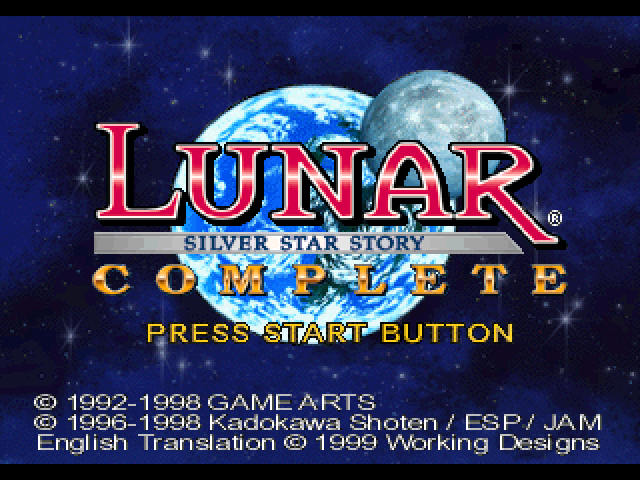
If the START button is pressed during the opening animation, the Title screen will be displayed. There are three options on the Title screen: NEW GAME, CONTINUE, and OPTION.
NEW GAME
Start the game. If this is the first time that the game is played, or to start from the beginning, choose NEW GAME on the Title screen. The game will start from the beginning.
CONTINUE
Load a previously saved game. After choosing CONTINUE, the Load screen will be displayed. The Load screen displays currently saved games and the Restart option.
To help differentiate between different save files, each save file will list the following information: current location, Alex's level, and game time. To start the game from the beginning, select Restart. It is possible to decide which Memory Card to use during a save or load. To load a game, first select which Memory Card Slot to use by pressing the or buttons.
Next, move the cursor to select which file to load. Press the button. Confirm the decision to load the file by selecting, "Yes". The game will then load. To cancel, select "No". Please do not remove the Memory Card during a save or a load.
OPTION
Adjust game settings. Allows the following game settings to be changed: Sound, Change Lines, Message Advance, Message Speed, Shock, and Name Spells. Each of these options can be configured before the game and also during the game by accessing Nall's System menu. SOUND
Select how the sound is heard in the game: Stereo (VERY titillating!) or Mono (dull!).
MESSAGE SPEED
Changes the speed at which messages are displayed on the screen. There are three speeds: Fast (Nall), Regular (why yes, thank you!), and Slow (Ramus). CHANGE LINES
Determines the order in which equipment and items are displayed in the Item window. If the option is set to Equipment, then equipment will be listed first in the Item window. If it is set to Item, items will be listed first, then equipment.
SHOCK
Activate or deactivate vibration for the Dual Shock. Select "Yes" to have the shock active, or "No" to turn off the vibration.
MESSAGE ADVANCE
Decide how messages on the screen are advanced: Auto or Manual. Auto allows messages to advance without needing the confirmation of a button press. Manual requires that the button be pressed before the next message is displayed.
NAME SPELLS
Determines if the names of the spells will be displayed on the Combat screen during combat. Select "Yes" to display the names, or "No" to turn off the display.
NORMAL MENU
The Normal menu can be accessed by pressing the button. The Normal menu allows magic and items to be used, weapons and armor to be equipped, or a character's status to be checked.
By moving the Directional Buttons to the right or left, or by pressing the or button, additional party members can be selected. The Normal menu screen is described below.
NORMAL MENU SCREEN
MENU ICONS
The menu commands are in the form of icons. The four icons represent the following: Magic, Items, Equipment, and Status.
Note: When Nall is selected a special menu will appear. DISPLAY WINDOW
Shows the magics/skills a character has learned, or displays their personal inventory.
PARTY
Displays the characters who are currently in the group, and their current status. The status shows the character's name, current level, and the current/maximum value of HP and MP.
MESSAGE WINDOW
Displays currently selected option along with a brief description.
SILVER
Current amount of silver being carried by the group.
MAGIC
Each of the characters in LUNAR has the ability to use magic or special skills (except for Ramus, he's a little on the slow side). When a character has been selected, the magic or special skill that they have learned will be displayed in the form of icons. Located in the Message window will be the name of the selected magic and a brief description. To the right of the Magic icon(s) will be the number of magic points required to use the magic, as well as the total number of available magic points. Make sure that the character has enough magic points available in order to cast the spell.
Note: If magic can't be used at that particular time due to insufficient magic points or it's inapplicable to that time, it will be grayed out.
•
To cast a spell, first move the cursor to select a character that will cast the spell.
•
Next move the cursor to the desired spell.
If the spell only affects one party member, a cursor will then appear around the characters at the top of the screen. Move this cursor to select which character will receive the spell. Then press the button to cast the spell.
If a spell affects the whole party, simply press the button to execute the selected spell.
NALL'S MENU
CONFIGURE
Change game settings. Allows the following game settings to be changed: Sound, Change Lines, Message Advance, Message Speed, Shock, and Name Spells. These options, even though they are identical to the options located on the Title Screen, are described below.
SOUND
Select how the sound is heard in the game: Stereo (VERY titillating!) or Mono (dull!).
MESSAGE SPEED
Changes the speed at which messages are displayed on the screen. There are three speeds: Fast (Nall  (Disc 1).png)


.png)
_2.jpg)
_3.jpg)
 [NTSC-U] [SLUS-00628].png)
 (Disc 2).png)
 (Disc 2).png)









_1.png)

 (Disc 2).png)







.png)

.png)
.png)
 (Disc 1).png)