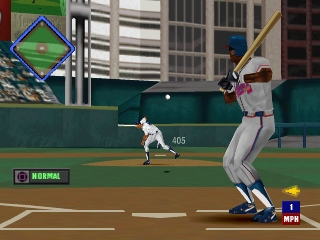
Outfield
Use the outfield Shift to adjust your outfield to a strategic defensive set.
•
A Normal outfield places it in a position on the field for regular situations.
•
Place your outfield in a Deep set if someone of Albert Belle's home run ability comes to the plate.
•
Move the outfielders in Shallow to snag a liner or stop an important run from scoring from second on a base hit.
Offense
The best way to beat a good defense is with a potent offense. Pay close attention to the setup of the defensive players and learn how to use the bunt when the infield is drawn back.
Use the hit & run or bunt to advance a runner safely, or steal a base to reach scoring position.
Batting
When a pitcher delivers the ball, a yellow ball marker box appears indicating the location of the ball.
•
Use the D-pad to move the white bat cursor over the ball marker. When the ball is in range of the batting area, the white bat cursor will turn red.
NOTE: The batting cursor is a feature of the Veteran and All-Star levels only.
For late inning punch, switch the batter's swing from normal contact to Power by pressing the O button before the pitcher delivers the ball.
Pause Menu
During the course of the game, you can make changes to the setup and further customize your game. Use the D-Pad Up/Down, Left/Right to cycle through to menu selections and their options.
Fielding View
View the plays in the field from a High, Medium, or Low view.
Batting View
View the batting from a High, Medium, Low 1, or Low 2 view.
Point of View
Use this option to view the game from the offensive or defensive point of view.
•
Alternate Home will always view the game from the Home team's perspective.
•
For Alternate Away, the game is viewed from the Visitor's perspective.
Options
See the options section of the PreGame screen for details of most of the game attributes. Other options not available in the PreGame section are shown below.
SFX Volume
Use this option to adjust the sound effects volume.
Announcer Volume
Use this option to adjust the volume of the play-by-play announcer.
Crowd Volume
Use this option to adjust the volume of the crowd noise.
Auto Leadoff (On/Off)
Use this option to have your base runners automatically or manually take a lead from the base they occupy.
Auto Sliding (On/Off)
Use this option to have your base runners automatically or manually slide when approaching a base.
Scoreboard
Use this option to be able to view the scoreboard during the inning. Press the Start button to return to the game or the O button to return to the previous menu.
Rosters
Use this option to make changes to the lineup and in the field during the game. Highlight Rosters and press the X button.
•
Highlight the player to be replaced and press the X button. This will bring up the reserve roster.
•
Highlight the reserve to be inserted into the lineup and press the X button.
•
Press the Select button on your controller to return to the Pause Menu.
•
Press the Start button on your controller to return to the game.
You can view the complete team rosters as well as player statistics of both teams.
•
From the Team Roster, press the Square button for a list of the entire team.
•
Press the R2 button to view the opponents roster and statistics.
•
Press the R1 button to toggle between the 1996 season, stats and today's current stats of either team.
To pinch-hit for a pitcher:
•
Select the pitcher in your lineup and press the X button to bring the Reserve Roster.
•
Select a pinch hitter from the roster and press the X button.
When your team returns to the field, the Select a Pitcher option will automatically appear. Select a pitcher to continue the game.
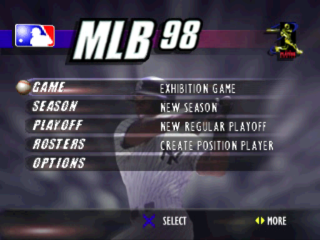
Main Menu
From each menu, use the directional arrow pad (D-pad) to highlight the menu options. Use the X button to accept your menu choice and to bring up the next menu.
Located on the bottom of the setup screens are guides that match the buttons on your controller. Use these guides to help direct you for each selected menu.
Game
Use this menu option to play an Exhibition Game, enjoy the mid-season celebration of an All-Star Game, or show off your power and strength in a Home Run Derby. Each of these games can be played in a two-player format.
•
Left/Right to cycle through the choices of this selected option and press the X button.
•
View the stats at the completion of a game: Press the X button, highlight a team, and press the X button.
Exhibition Game
Use the Exhibition games to prepare yourself for a lengthy regular season or the intense pressure of competing in the playoffs.
Exhibition games are not recorded in the season standings and cannot be saved to the memory card.
•
Highlight Exhibition Game and press the O button to bring up the Team Select screen.
Team Select Screen
Use this screen to choose the Player Mode, as well as the league and teams for competition.
Player Mode
•
D-Pad Left to set your controller for Team 1, the Visitors.
•
D-Pad Right to set your controller for Team 2, the Home Team.
•
D-Pad Up/Down to change the difficulty level.
•
To play the computer, leave one