GETTING STARTED
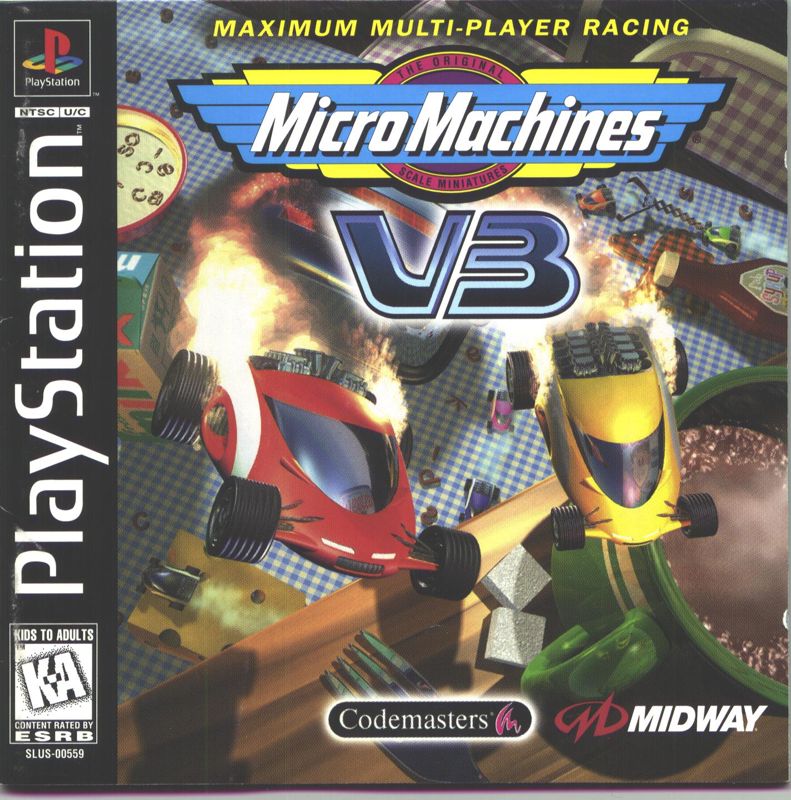
Set up your PlayStation™ game console according to its Instruction Manual. Make sure the Power Indicator is off before inserting or removing a compact disc. Insert the Micro Machines® V3 disc and close the Disc cover. Insert game controllers and turn on the PlayStation™ game console. Follow on-screen instructions to start a game. Front View
WELCOME
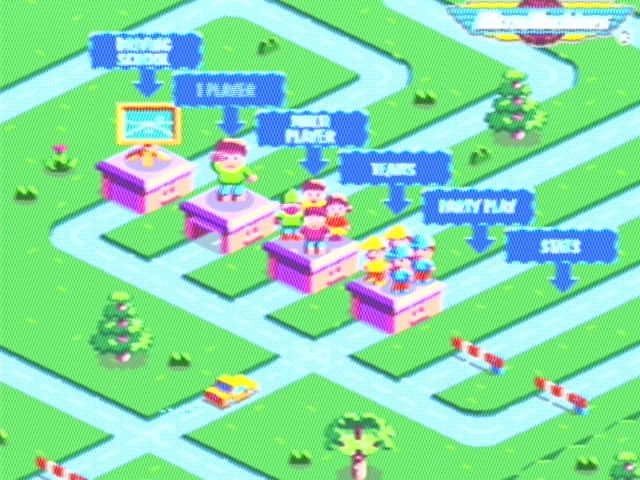
Once the title screens have disappeared, you are presented with the Game Options menu. You're the little car at the bottom of the screen and can now decide what options you want to play with.
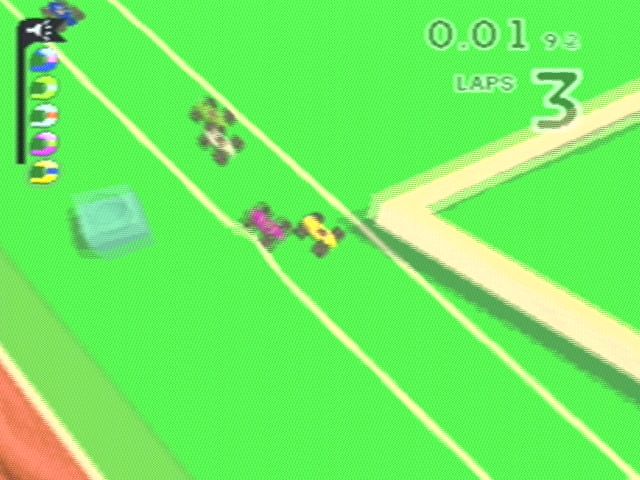
You can quit out of races at any time. Press the Start button to pause the game, which will give you the option to 'Quit'. Choose 'YES' to quit or 'NO' to continue. You will be given a further option to restart; choose 'YES' or 'NO'.
TOP VIEW
FRONT VIEW
Top View
MEMORY CARDS
It is advised that you do not insert or remove peripherals or Memory cards once the power is turned on.
With the power OFF, insert a Memory card into the Memory card slot if you wish to load or save information during play.
Make sure there are enough free blocks on your Memory card before commencing play. You cannot swap Memory cards during play and must leave the Memory card in the Memory card slot. If you do not have a Memory card in the PlayStation™ game console before you start playing, then you will not be able to save your progress. See Loading and Saving Characters on page 5 for more information.
GAME OPTIONS
Choose the kind of game you want to play.
Press the LEFT or RIGHT Directional buttons to highlight your choice of game, and press the X button to make your selection.
At any time during the set-up procedure, you can press the button to go back to the previous menu.
If you've been playing for a while and elect not to race again, you'll be taken back to this screen. However, you can now select the Bypass option.
BYPASS
Skip to the exact same point which you had just left. This is a shortcut so it saves you going through the Game Options system again.
LOADING AND SAVING CHARACTERS
Make sure there are enough free blocks on your memory card before you begin playing.
When you first start the game, you need to choose which character you would like to be, or you can load a saved character from a Memory card. There is a 'Load All' function which will load the first 8 characters from your Memory card.
Alternatively, you can choose up to 8 previously saved characters from the Memory card to join the 'Party'. This is done by using the Directional buttons to highlight individual characters. Press the X button, and the character will be transferred to the 'Party'.
When you have selected all the characters you want, highlight the 'Done' box and press the X button. You'll go to the 'Choose a character screen'. Simply find the character you want, and press the X button to make your selection.
If you do not wish to load a character from a Memory card, use the UP and DOWN Directional buttons to select a pre-defined character.
Once selected, you can rename the character if you like. Simply highlight the letters and confirm each letter with the X button. Finally, select and confirm 'OK' in the same way.
You'll then be asked if you'd like to SAVE the character to a Memory card. Remember, you cannot save later on, so if you want to build this character up for future use, you must save now.
You must have a formatted Memory card present before playing to utilize this option, with one block free per saved character. If you have an unformatted Memory card present, the game will ask if you wish to format your Memory card. It will format and save the currently selected character.
If your Memory card is full, you will need to delete a block from the Memory card or insert a Memory card with a free block.
If you'd like to delete a character, this must be done from the Internal Memory card Management Screen. Refer to the PlayStation™ Instruction manual for more details. You will be asked if you wish to have your character updated when you return to the Game Options. If you choose 'NO' when prompted, all the character's records since the last update will be lost.
DRIVING SCHOOL MODE
Select this option if you are new to Micro Machines® or if you wish to brush up your driving skills. Cherry will take you through a series of lessons explaining how to drive any of the Micro Machines® vehicles. Simply follow Cherry's instructions to learn how to drive. Cherry must be satisfied with your ability on each lesson to complete it. This involves meeting the requirement of each lesson.
1 PLAYER MODE
Removing or inserting controllers in this mode will cause the game to pause. Press the START button to continue if this happens. With just one person racing, the following options are available: HEAD TO HEAD
It's just you versus a computer-controlled opponent, racing through a set of tracks 





.png)

.png)