Playing the Game
•
Set up your PlayStation™ game console according to its Instruction Manual. •
Make sure the power is off before inserting or removing a compact disc.
•
Insert the SHADOW MASTER disc and close the Disc cover.
•
Insert game controllers and turn on the PlayStation™ game console. •
Follow on-screen instructions to start the game.
PlayStation™ Console - Top View
PlayStation™ Console - Front View
Warning
It is advised that you do not insert or remove peripherals or Memory cards once the power has been turned on.
Make sure you have enough free blocks on your Memory card before commencing play. Shadow Master requires one Memory card block per saved game. Play
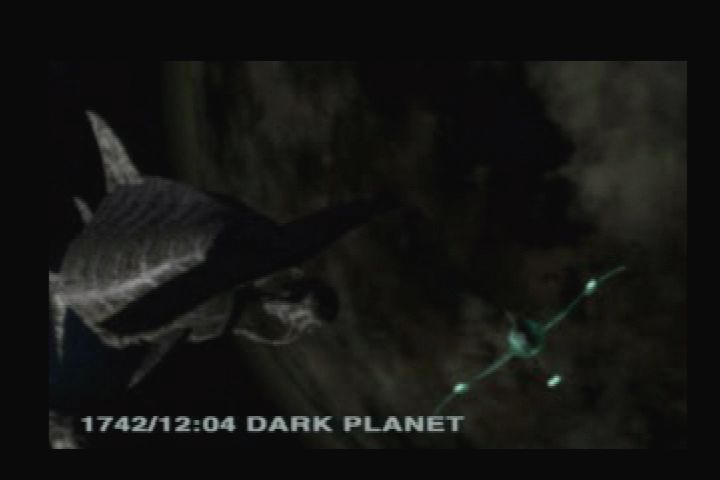
A cinematic sequence will be shown. Press the X button to skip the sequence and press the X button again to take you into the game.
Options
Use the Up and Down Directional buttons to select between Controls, Memory card, Volume and Center Screen options. Press the X button to confirm.
Controls
Use the Up and Down Directional buttons to choose a suitable configuration for your Controller. There are three configurations to choose from.
The Analog controller and the Analog Joystick, when inserted, can also be configured from within this screen. Follow the on-screen instructions to calibrate them. When using an Analog controller or Analog Joystick make sure it is switched to Analog mode.
There is one default configuration for the Analog controller and two configurations to choose from for the Analog Joystick. The Analog controller can be used in either Analog controller mode (LED: Red) or Analog Joystick mode (LED: Green).
Press the X button to accept the new configuration or press the A button to cancel your selection. Either way you will return to the Options menu.
Note: Analog Controller in Analog Joystick Mode
When using the Analog controller in Analog Joystick mode (LED: Green), the R1 button is used to Select Secondary Weapon/Exit Menu Screens/Cancel Selections. The A button is used to fire.
Memory Card
Make sure you have enough free blocks on your Memory card before commencing play. Also ensure that the Memory card is inserted according to the system instructions before the PlayStation™ game console is switched on. Shadow Master requires one Memory card block per saved game. Loading Games
To load a game, make sure you have a Memory card containing a saved Shadow Master game, inserted according to the system instructions. If you have two Memory cards inserted use the Up and Down Directional buttons to switch between them, then press the X button to confirm. The game will then be loaded. Once loaded you will return to the Options menu.
Volume
Use the Up and Down Directional buttons to choose between Music and Sound Effects. Then use the Left Directional button to decrease and the Right Directional button to increase the volume.
Press the X button to accept the new configuration or press the A button to cancel your selection. Either way you will return to the Options menu.
Center Screen
Use the Directional buttons to position the game screen. Press the X button to confirm, or the A button to abort the process.
In-Game Menu
Access the In-Game Menu by pressing the Start button during a game. This will pause the action. End Game
Aborts the current game and returns to the Main Menu.
Continue
Returns to the point in the game at which it was paused.
Mission
Hear the mission briefing again.
Music Volume
Use the Left Directional button to decrease and the Right Directional button to increase the volume of the in-game music.
Sound Effects
Use the Left Directional button to decrease and the Right Directional button to increase the volume of the in-game sound effects.
End Game Menu
Following the end of each planet's sequence of missions, you will be shown a screen with the options to Continue or Save. Press the X button if you wish to continue to the next level. Press the A button if you wish to save your progress.
Saving Games
If you have two Memory cards inserted, use the Up and Down Directional buttons to switch between them. Press the X button to initiate a save.
If a saved game already exists on the Memory card, you will be given the option to overwrite it. The message "Overwrite File. Are you sure?" will be displayed. Press the X button to continue the save or the A button to abort the save.
Mission Briefings
Before the start of each level, you will hear a Mission Briefing. This will outline your objectives for each level.
As several levels have multiple objectives, the Mission Briefings are essential for gathering information before commencing battle. To skip Mission Briefings and enter the level, press the X button.
Crystals
Crystals are dropped in various quantities by nearly all the creatures in the game when they are destroyed. When collected, Crystals boost energy levels.
QSound™ Virtual Audio
Congratulations! The Shadow Master product you have purchased incorporates QSound™ Virtual Audio from QSound™ Labs Inc. QSound™ is a patented, innovative process that creates a dramatically enhanced soundfield extending far beyond the bounds of regular stereo. The result is an audio experience of unparalleled realism. Guide to Optimal Listening
The following guidelines will help you get the maximum benefit from QSound
.png)


.png)

.png)