GETTING STARTED
Console Top View
Console Front View
Setup
•
Set up your PlayStation® game console according to the instructions in the User Manual. •
Check that the console is OFF before either inserting or removing a disc.
•
Insert the Smurf Racer! disc and close the disc cover. •
To reload a saved game or save a game Insert a MEMORY CARD in MEMORY CARD Slot 1. Smurf Racer! Requires one free block to save. •
Connect a Controller to Controller port 1 and turn the console on by switching the POWER button ON.
•
Insert a Controller in Controller port 2, sold separately, in order race in 2 player mode.
•
Do not insert or remove peripherals or MEMORY CARDS while your console is switched on.
GAME PLAY
Smurf Racer! has 9 races in 3 different worlds, plus a Secret Level and the Flag Race. To Play, You Must:
•
Choose your level of difficulty (Easy or Expert)
•
Race Mode (one or two players, Single race, Championship or Flag Race)
Each character has a vehicle specially created to match that character's personality. Depending on the character you have chosen, you can select and throw special objects (hearts, cakes, nails, etc.) at your opponents to slow them down during the race. Certain objects allow you to speed up or even become invincible against attacks from other competitors. Special Characters
•
3 special characters. These are available for play in Single race mode, but only if you have managed to beat them in the last race of each world in the championship mode.
•
1 additional special character, available only if you have won the race in the Secret Level.
HOW TO PLAY
In each menu, on-screen explanations appear to help you select and validate your choices: the directional buttons select options and the button validates your choice. You can cancel your choices by pressing the button.
At the beginning of the game, you will be asked to choose a language. The option highlighted in blue is the option that will be chosen if confirmed.
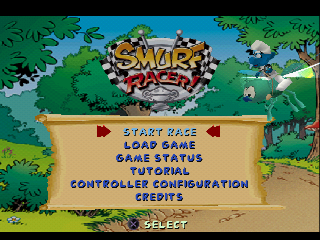
Main Menu Options
•
Game Status (review races, prizes, or best times achieved in the one player mode only).
•
Tutorial (explains objects in the game).
•
Controller Configuration.
Note: There are 3 different controller configurations.
Difficulty Levels
To play, start by selecting the level of difficulty: Easy or Expert.
Easy Mode
Easy mode gives you access to all 3 different race modes.
Expert Mode
In Expert mode you can access the same races but there are slight differences. You have to keep an eye on your vehicle's energy level. To increase your energy level, you have to pass between the keys. Be very careful, driving in this level is at a much faster pace! Race Selection (1 Player Mode)
SINGLE RACE
There are 8 Smurfs to play in your choice of worlds and races.
If you have previously beaten the super Smurfs in one or more worlds during the championship mode, you can choose to play with these super Smurfs in the Single race mode only.
CHAMPIONSHIP
The goal of the game is to win all the races in each world. In the third race of each world, you have to beat a super Smurf (Wild Smurf in the village world, King Smurf in the castle world and Super Drive in the Forbidden Zone). You will also find a super Smurf in the Secret Level: Astro Smurf. THE FLAG RACE
In the Flag Race, the goal is to collect all the flags that have been planted on the track before the other competitor gets them. To pick up the flags you must run them over. If your competitor has already taken some flags, you can launch a firecracker at him to make him drop his flags. Be careful not to crash or you'll lose some of your flags! PAUSE MENU
To Pause the game press the Start button. During a pause in the race, you have the following choices:
•
RESUME - Exit the menu and return to the race.
•
RESTART THE RACE - Start the race again from the beginning.
•
CHANGE TRACK - Choose another track.
OPTIONS
•
FX - Turn sound effects volume up or down.
•
Music - Turn the background music volume up or down.
•
Mode - Select sound in mono or stereo.
•
Vibration on/off - Select the vibration option available on the DUALSHOCK™ analog controller. The vibration function of the DUALSHOCK analog controller will only work in ANALOG mode (LED:Red).
•
Exit - Leave the options menu and return to the Pause menu.
•
QUIT TO MAIN MENU – Exit the race and return to the main menus.
GAME PAUSED Screen
 (En,Fr,Es).png)

 (En,Fr,Es).png)

.png)
.png)
_1.png)
.png)
.png)
.png)





.png)
_1.png)


.png)
 (En,Fr).png)