STARTING UP
Set up your Console according to the Instruction Manual. Make sure the power is off before inserting or removing a disc.
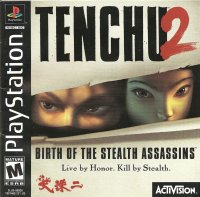
Insert the Tenchu disc and close the Disc cover. Insert game Controllers and turn on the Console. Follow the on-screen instructions to start a game.
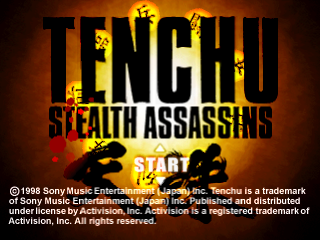
It is advised that you do not insert or remove peripherals or memory cards once the power is on. When the game is started you will see an introductory sequence. Press the X button to end this sequence and bring up the Main menu.
Main Menu
Use the Directional buttons up/down to scroll options and the X to select. There are three options on the Main menu:
•
START - Press the X button to start the game using the current settings. You will proceed to the Character screen.
•
TRAINING - Here you can play the training mission to practice your ninja skills.
•
OPTIONS - Select Options to change game settings (see Options menu below).
Options Menu
Use the Directional buttons to highlight an option, and the X to select. Use the ▲ to return to the Main menu. There are ten options to choose from:
•
RECORD - Choose this option to view the performance record for each character.
•
DIFFICULTY - Use the Directional buttons up/down to select between normal and hard. Selecting hard difficulty will increase both the number of enemies and their hit points.
•
STEREO/MONO - Use the Directional buttons up/down to select between stereo or mono sound.
•
VOLUME - Select this option to change music and effects volume (See Volume below).
•
MUSIC TEST - Select this option to play any of the music tracks and/or sound effects (See Music Test on page 6).
•
CONTROLLER - Use the Directional buttons right/left to select between the default Controller configuration and three alternate configurations according to your preference.
•
VIBRATION - Use the Up/Down Directional buttons to select if the vibration function is on or off. If you are using an Analog Controller (DUAL SHOCK), set the vibration function to On to turn on the Analog Controller (DUAL SHOCK)'s vibration function. In certain situations, the Analog Controller (DUAL SHOCK) will vibrate to simulate the impact of attacks and damage.
•
MEMORY CARD - Select this option to access the Memory Card functions (See Memory Card on page 6).
•
AUTO SAVE - Use the Directional buttons up/down to select between On or Off. On will give you with the option to save your progress after the completion of each mission.
•
LANGUAGE - You can select between English, French and Italian.
The game has 3 different layouts for each level 'A, B and C'. The 'Layout' refers to the position of the enemy characters and the location of pickups. When the user selects a level, the level's layout is selected randomly. The 'SELECT STAGE' option screen informs the user of their highest rating for each level regardless of the layout.
Volume
Use the Directional buttons up/down to select music volume or sound effects volume. Use the Directional buttons left/right to adjust volume. Press X to accept volume settings and return to Options. Use △ to return to Options without making changes.
Music Test
Use the Directional buttons up/down to select Play Music or Play Effects. Use the Directional buttons left/right to select a particular music track or sound track.
Memory Card
Use the Directional buttons up/down to highlight Load to load a game from the memory card or Save to save your progress to the Memory Card. Make sure there are enough free blocks on your Memory card before commencing play.
Character Screen
Use the Directional buttons left/right to select your character. Press X to advance to Mission Select screen. Press ▲ to return to the Main menu.
Mission Screen
This screen will display all playable missions. When you complete certain missions, more will become available. Use the Directional buttons up/down to select a mission and X to accept. Press ▲ to return to the Character screen.
Mission Intro
In the mission intro you will hear a description that describes your mission. Press X to skip the intro and move to the Items screen.
Items Screen
Ninja items available for you to use in the mission will be displayed. Use the Directional buttons to select an item to add to your inventory, then press the X button. Press the ▲ button to remove an item from your inventory.
Remember that you are limited both by the total number of items that you can carry (shown by the number in the middle of the screen) and the number of different types of items you can carry (five). You always carry the grappling hook so you can select up to four other kinds of items. When you are satisfied with your inventory, press the START button to begin the mission. Items are automatically replenished at the completion of a mission. The mission rating (see page 11) determines the quantity of items to be replenished. Obviously, the greater your score, the more items you will obtain. Items that weren't used in a mission are automatically returned to the shelf.
Ki Meter Indicators
•
? This indicates the presence of an enemy or innocent character who is not alert to your ninja's presence.
•
! This indicates that your ninja has been spotted by an enemy but has not yet been identified as a threat. The enemy may be under the mistaken impression that you are a dog, cat, or a colleague.
•
!! This indicates that your ninja has


 (En,Fr,It).png)

.png)
.png)

.png)