Getting Started
Set up your PlayStation game console according to the instructions in its Instruction Manual. Make sure the power is off before inserting or removing a compact disc. Insert the WILD ARMS 2 disc and close the Disc Cover. Insert game controllers and turn on the PlayStation game console. Follow on-screen instructions to start a game. •
MEMORY CARD SLOTS (ABOVE CONTROLLER PORTS)
Starting the Game
Starting a New Game
From the Title Screen, press the START button to display the opening menu. Select "New Game" and the message "Start a new game?" will appear. Select "Yes."
This title consists of a two-disc set, so you must use Disc 1 to start a new game. When you have completed the story up to the end of Disc 1, a message asking you to change to the appropriate disc will appear. Open the Disc Cover without turning off the power and replace Disc 1 with Disc 2.
Continuing a Saved Game
Insert a MEMORY CARD containing a previously saved game and the correct disc into the PlayStation and turn on the power. Then, select "Load" from the opening menu. A list of games saved on the MEMORY CARD will appear. Select the game you wish to resume. The opening movie will play and then you can resume play from where you saved the game. You can press the START button at any time during the opening movie to start immediately.
Character Selection (Multi-Opening)
As the game starts, the character selection screen appears. You can start the game with any of the three characters: Ashley, Lilka or Brad.
Once you have completed an initial episode for one character, you then select the next character. The three characters are ranked in order of difficulty: Ashley, Brad and Lilka.
Name Entry
Sometimes you can change the names of certain characters that you encounter in the game. Character names can be up to nine letters long.
While entering a name, use the directional buttons to select the letter to enter and press [Circle]. When you are finished entering the name, highlight "OK" and press [Circle].
Screen Explanation
•
A Name currently entered. Use the L1 and R1 buttons to move the cursor left or right.
•
B Types of letters that can be selected. You can pick from among uppercase and lowercase letters and numbers.
•
C Selecting [Right] moves the cursor one letter to the right. Selecting [Left] moves the cursor one letter to the left.
•
D Select "RESET" to return the name to the default.
•
E Select "OK" to complete the name selection and close the same entry screen.
Use of MEMORY CARDS
To use a MEMORY CARD, Insert a MEMORY CARD (sold separately) into either MEMORY CARD slot 1 or 2 of the PlayStation game console. Saving one game requires 1 block of memory on the MEMORY CARD. Note that you can use the "MEMORY CARD Management" option on the opening menu to copy or delete saved games.
Walking in the Field
Field Screens
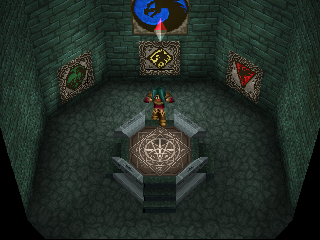
In the field, you can use L1 or R1 to rotate the field view through a full 360-degree range. Looking at a certain place from various angles will help you see hard-to-find passages and switches.
A compass appears on the screen to help you. The red end of the needle always points north. You should keep an eye on the compass to keep your bearings in complicated dungeons and the like.
Viewing the World Map
Later in your adventures, you will be able to view a map of the entire world. Press SELECT in the field to change how the map display appears.
Moving in the Field
Use the directional buttons to move your character in any direction. In addition, as your adventures proceed, you may get around by using a hovercraft or other ways. There are also vehicles that will let you soar freely through the skies of Filgaia.
The Search System
In the field outside of dungeons or towns, you can press [Square] to use the Search System. Use this Search System to find towns and dungeons when you are not sure of their locations.
Talk to people and look at signs to find out information about new locations. Once you are familiar with the general area, use [Square] to find the destination of your choice. The Search System can also be used to get hidden items laying on the ground.
Getting Into Towns/Dungeons
Once the destination is within the range lit up by the Search System, a building will appear in the field. When the character faces the building and makes contact, the name of the location will appear on the screen.
Press [Circle] while the name appears on the screen to go in.
Character Actions
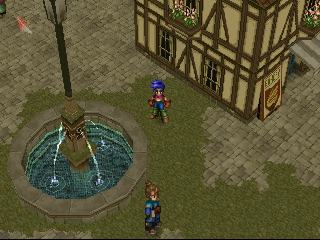
Each character can do actions in towns and dungeons. Try various actions to obtain information and items in town, or to solve various puzzles in the dungeons.
Talk to people
To talk to someone, face them, make contact and then press [Circle]. If an arrow appears at the bottom center of the message window, press [Up] or [Down] to see the rest of the message.
Investigate Items
To Investigate something, face it, make contact and then press [Circle]. This lets you read
 (Disc 1).png)


 (Disc 1).png)
 [NTSC-U] [SCUS-94484].png)
