GETTING STARTED
•
Set up your PlayStation according to the instructions in the owner's manual. •
Make sure the Power is OFF before inserting or removing a CD.
•
Insert the X-COM UFO Defense disk and close the CD door.
•
Follow all on-screen instructions.
THE GAME CONSOLE
Top View
Front View
BEFORE WE BEGIN...
Welcome to X-COM UFO Defense. These tutorials are designed to help you start playing with the minimum of trouble. The three main sections of the game are covered here: the Geoscape, the Battlescape, and the Bases Screen.
First of all, we will start a new game.
Starting a New Game
1. Insert your X-COM UFO Defense CD into your PlayStation as detailed in your PlayStation owner's manual. 2. Press PlayStation Power Button On. 3. After an animated introduction you will be taken to the Language Selection Screen.
•
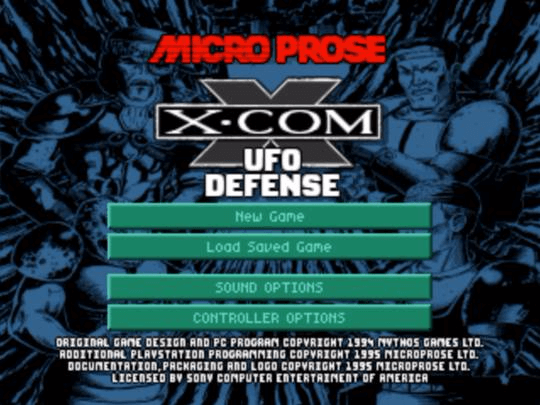
Use the D-pad up/down to select the relevant language and press the button to select. You will now be taken to the Title screen.
•
If you take no action a short demo will appear.
4. Using the D-pad highlight the New Game option. Select New Game by pressing the button. You will now be taken to the Select Difficulty screen.
Select Difficulty Level
1. Beginner
2. Experienced
3. Veteran
4. Genius
5. Superhuman
Highlight the Beginner option and press the button to select. You will now be taken into the main game screen, the Geoscape. The first thing you must do is to position your first X-COM base on the surface of the Earth.
Setting-Up a New X-COM Base
5. The message Select Site for New Base will appear in the top of the screen.
In the bottom-right hand side of the screen, you will see three green spheres surrounded by arrows. These are the View Controls which allow you to rotate and magnify the display of the Earth.
•
Press the button. The Earth display will be magnified, some borders around countries will appear.
6. Press the button again. The Earth display will be magnified again, some country names will now appear.
7. Press the button twice. The Earth display will return to its minimum magnification.
8. To rotate the Earth display use the D-pad.
•
Press D-pad (up). The Earth display will tilt towards you.
9. Press D-pad (left). The Earth display will rotate.
10. Press the Select button. A crosshair sight will appear over the Earth. You can move the position of the crosshair using the D-pad.
11. Move to any part of the Earth's surface (except the sea) and press the button to position your first base.
Note: It is a good idea to position your base in the middle of a large land mass such as North or South America, Russia or Europe. This will give you a better chance of defending that area from UFO raids.
12. A window containing the prompt Base Name? will appear. Using the D-pad enter a name by highlighting the required letters and pressing the button. When the name is complete highlight OK and press the button.
TUTORIAL 1: THE GEOSCAPE
Tutorial 1 guides you through the Geoscape's basic controls and the process of intercepting UFOs.
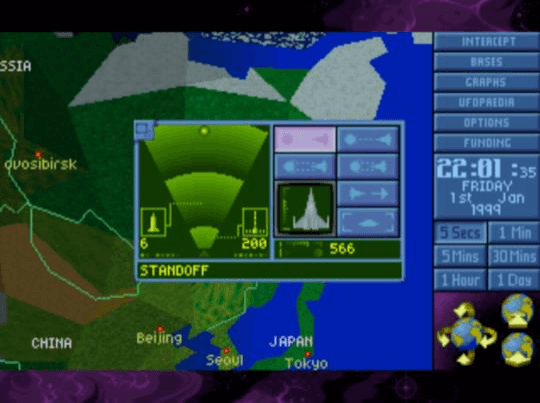
1. The Geoscape is the main screen for playing X-COM UFO Defense. You will see your base on the 3-D view of the Earth, represented as a hollow blue square.
On the right-hand side of the screen, there is a list of Menu Options, a display of the Game Time, the Time Controls and the View Controls.
The Time Controls are very important to the game, and it is these which we will go through next.
Pressing the Select button will rotate you through the following screens:
•
Geoscape Screen crosshair sight (which you can use to select new base destinations, targeting UFOs, etc.)
Note: If you wish to Pause at any stage during the game, simply select any of the Menu Options.
The Time Controls
2. Look at the Game Time. You will see that it is passing by with five second jumps. The Time Controls, below the Game Time, allow you to control the rate at which this time passes.
•
Highlight the 5 mins button and press the button. The button will depress and time will pass at an increased rate. You will see the Game Time (above the Time Controls) change rapidly and night and day will be visible on the Earth, slowly changing.
You should use the Time Controls to advance the game through any time-consuming section of the game (e.g. waiting for craft to arrive at their destinations or waiting for UFOs to be detected).
Detecting UFOs
3. We will now advance time to the point when X-COM detect their first UFO (if this has not already happened).
Highlight the 1 Day button in the Time Controls and the button. The button will depress and time will pass at the maximum rate.
4. Eventually, a window will appear over the Geoscape with the