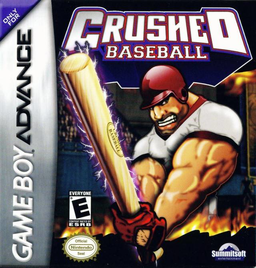
Starting the Game
Before inserting the Game Pak, ensure the power switch on your Nintendo Game Boy Advance is OFF. Never insert or remove a Game Pak when the power is ON.
Insert the Crushed Baseball Game Pak into the slot on the Game Boy Advance and press firmly to lock it in place. Turn the power switch ON to start the system.
When the game loads, press START to advance to the Main Menu / Options screen.
Getting Started
Once you reach the Main Menu / Options Screen, you will see the Options Wheel. Move through the options by pressing ◄ or ► on the Control Pad. When your desired Option is at the top center of the wheel, press the A Button to select it.
At any time, you can press the B Button to return to the previous menu. From the Options screen, you can choose from the following modes:
•
EXHIBITION: A single game vs. the computer.
•
LEAGUE: Play through a season as your favorite team.
•
PRACTICE: Play mini games and work on your skills.
•
2-PLAYER: Connect two Game Boy Advance systems via a Game Link cable.
•
OPTIONS: Adjust Basic Game Options.
Practice Mode
There are three different practice modes available: Home Run Rally, Batting, and Pitching.
Home Run Rally
In Home Run Rally, sluggers take turns trying to hit the ball out of the park. Each home run counts as 1 run, while any other hit ball counts as an out. The pitcher is friendly, throwing only fast balls right down the pipe.
See how many home runs you can hit with your favorite players before reaching the selected number of outs. It is a lot more fun than it sounds.
On this screen, ▲ or ▼ toggles through the Options and ◀ or ▶ toggles through the choices in each Option.
To begin, select the number of outs with the Control Pad (1 to 5). Next, select the number of players (1 to 5). You will control all players, and they will keep batting until the selected number of outs is reached.
Finally, select your stadium. When you have selected all options, press the A Button to begin.
Batting Practice
If you are having trouble at bat, use this mode to work on your swing.
•
Pitch Type: Press ▲ or ▼ to scroll through pitches, including Mojo Pitches. Press ▶ to advance to the Pitch Zone Selection.
•
Pitch Zone: The shaded area indicates where the pitcher can throw. Press ▲ or ▼ to scroll through options, then press ► on the Control Pad to advance to Stadium Selection.
•
Stadium: Press ▲ or ▼ to scroll through stadiums. Press the A Button to advance to the next Option.
•
Select Team: Press ◄ or ► to scroll through teams and the A Button to select a team. The roster will then appear.
•
Select a Player: Press ▲ or ▼ to scroll through players and the A Button to select the batter. This begins Batting Practice.
At any point, you may press SELECT to return to the Batting Options.
Pitching Practice
Practicing your pitching is the best way to see what each of the pitches do. You can observe their speed and movement as they approach the plate.
•
Arsenal Selection: Press ◄ or ► to toggle through pitches. Press ▼ on the Control Pad to move to the next slot. Your pitcher can have 4 different pitches in his arsenal at one time, including Mojo Pitches.
•
Stadium Selection: Press ▲ or ▼ to toggle through stadiums. Press the A Button to begin Pitching Practice.
Pitching Control
Use the Control Pad to move the Pitching Cursor around the strike zone, and press the A Button to throw the ball.
If you want to change your Options while pitching, press SELECT to return to the Pitching Practice Option Screen.
Exhibition Mode
An Exhibition Game is a single-player game that pits your team against the CPU's team. On the Exhibition Game Screen, you can select your team, whether you are Home or Away, the Stadium, and your CPU-controlled opponent.
While on this screen, pressing ▲ or ▼ toggles through preferences in the highlighted box, and pressing ◄ or ► highlights a different options box. When satisfied with the match-up and Stadium, press the A Button to advance to the Gameplay Options Window.
At any point, you can press the B Button to return to the previous menu screen.
Once the Gameplay Options Window is open, you can adjust Difficulty, Innings, Outs, Balls, Strike Count, and Mojo Generation. Press ◄ or ► to toggle through preferences and ▲ or ▼ to highlight different options.
When you are happy with your options, press the A Button to advance to the Playball Screen. If you like what you see, press the A Button again to begin the game. Good luck!
At any point, you can press the B Button to return to the previous menu screen.
League Mode
In League mode, you choose one team and play through an entire season. If you are skilled enough, you can make it all the way to the World Championship.
•
Load League: This feature is only available if you have already started a New League and saved your season. If no League is saved, this option will be shaded.
•
New League: When beginning a New League, you can choose between Traditional Mode and Dream Mode, and set all game parameters.
League Settings
Use ▲ or ▼ to highlight an option and