Getting Started
Insert the Polarium™ Advance Game Pak correctly into your Game Boy® Advance and turn the power ON. When the Title Screen appears, press START.
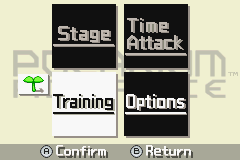
Press START, the A Button, or the L Button to display the Main Menu. Select the desired item using the Control Pad and press the A Button or the L Button to confirm your choice.
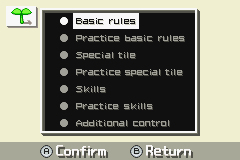
If you are playing for the first time, you have to go through the basic rules in Training Mode. Afterwards, you can choose either Stage Mode or Time Attack Mode.
•
Stage Mode: Solve preset puzzles in your own time. You can also create new puzzles.
•
Time Attack Mode: Challenge yourself by solving randomly generated puzzles as quickly as possible.
•
Training Mode: Check and practice the basic operations.
•
Options: Change various settings.
Controls and Navigation
To cancel a route you have selected and choose other tiles, press the B Button or SELECT.
Stage Mode Screen Layout
•
Date: The date advances with each puzzle. •
Difficulty level: A greater number of light bulbs indicates a higher level of difficulty.
•
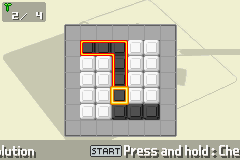
Route: The path you select using the Control Pad.
•
Outer Frame: You can select this as a part of your route.
•
Black/White tiles: These are the basic tiles. You will also come across Special tiles.
Special Tiles
•
Hurdle tile: You cannot pass over one of these tiles.
•
Multi-tile: These count as black or white.
•
Solid tile: When you erase one of these, the tile above drops down to take its place.
Stage Mode Menu
In Stage Mode, press START to bring up the Pause Menu, which allows you to choose either CONTINUE or RETURN TO MENU.
Stage Mode allows you to select from four different play modes: DAILY POLARIUM, POLARIUM REFERENCE, CUSTOM, and EDIT.
•
DAILY POLARIUM: This mode consists of 365 puzzles and your goal is to solve one puzzle per day. Each time you solve a puzzle, a new puzzle appears. You must set the date before starting your first game, but remember that the date cannot be changed once you have set it. •
POLARIUM REFERENCE: Allows you to select groups of puzzles you have already cleared in DAILY POLARIUM to play. Press the Control Pad Up and Down to select a group and Left and Right to select a puzzle. •
CUSTOM: Allows you to play a puzzle created in Edit Mode. •
EDIT: Allows you to create your own puzzles and to save up to 100 puzzles by entering your password. Press the Control Pad Up and Down to select the mode and Left and Right to select the puzzle. To delete a puzzle, press START. Creating and Saving Puzzles
You can create your own puzzle by setting the size of the play area and the layout of the tiles. When you solve a puzzle you have created during test play, the puzzle is added to those in Custom Mode, and the password is displayed in SHOW PASSWORD. The only Special tiles you can include at first are Hurdle tiles, but when you have fulfilled certain conditions, you will also be able to use other Special tiles.
You can add a puzzle by entering a password. You can also use passwords from POLARIUM™ for the Nintendo DS™. Conditional Puzzles
There are two types of conditions attached to this puzzle. In one, you must start and finish at specified points. In the other, you must clear the puzzle within a specified number of steps. Conditions are displayed on puzzles you have already solved. When you solve a conditional puzzle, various symbols are added to the puzzle number. •
Start point/End point: The colors have no significance.
•
Number of steps: The number of steps is not specified for puzzles created using a password from POLARIUM™ for the Nintendo DS™.
When you fail to solve a puzzle in Stage Mode, the Retry Screen appears. Select RETRY to have another go at solving the puzzle. Saving Progress
•
Edit Mode: If you press SELECT to pause the creation of a puzzle in Edit Mode, the Save Selection Screen appears. •
Time Attack Mode: If you clear the puzzle in one of the Best Five times and register your icon, the icon and the time will be saved. •
Options: Your settings are saved when you exit Options.
Time Attack Mode
In this mode, the challenge is to see how quickly you can solve randomly generated puzzles.
The screen layout includes the following elements:
•
Elapsed time: Tracks how long you have been playing.
•
Ranking: Shows the rank and time you are aiming for.
The timer will continue to run while the game is paused. To bring up the Pause Menu, press START during a game. To return to the game, press the B Button, SELECT, or START.
The menu provides a choice of different numbers of puzzles to solve:
•
Easy 10: Presents 10 easy puzzles to solve.
•
Hard 5: Presents 5 difficult puzzles to solve.
•
Ranking: Shows the ranking for each of the above.
Rankings and Icons
When you finish within the top five finishing times, your time and your personal icon (which you create yourself) will be recorded in the Rankings.
When you flip the tiles, you progress to


.png)
 (En,Fr,De,Es,It).png)


.png)



.png)
.png)

.png)



.png)


_1.png)



_1.png)
