SETTING UP THE GAME
Take the wheel in F1 2002 and take aim at the 2002 Formula One World Championship.
MAIN MENU
From the Main menu screen you can start a Quick Race, access Single Player modes, set up a Multiplayer game, adjust various game Options, and view the F1 2002 credits.
•
QUICK RACE: Jump straight into the cockpit in Quick Race mode.
•
SINGLE PLAYER: Hit the track in a Single Player mode.
•
MULTIPLAYER: Start a Multiplayer game.
•
OPTIONS: Access the Options screen to adjust various Audio/Visual, Controller, Load/Save, and Language settings.
•
CREDITS: View the credits for F1 2002.
•
BACK: A scrolling text bar at the bottom of each menu screen provides help for that screen.
QUICK RACE
To hit the track fast for arcade-style racing action, select QUICK RACE from the Main menu. Here, you can start a 4-lap race without dealing with anything else - just get on the track and go. Every top-six finish earns you points, unlocking new circuits to compete on in Quick Race mode. To start a Quick Race:
1. At the Main menu, press the A Button to select QUICK RACE. The Select Driver screen appears.
2. Press the +Control Pad UP/DOWN to scroll through the available drivers and press the A Button to select a driver. The Select Circuit screen appears.
3. Press the +Control Pad UP/DOWN to scroll through the available tracks and press the A Button to select an unlocked track (at the start of the game you have the choice of SILVERSTONE, HOCKENHEIM, and MONZA). The game loads and the race begins.
•
Press the C Stick to rotate the selected car.
•
In Quick Race mode, Handling is automatically set to NORMAL, Damage is set to OFF, Race Length is set to 4 LAPS, and Assists are ON.
•
Use the C Stick to rotate the selected track.
•
For information on the other game modes, see Game Modes.
ON THE TRACK
This section briefs you on the basics you need to know before you get strapped in and take the wheel.
•
Default options are listed in bold in this manual.
RACE SCREEN
View the action with or without screen displays, or view an instant replay of that awesome maneuver around the last chicane.
•
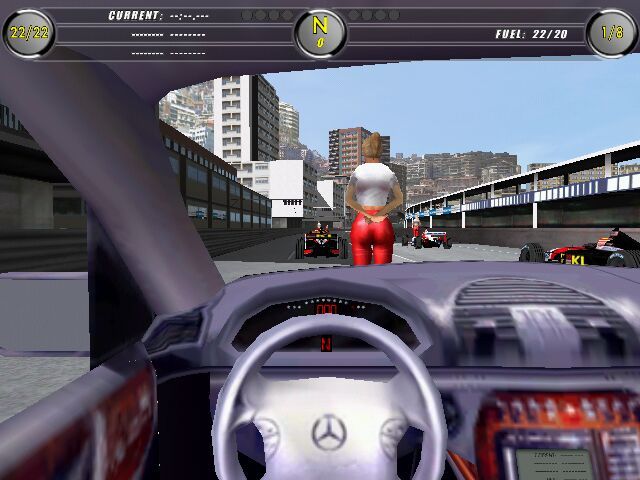
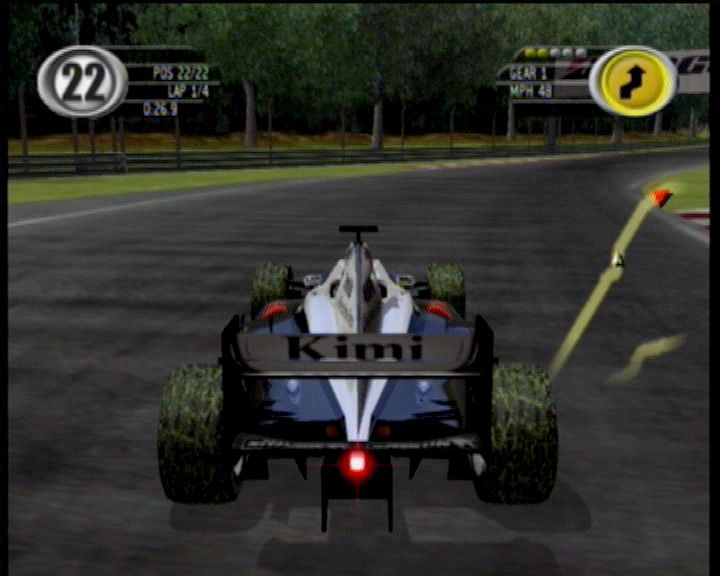
TV Panel: This shows race info such as your current position and split times.
•
Current position indicator
•
Lap time/Split times/Pit in indicator (lights up when you're required to pit)
•
Gear display with rev count indicator (change gear when the fifth counter lights up if Gears option is set to SEMI-AUTOMATIC)
SCREEN DISPLAYS
Screen displays help you track your performance throughout the race as well as give you valuable information about your car's status.
•
Turn Screen Displays ON/OFF from the Options screen or from the in-game Options menu.
•
The pit in, fuel, and mechanical problem indicators appear in Grand Prix mode only. The relevant Event Options also have to be activated.
INSTANT REPLAYS
Press the Z Button at any time during racing to begin an interactive instant replay of the last 30 seconds of action. Press START/PAUSE to return to the race. PAUSE MENU
Press START/PAUSE at any time during play to pause the game. The Pause menu gives you the following options.
•
CONTINUE: Return to the current session.
•
RETIRE FROM SESSION: End the current session (not available in Challenge mode).
•
OPTIONS: Access the in-game Options menu to adjust settings for Assists, Sound, and Display.
•
PIT IN: Go straight to the pits and open the Pit menu (Practice, Qualify, and Warm-up sessions of Grand Prix modes only).
•
RESTART/RESTART CHALLENGE: Select and confirm at the prompt to begin the current session again (not available in Grand Prix/Time Challenge Multiplayer modes).
•
QUIT EVENT: Quit the current event.
IN-GAME OPTIONS
Race the way you want to race. Use every assist available to best racing's elite drivers or turn them off to prove you can handle the horsepower. ASSISTS
The Assists available, and their default options, depend upon the mode you are racing in as well as the Handling mode (Normal or Simulation). •
SPEED ASSISTS: When ON, the computer assists the player with their speed at corners (Normal mode only).
•
CORNER INDICATOR: When ON, arrows appear in color-coded HUD circles warning you of approaching corners (tight corners are red, shallow corners appear as green, and medium corners are yellow).
•
TRACTION CONTROL: Toggle ON to make it easier to pull away without unnecessary wheel-spin (Simulation mode only). Default is OFF.
•
ABS: Toggle your anti-lock brakes ON to enable hard braking without skidding (Simulation mode only). Default is OFF.
SOUND
Use the sliders to adjust volume levels for Commentary and Effects (e.g., engine noise).
•
Press the +Control Pad UP/DOWN to move between the Sound options, then press the +Control Pad LEFT/RIGHT to adjust the selected option.
DISPLAY
•
TV PANELS: Toggle ON to display up-to-the-minute race information such as your current position and split times.
•
SCREEN DISPLAYS: Toggle between OFF and
.png)











.png)
